 SitSignal
Before you begin
Open the SitSignal app and tap the Search tab. The Drop-In booking flow asks for a service, location, date range, visit schedule, home profile, and summary before showing matching sitters.
Select Drop-In
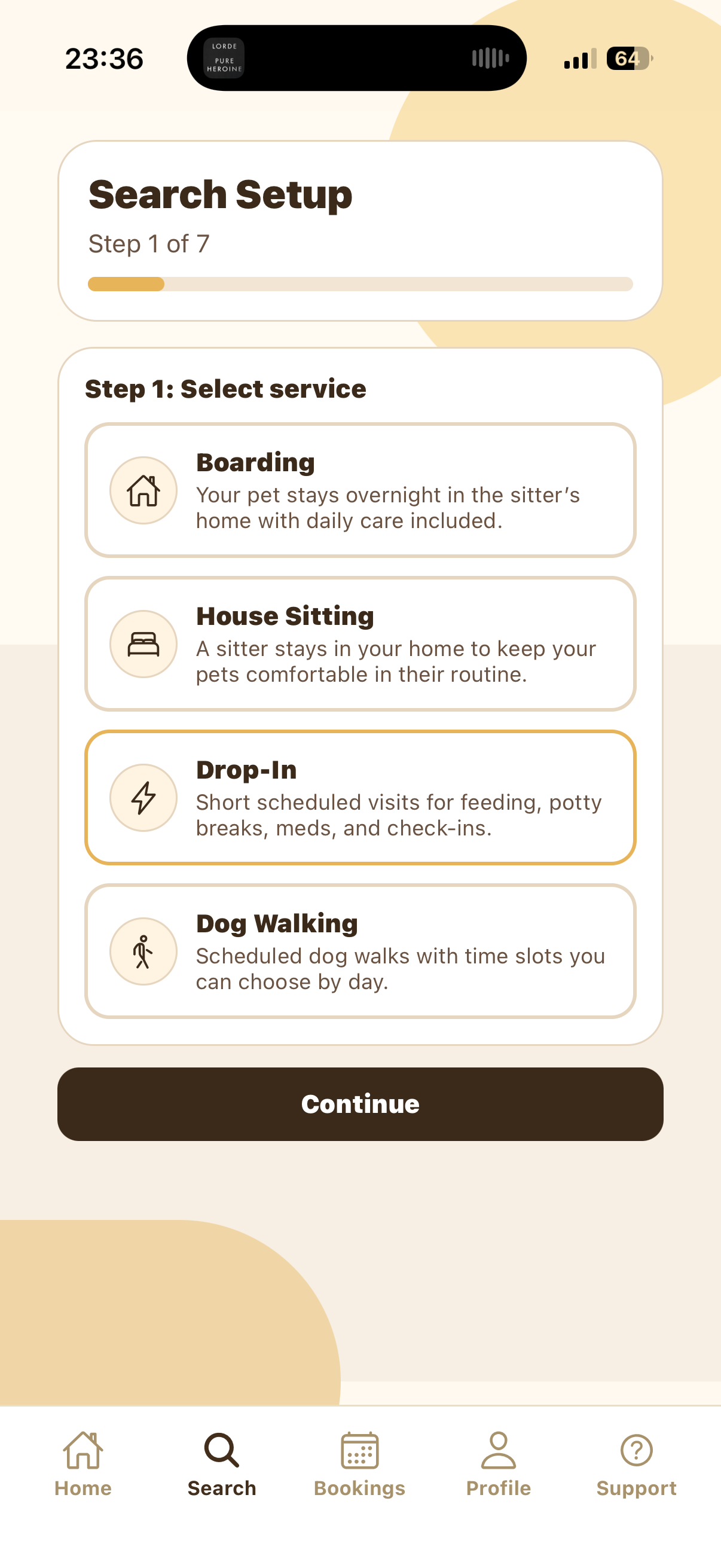
In Search Setup, choose Drop-In. Drop-In is for short scheduled visits, such as feeding, potty breaks, medications, litter checks, or general check-ins.
The selected service is outlined in gold. Tap Continue after Drop-In is selected.
Select your state and city
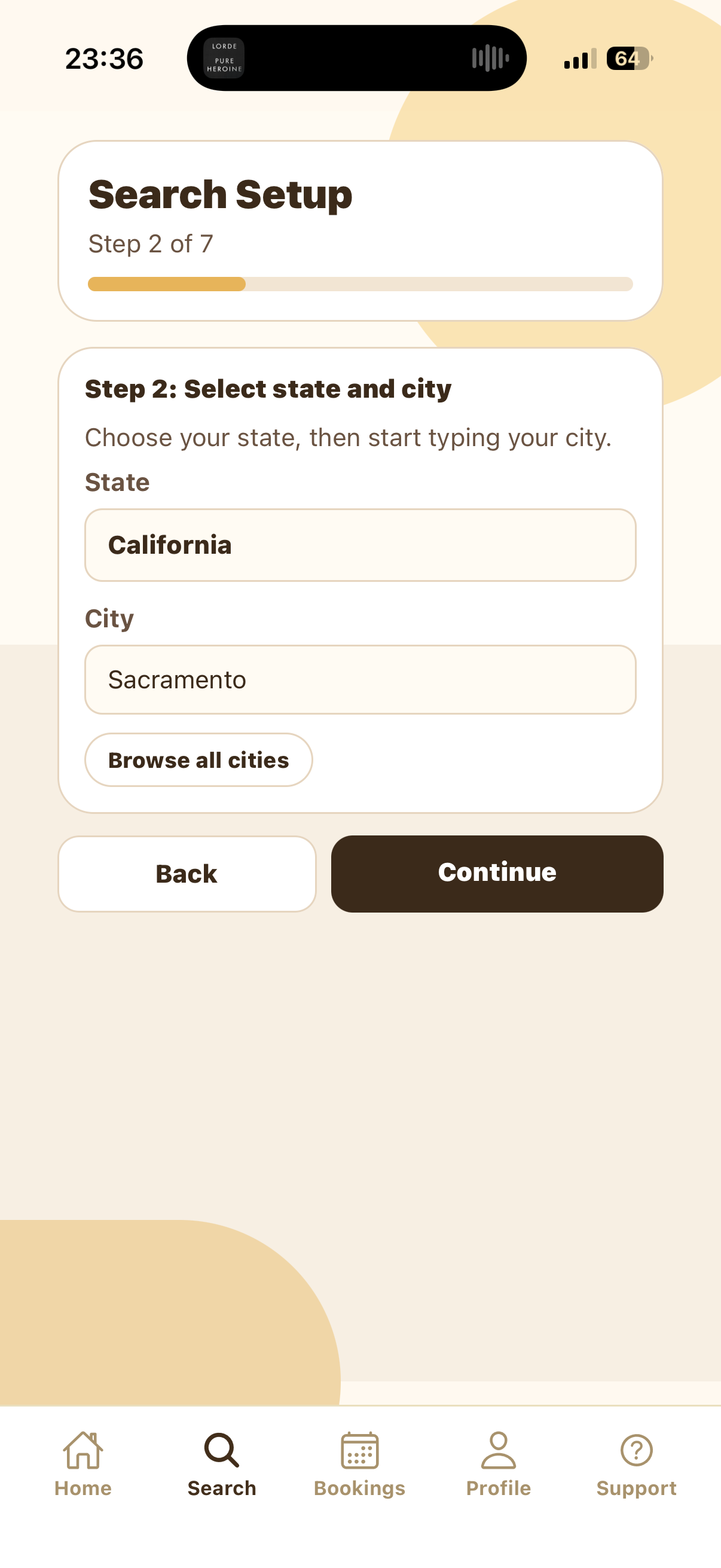
Choose your state first, then type your city. In the screenshot, the state is California and the city is Sacramento. If your city does not appear, tap Browse all cities to look through available locations.
Your city controls which sitters appear later. If no sitters match, try a nearby city or adjust the dates and schedule.
Choose the start date
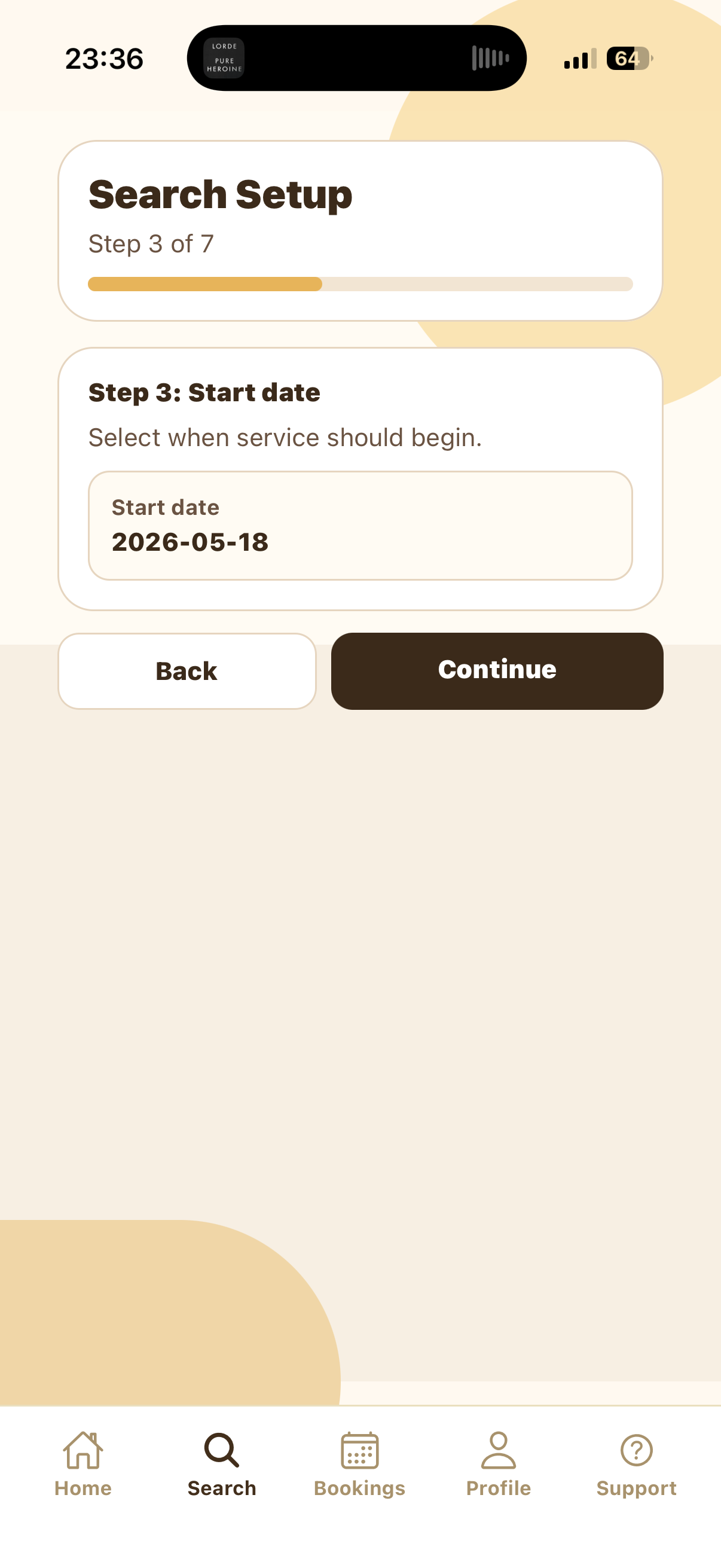
Pick the first date the drop-in service should begin. This opens the date range that SitSignal will use when you build the visit schedule.
The start date does not automatically schedule every day. You will choose the actual visit days in the schedule step.
Choose the end date
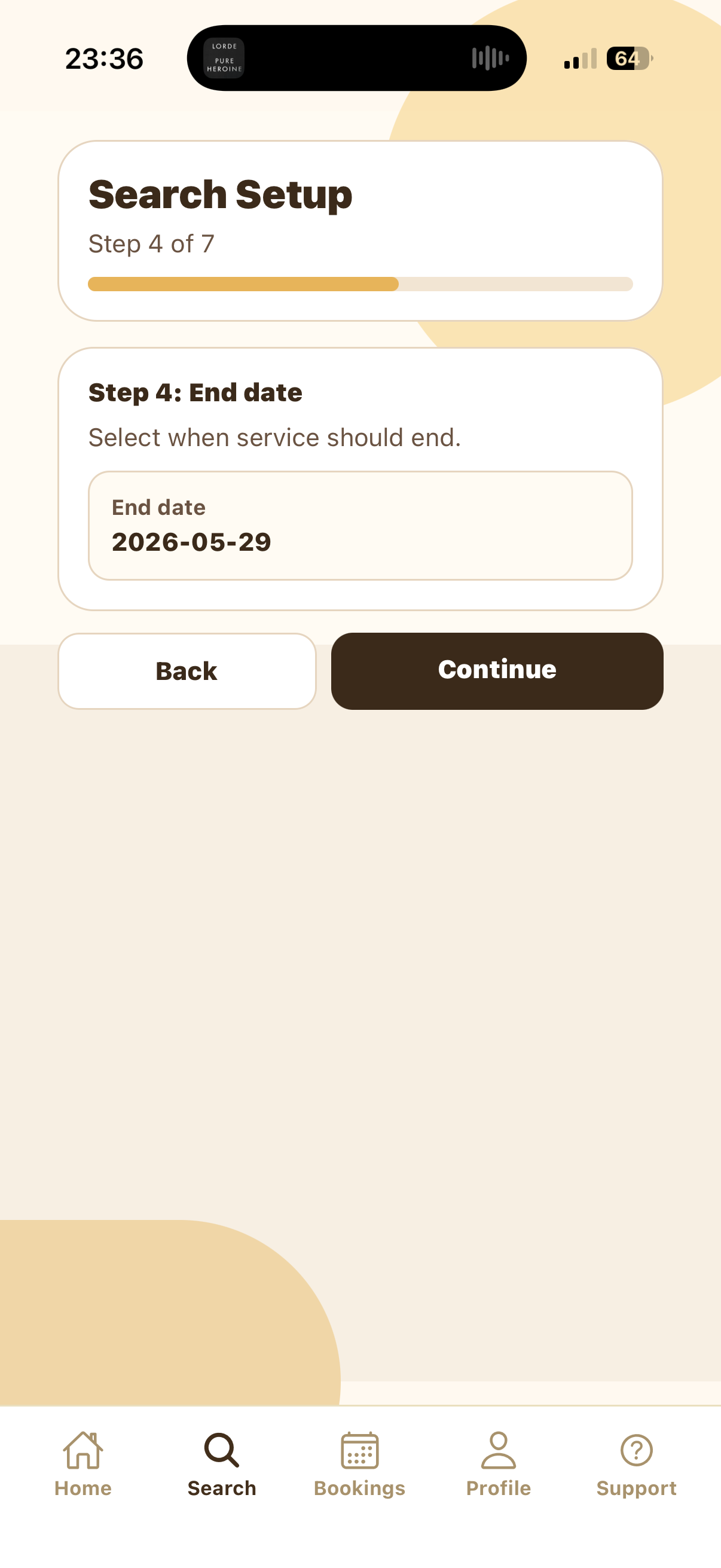
Select when the drop-in service should end. The app uses your start and end dates to show the days available for scheduling.
After this, you will pick the specific dates and visit times inside the schedule calendar.
Create your drop-in schedule
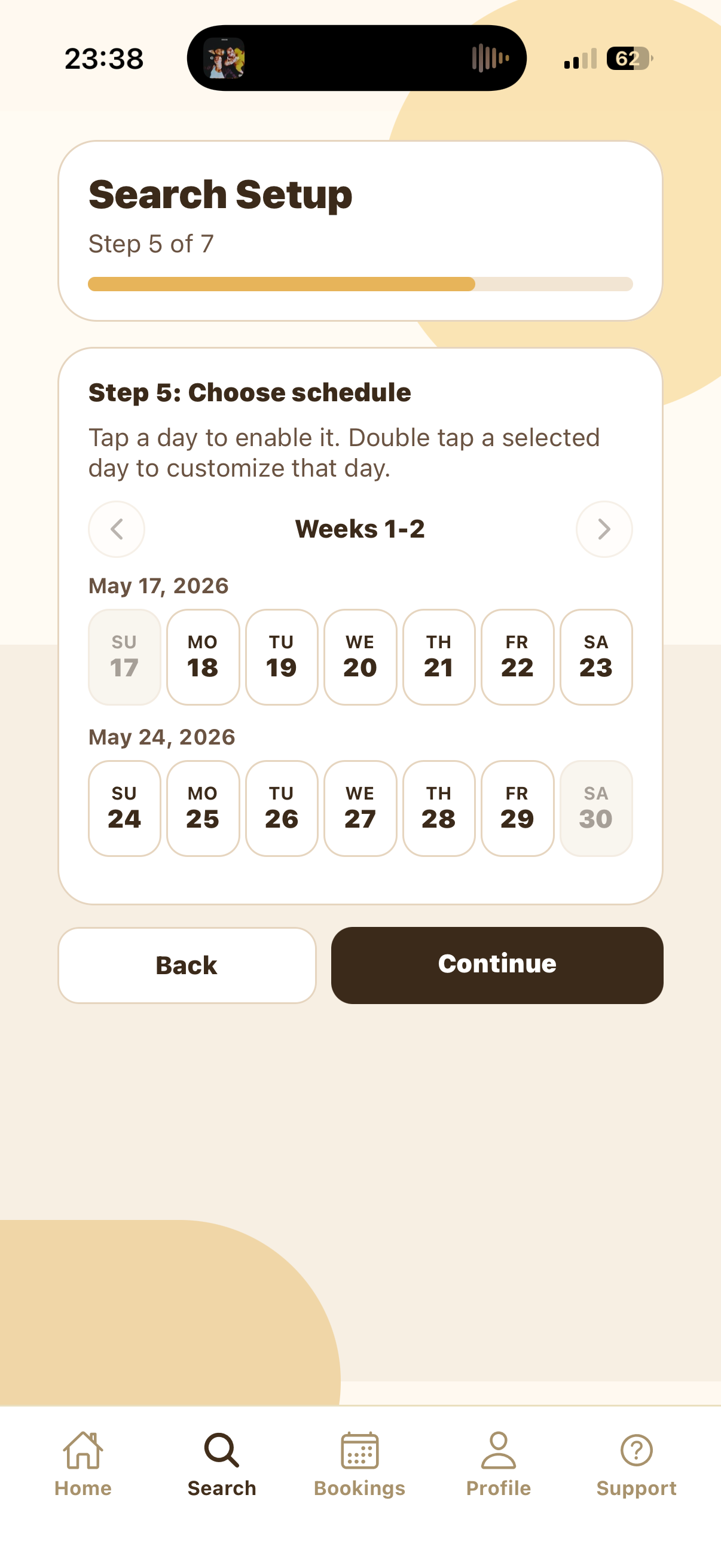
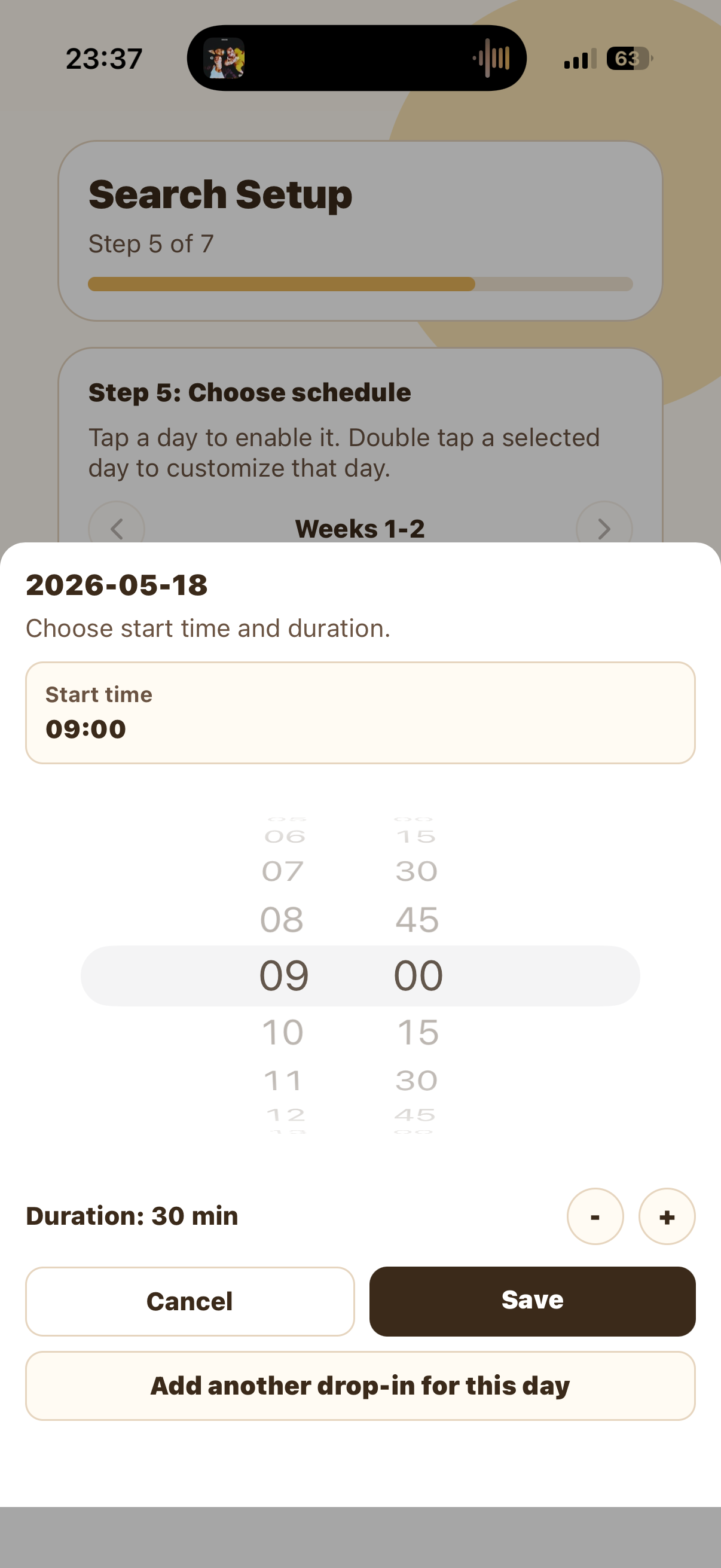
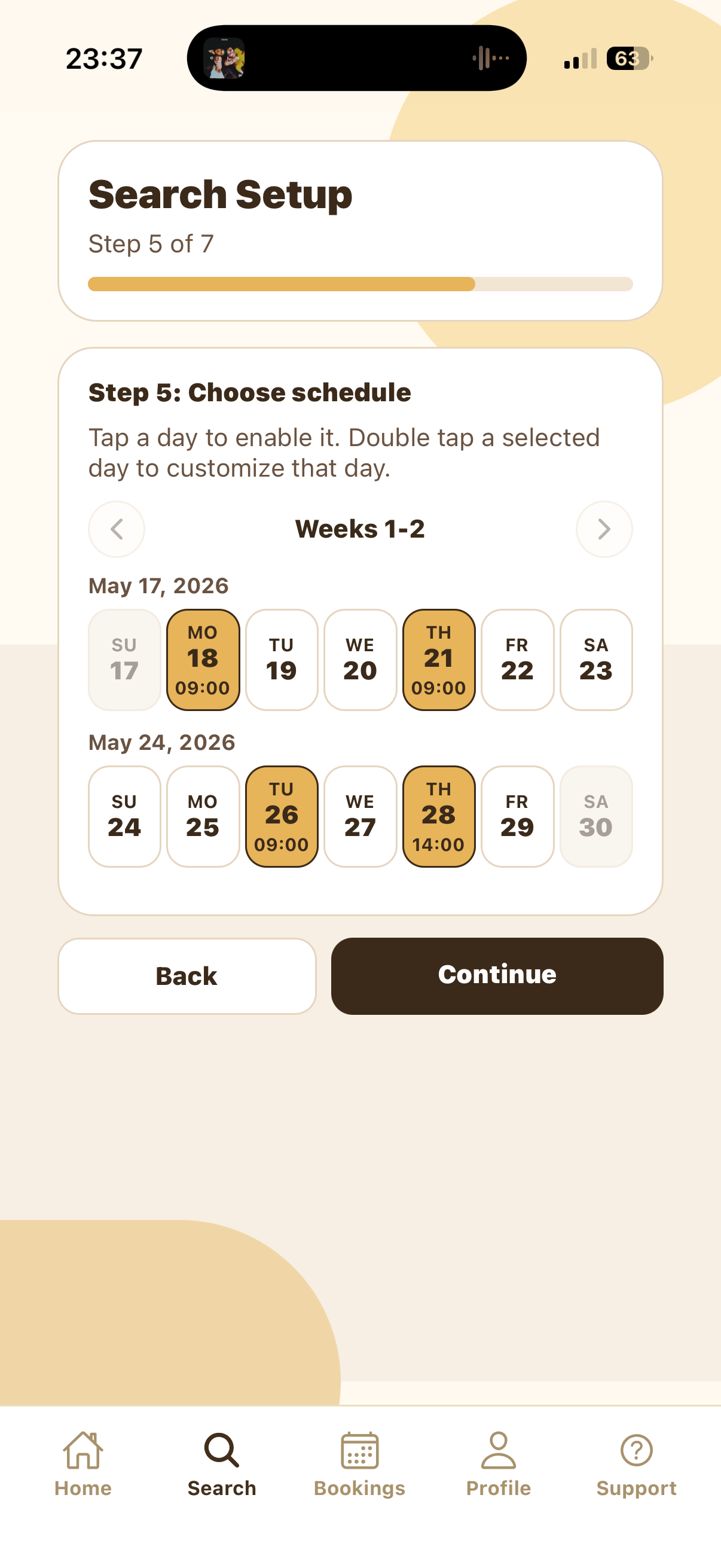
The schedule screen is where you choose the exact days that need visits. Tap a day once to enable it. The first selected day opens a setup sheet where you choose the start time and duration.
Add days and customize individual dates
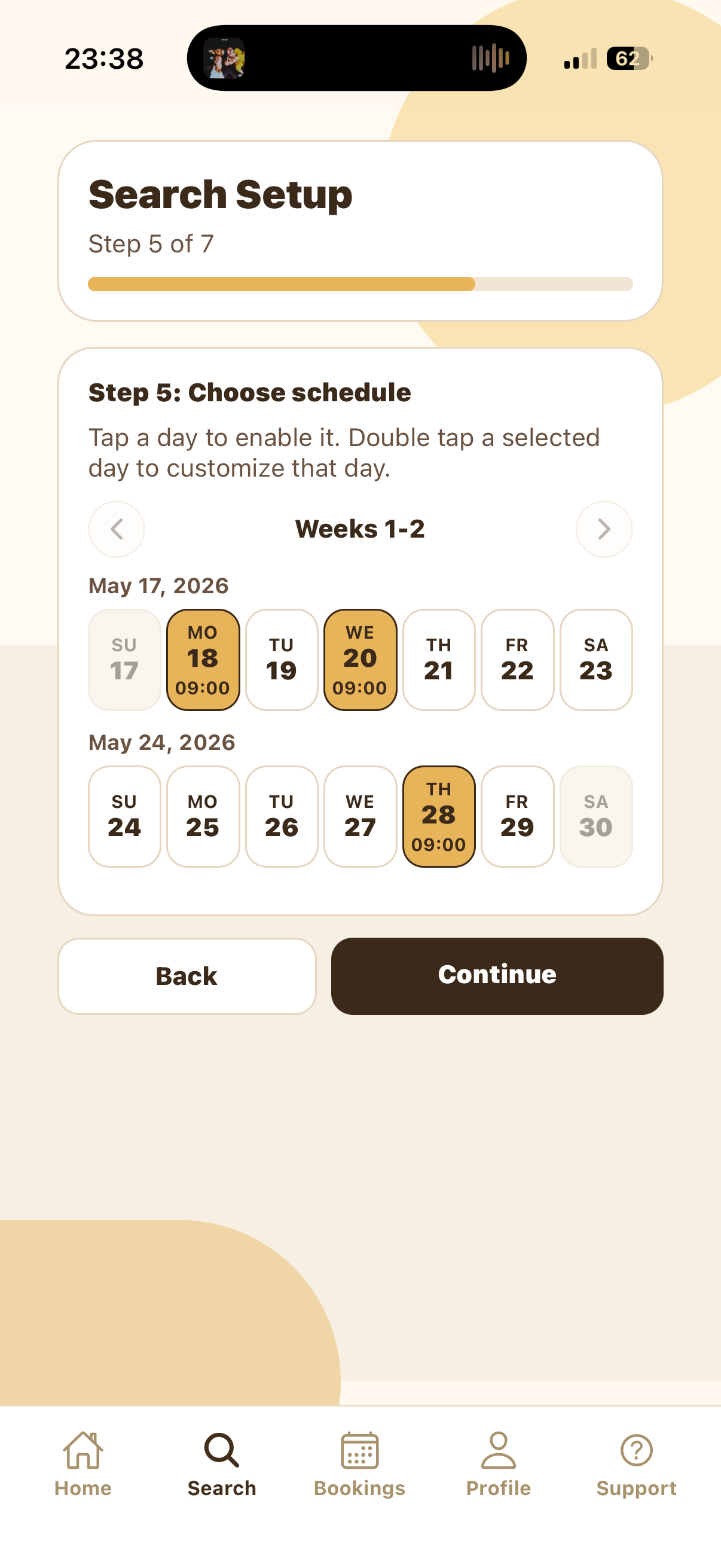
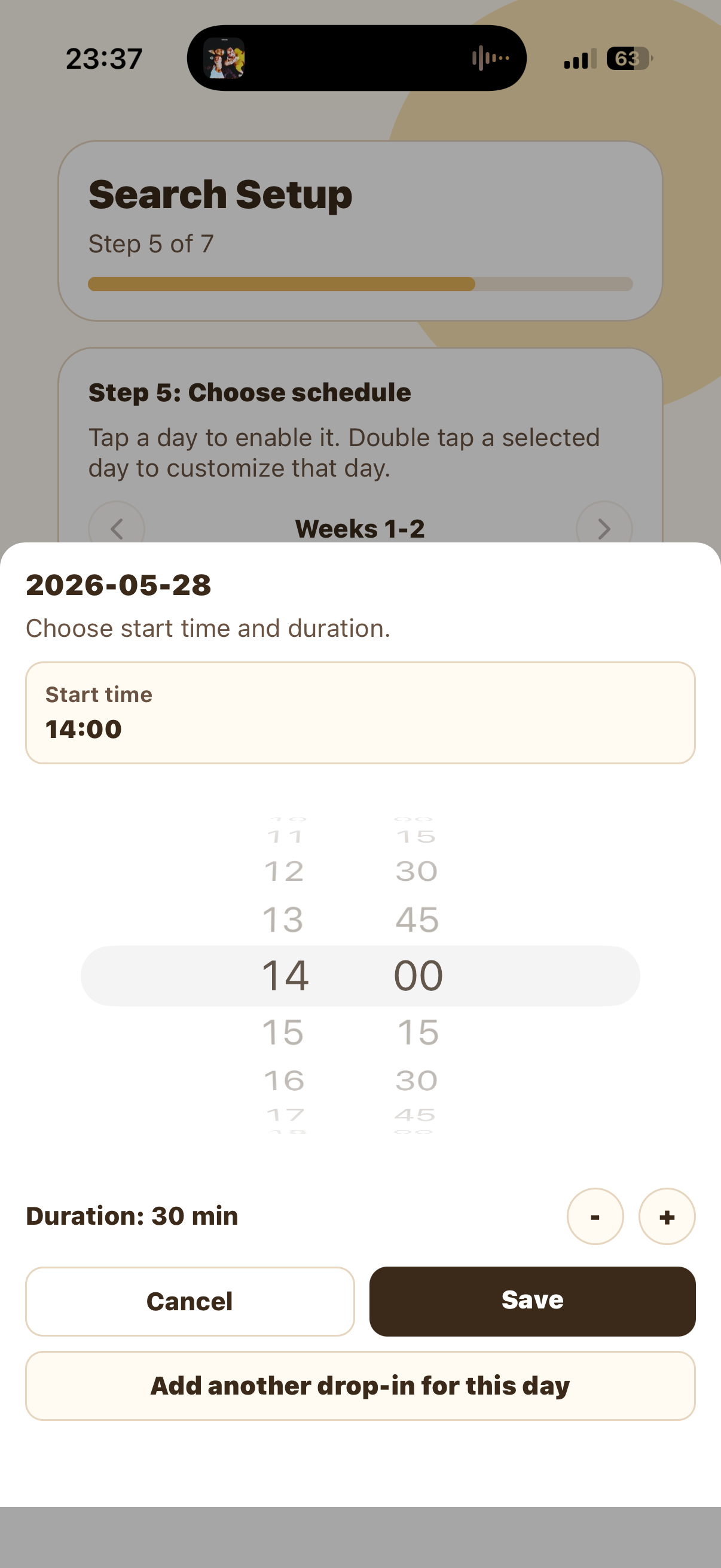
Selected days turn gold and show their saved time. You can choose several days in the date range. If one day needs a different time or duration, double tap that selected day and update only that date.
If a pet needs more than one visit on the same day, tap Add another drop-in for this dayfrom the day setup sheet and create a separate visit time.
Select the home profile
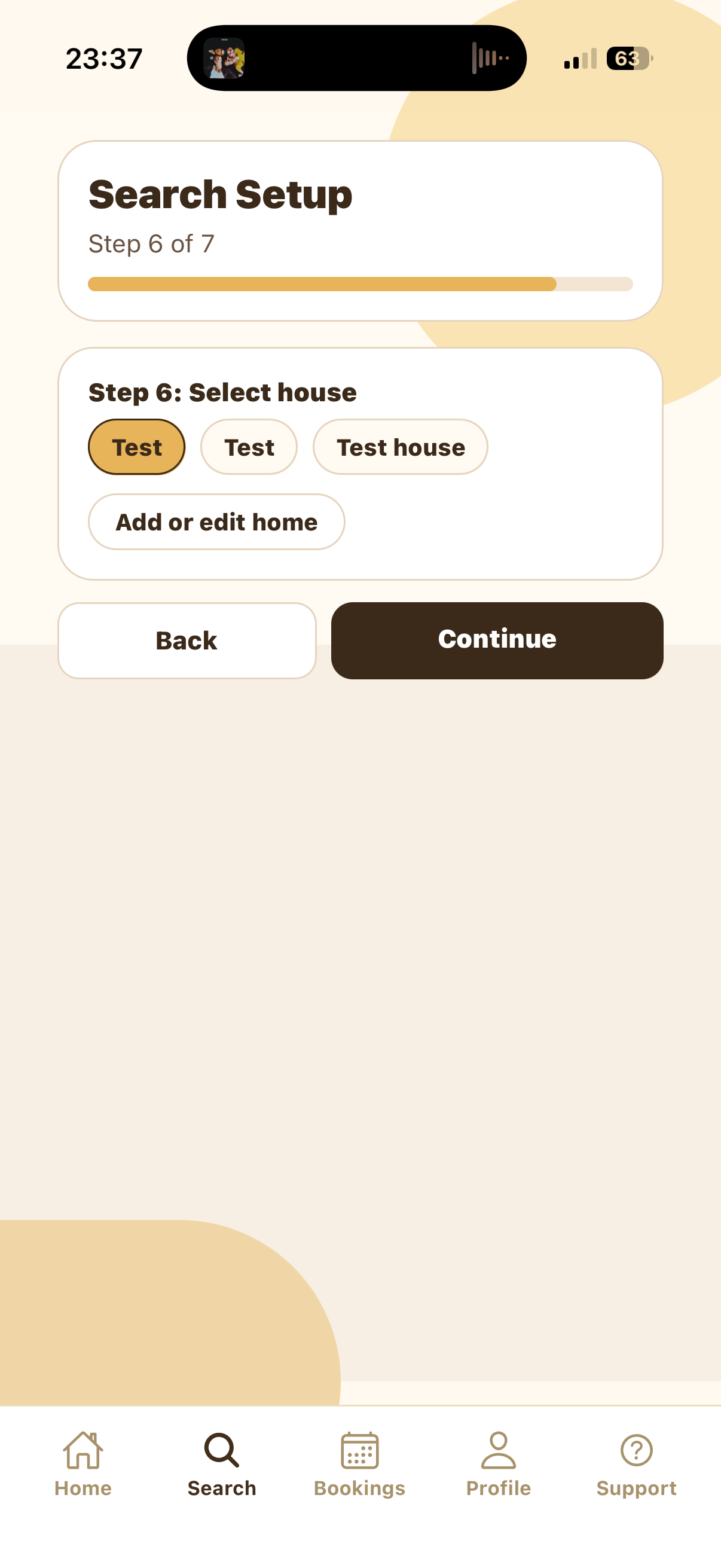
Choose the house profile where the sitter should complete the drop-in. The selected home turns gold. If the right home is not listed, tap Add or edit home.
This helps the sitter see the correct address, entry details, and home instructions for the visit.
Review the summary
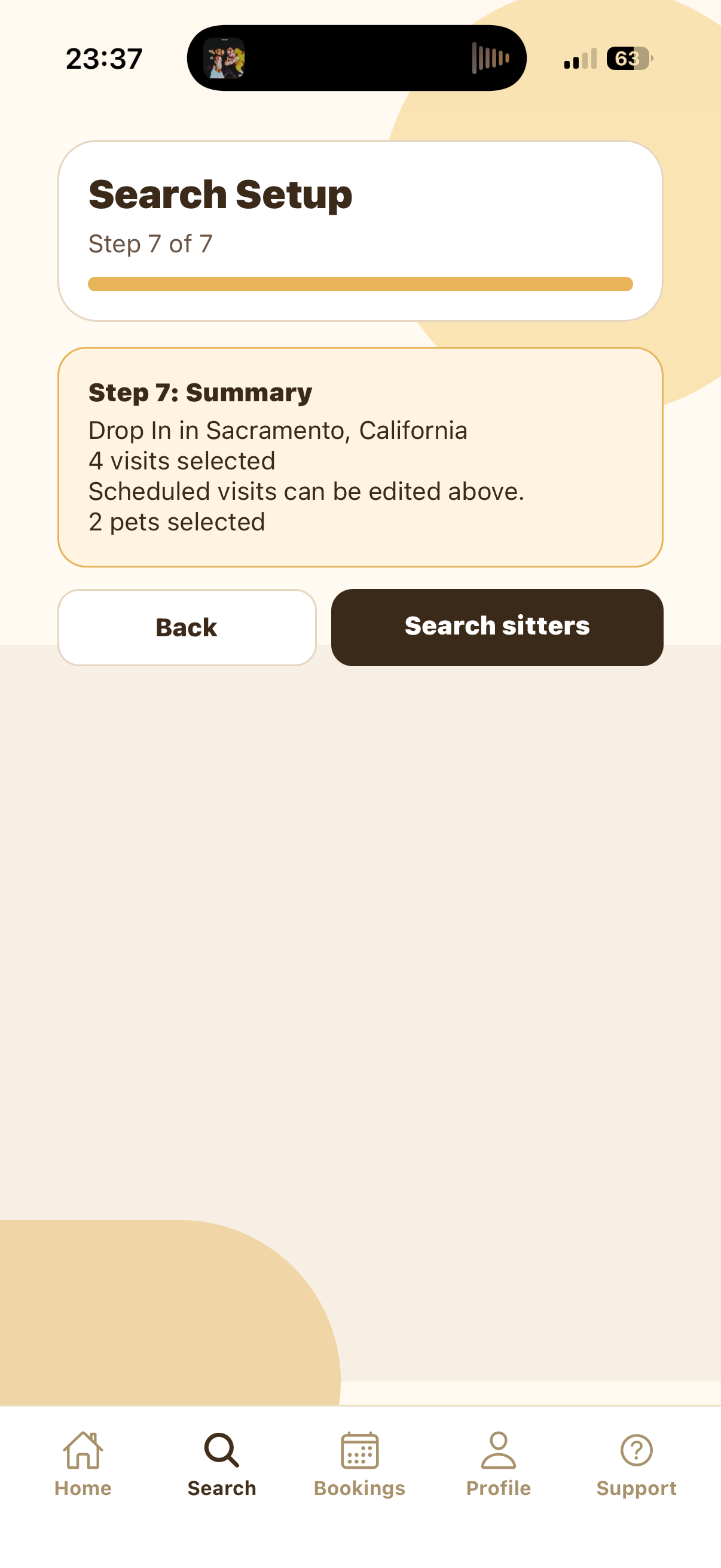
The Summary screen confirms the service, city, number of visits, and number of selected pets. If anything is wrong, tap Back and edit the previous step.
When the details look right, tap Search sitters to see available sitter cards.
Review sitter results and request care
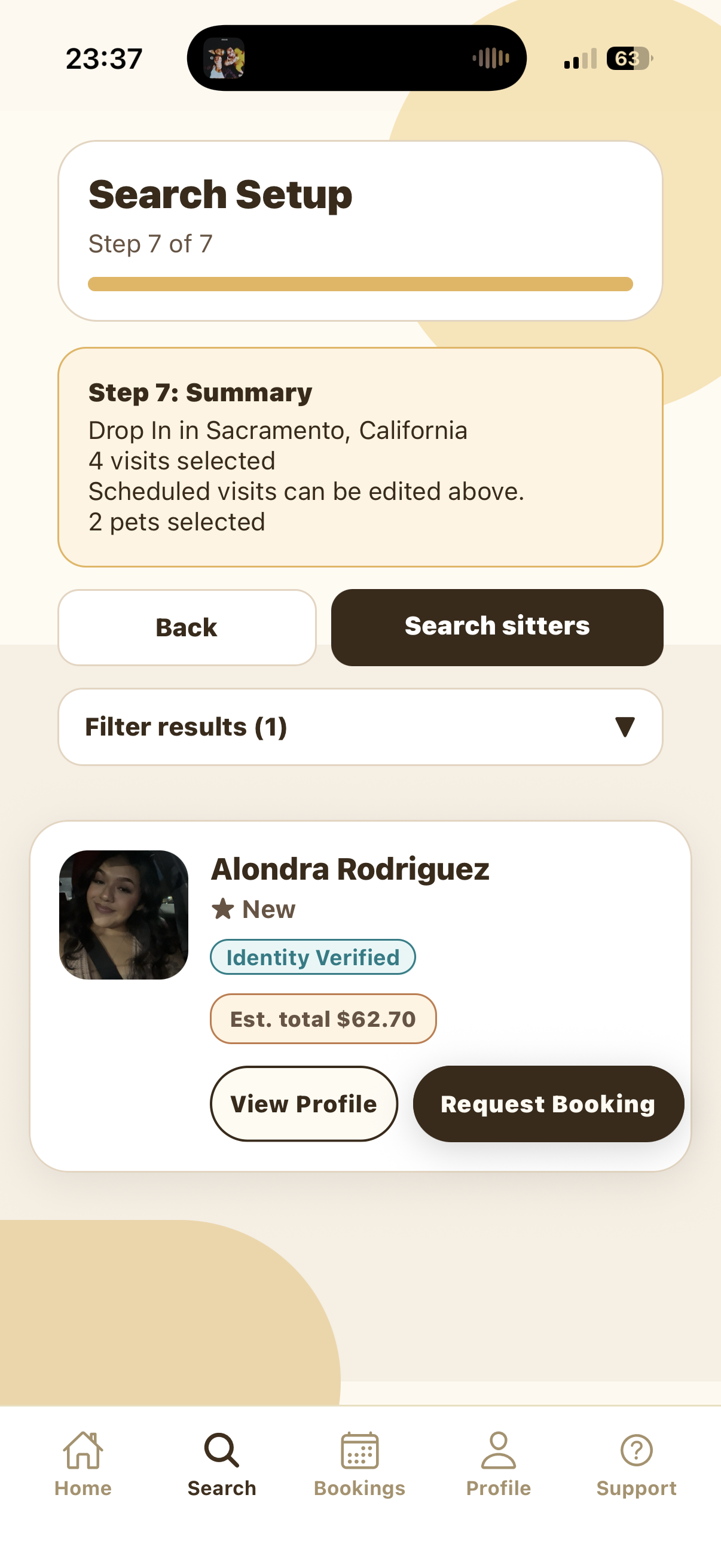
The results screen shows matching sitters for your Drop-In request. Review the sitter name, rating or new-sitter status, trust badges, estimated total, and profile before requesting.
Tap View Profile to learn more about the sitter, or tap Request Bookingwhen you are ready to send the request.
Tips and troubleshooting
Include feeding amounts, medication instructions, potty or litter details, where supplies are located, entry instructions, and anything the sitter should check before leaving.
Yes. Double tap that selected day, change the time or duration, and save. The change applies only to that date.
Yes. Use Add another drop-in for this day from the day setup sheet and create another visit time.
Try a nearby city, different dates, or fewer scheduled visits. A sitter may not be available for the exact city and schedule you selected.