 SitSignal
Before you begin
Open the SitSignal app and tap the Search tab. The Dog Walking booking flow asks for a service, location, date range, schedule, home, and final search summary before showing matching sitters.
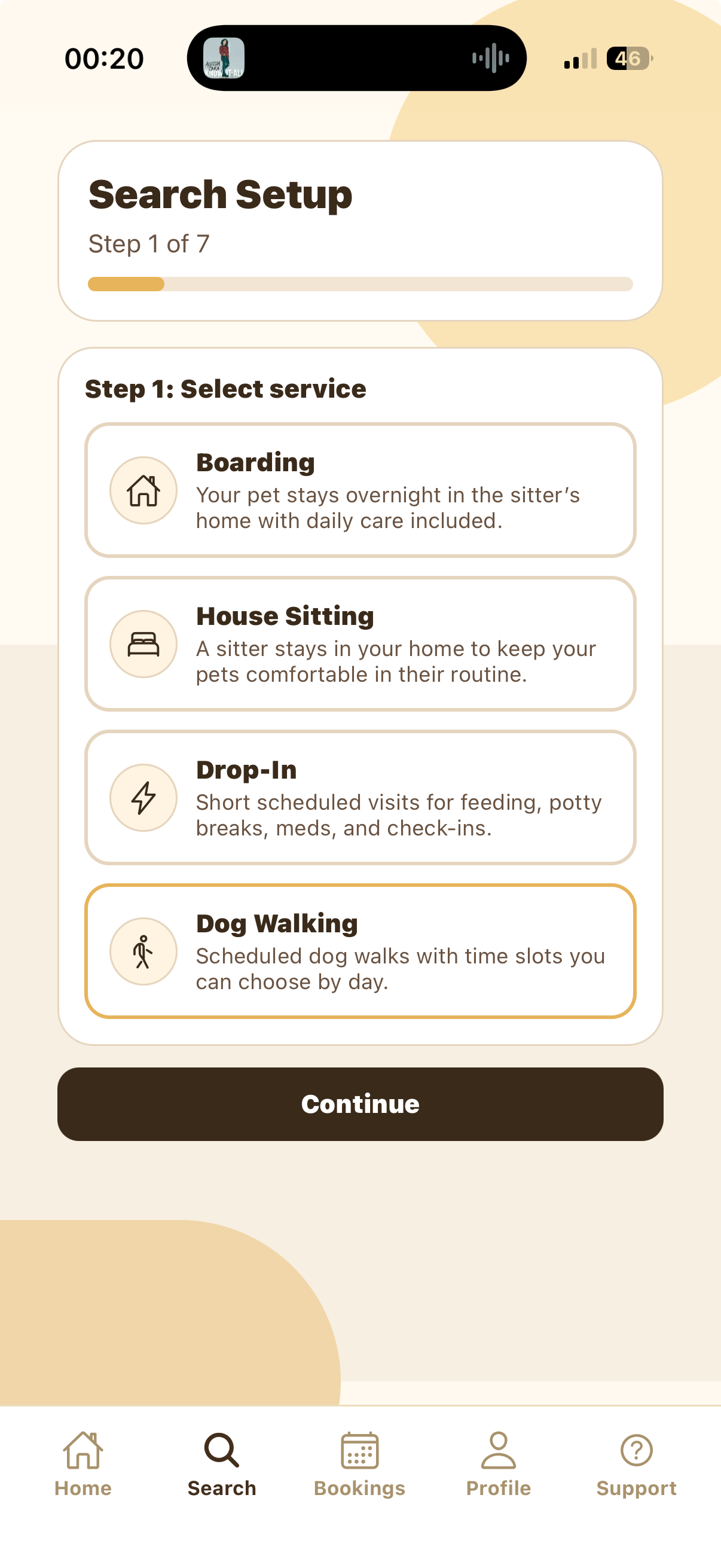
Select Dog Walking
In Search Setup, choose the service you want. For this guide, tap Dog Walking. The selected service is highlighted with a gold border. Tap Continue to move to the location step.
Dog Walking is for scheduled walks with time slots you can choose by day. Use Boarding, House Sitting, or Drop-In only if your care need is different.
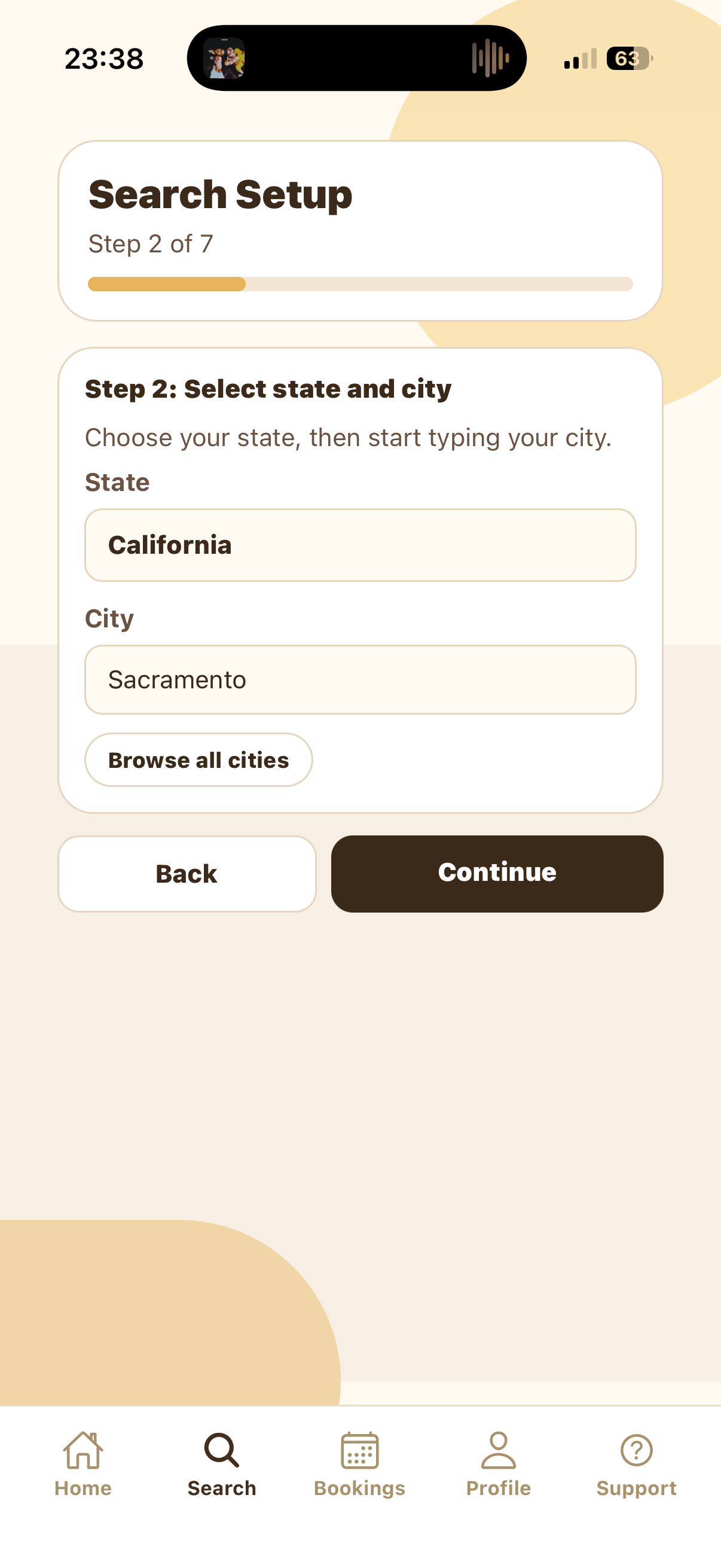
Select your state and city
Choose your state first, then type your city. In the screenshot, the state is California and the city is Sacramento. If you do not see your city while typing, tap Browse all cities to look through available locations.
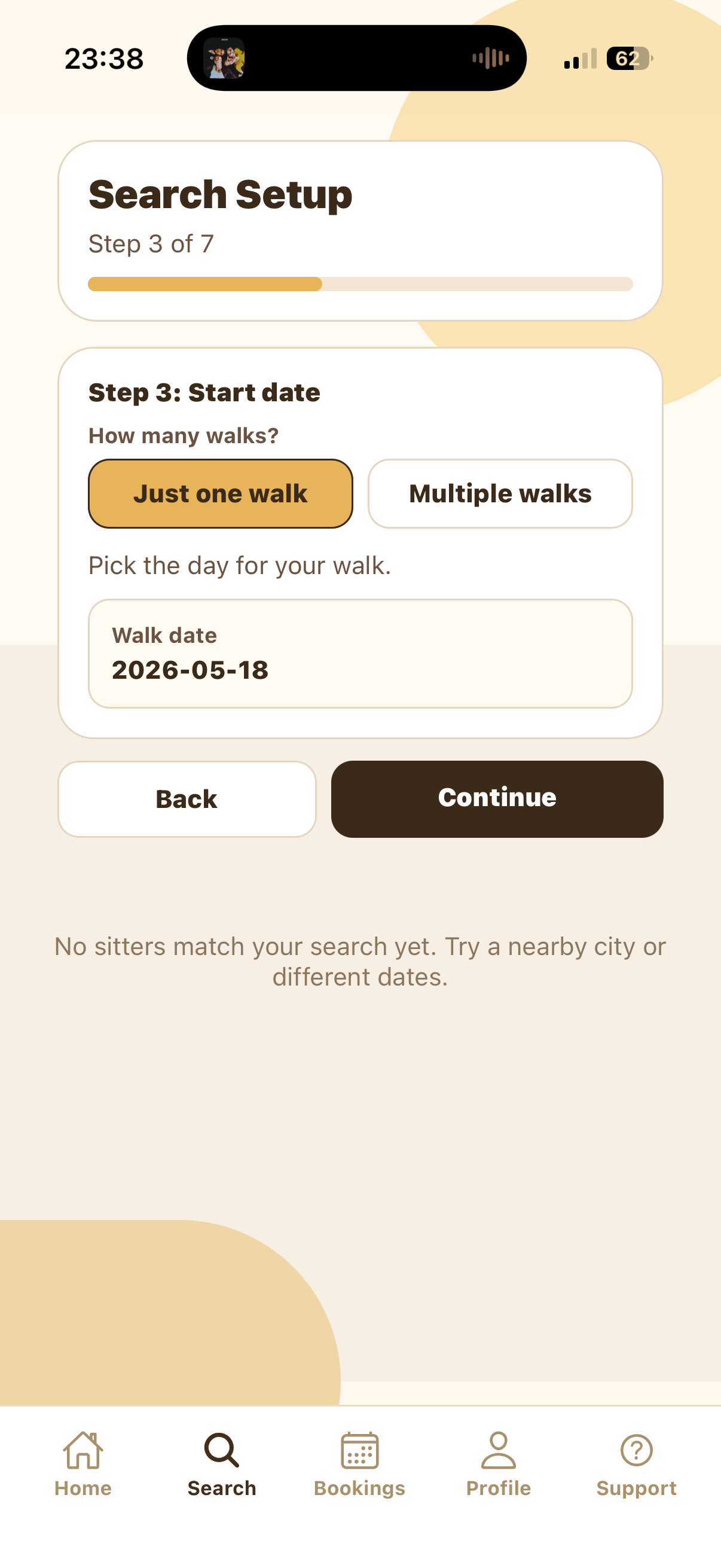
This city controls which sitter results appear later. If the app says no sitters match your search, try a nearby city or adjust the dates and schedule.
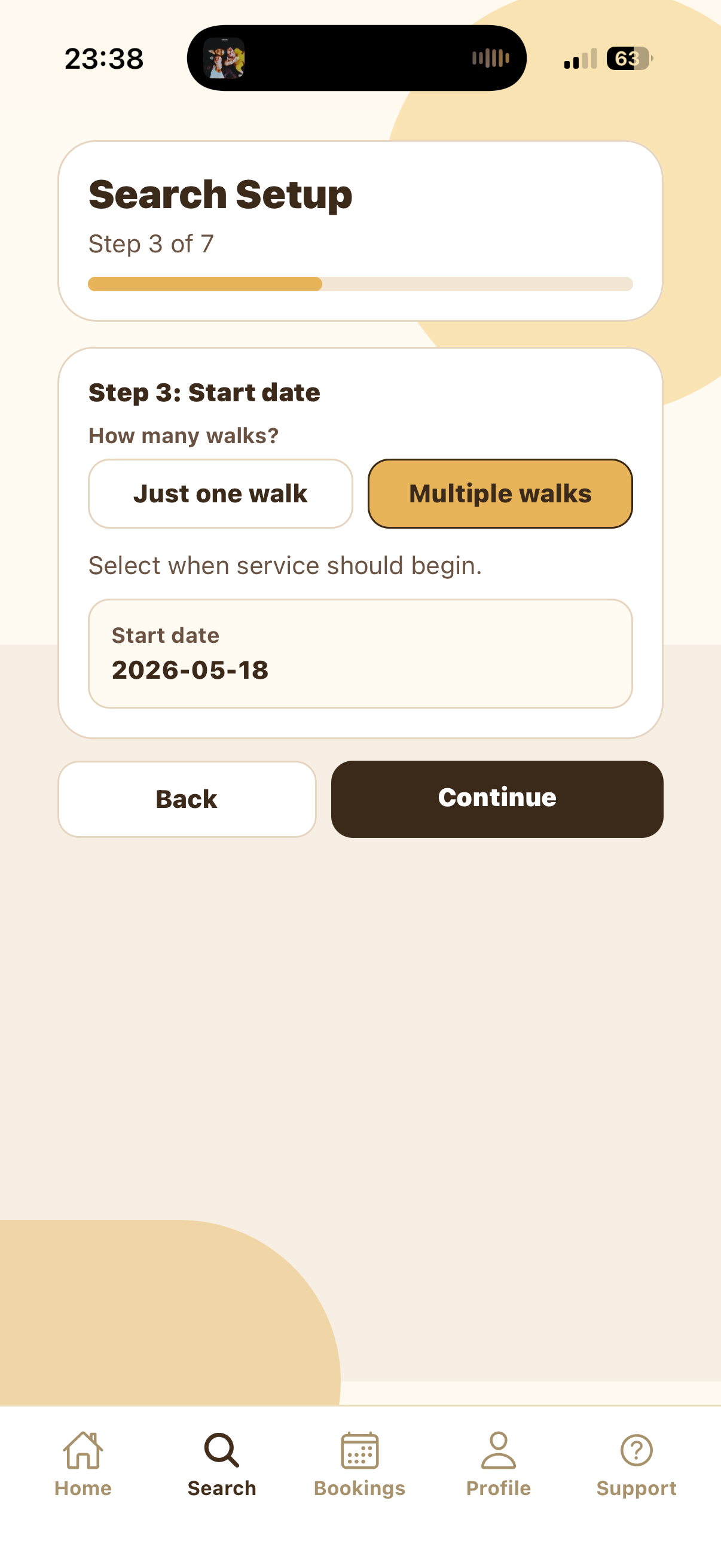
Choose one walk or multiple walks
On the Start date step, choose how many walks you need. Select Just one walk for a single appointment. Select Multiple walks when you want walks across more than one day.
For a one-walk booking, pick the Walk date. For a multiple-walk booking, pick the Start date and continue to the End date step.
Set the end date for multiple walks
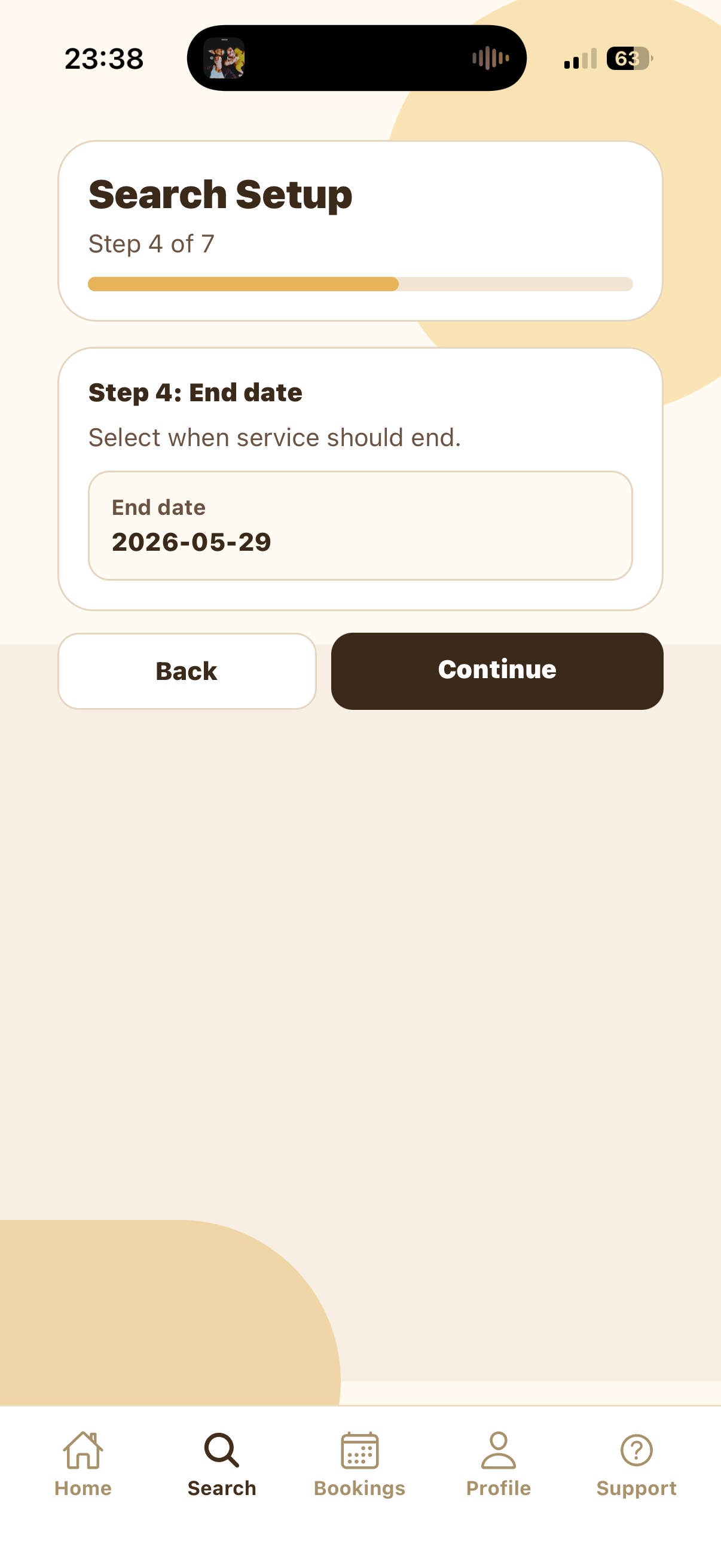
If you selected Multiple walks, choose when the service should end. The app uses the start and end dates to build the calendar range for your schedule.
The end date is not the same as a selected walk day. It only defines the final date that can be included in the schedule. You will choose the actual walk days in Step 5.
Create your walk schedule
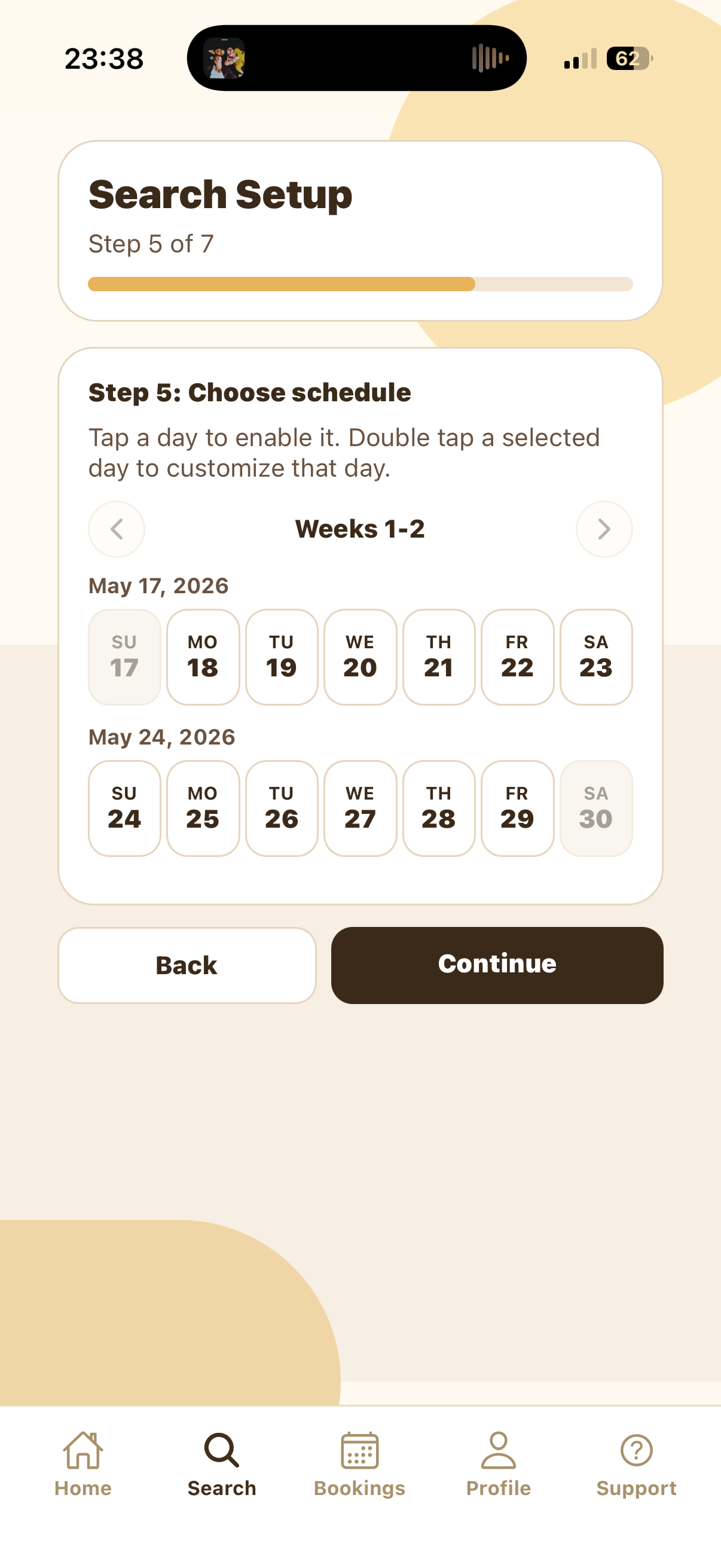
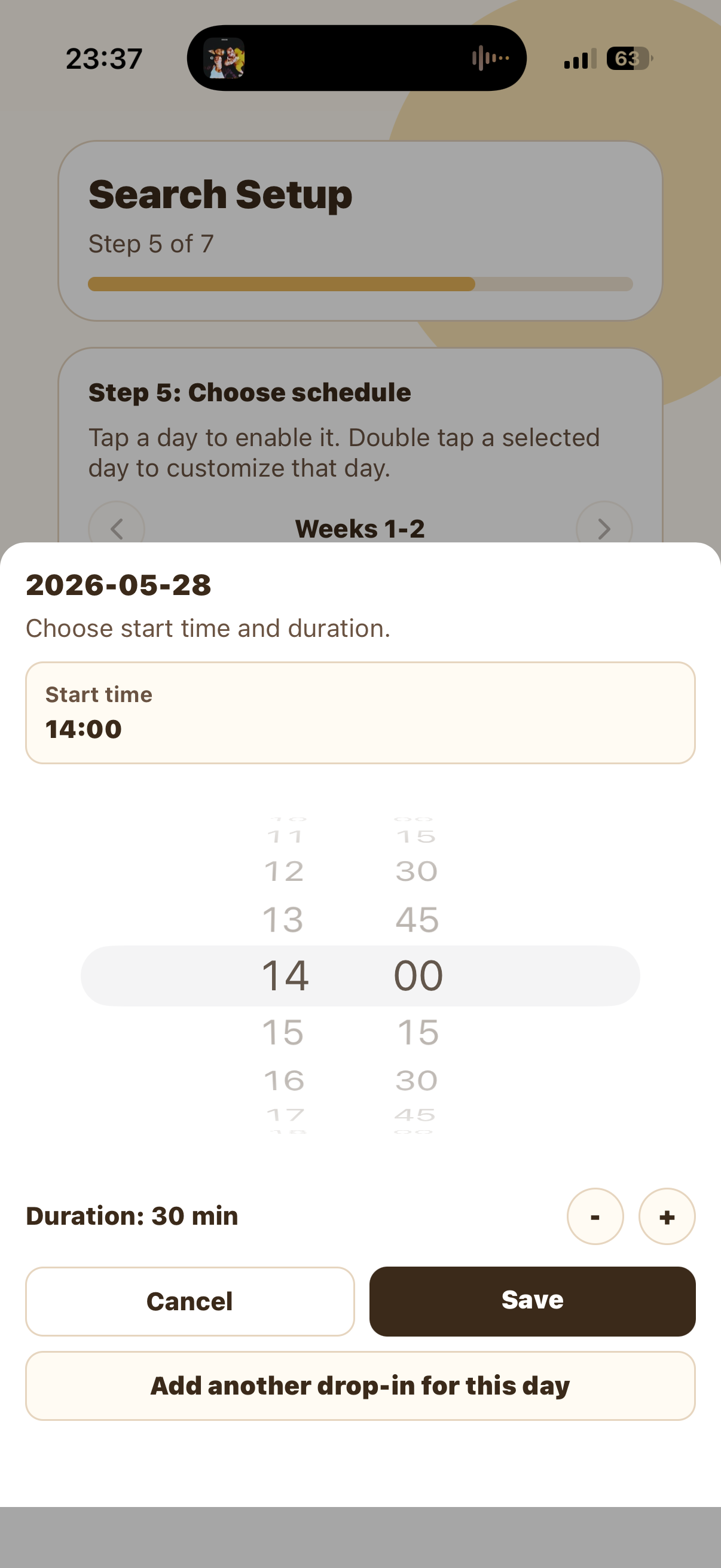
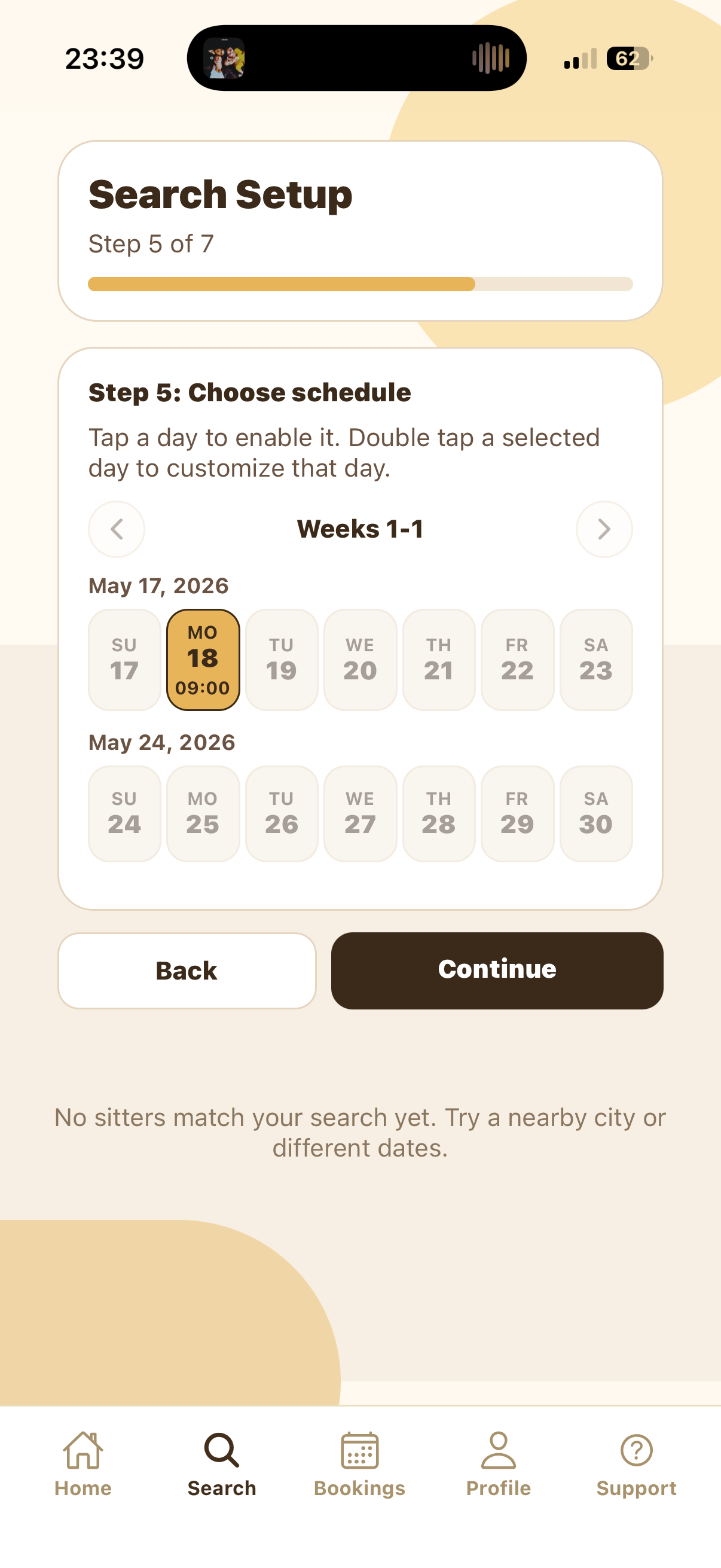
The schedule screen is where you decide exactly which days should have walks. Tap a day once to enable it. The first time you select a day, SitSignal opens the day setup sheet so you can choose the start time and set the walk duration before saving it.
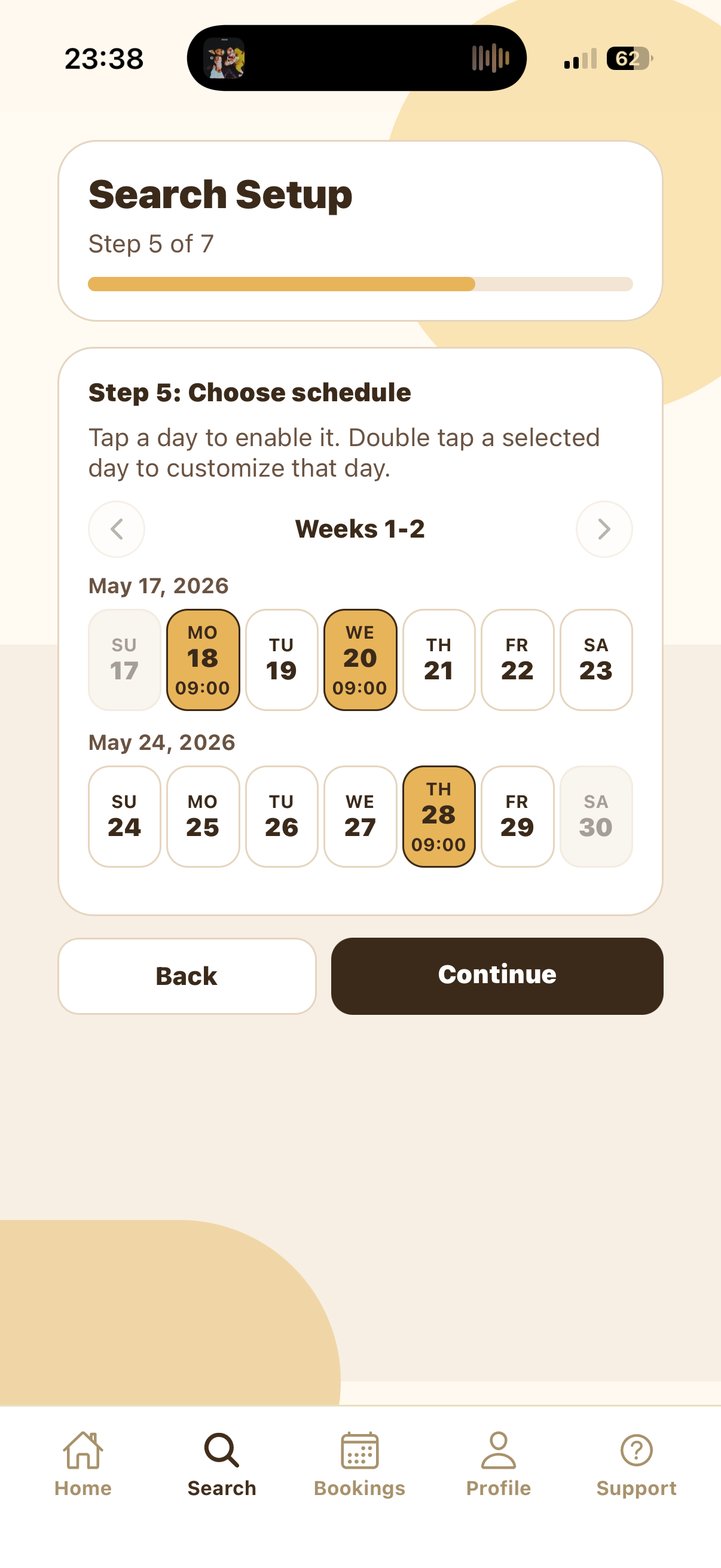
In the examples below, the empty schedule has no selected walks yet. The selected schedule shows walks on Monday, May 18, Wednesday, May 20, and Thursday, May 28 at 09:00.
Set the start time and duration
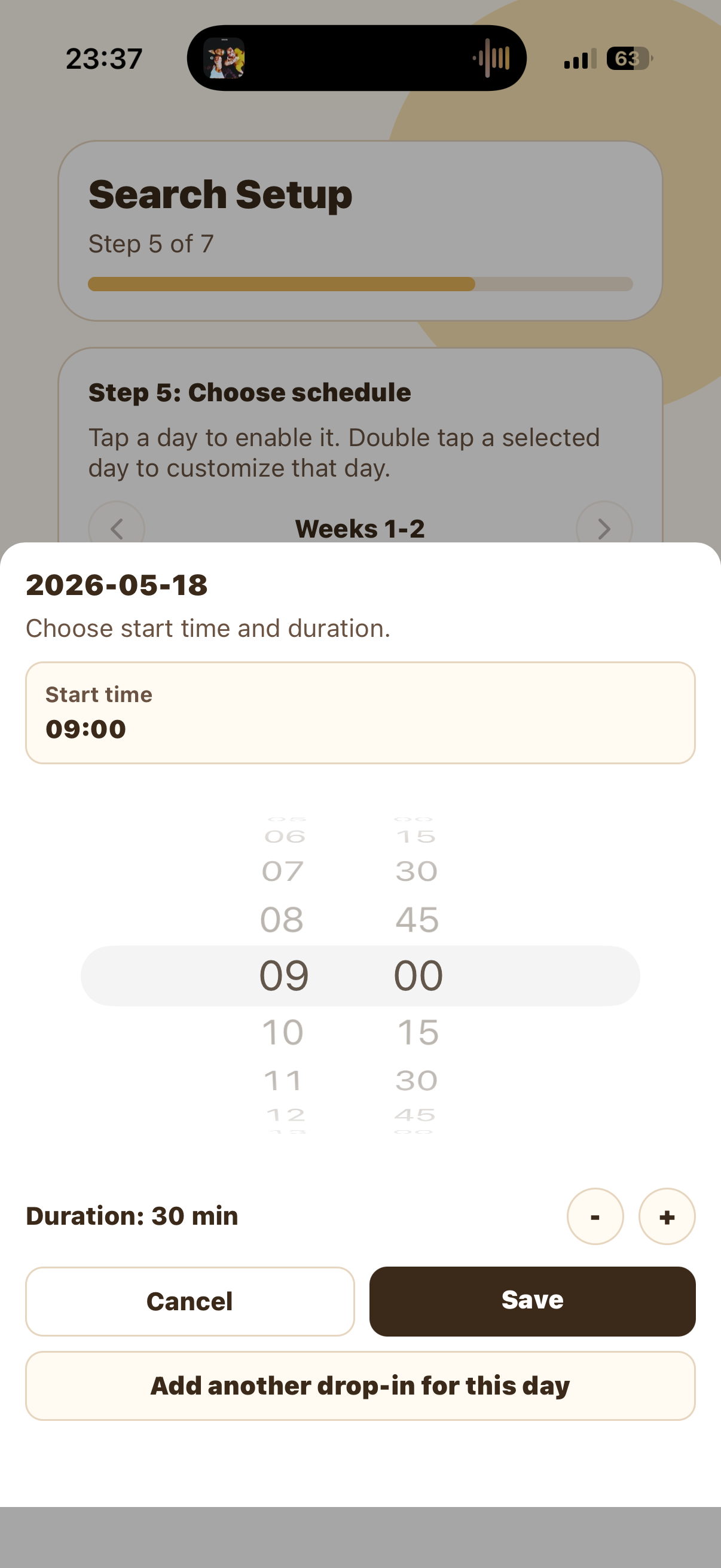
On the day setup sheet, choose the start time with the time picker. Use the duration controls to increase or decrease how long the walk should last, then tap Save. If you need more than one walk on the same day, tap the option to add another visit for that day and set a separate time and duration.
Double tap any selected day to edit that specific day later. This lets one day be different from the rest of the schedule. For example, most walks can stay at 09:00, while a later date can be changed to 14:00 with its own duration.
Select the home for the walk
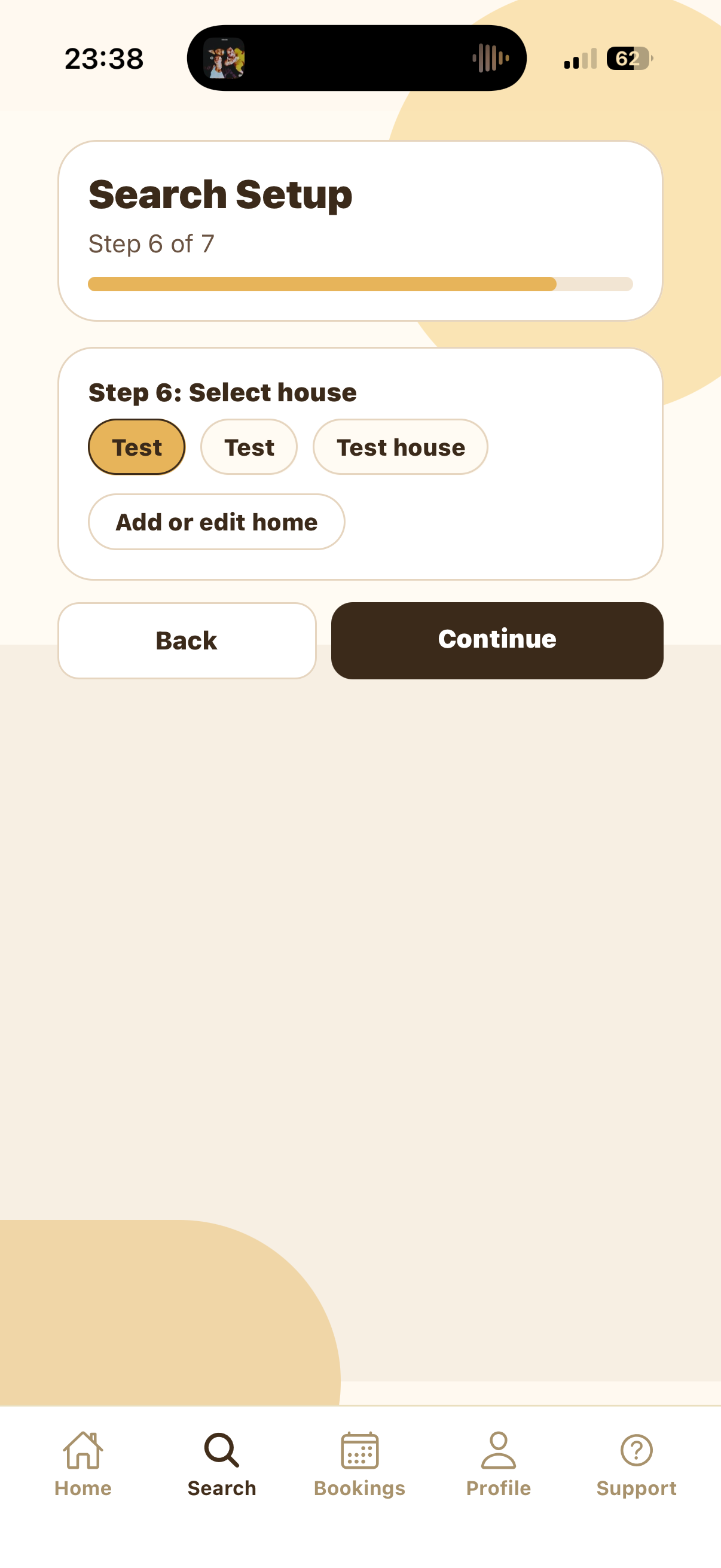
Choose the house profile where the sitter should arrive for the walk. The selected home turns gold. If the correct home is not listed, tap Add or edit home to update your saved home profiles.
This step helps the sitter know which address and home instructions belong to the booking request.
Review the summary and search sitters
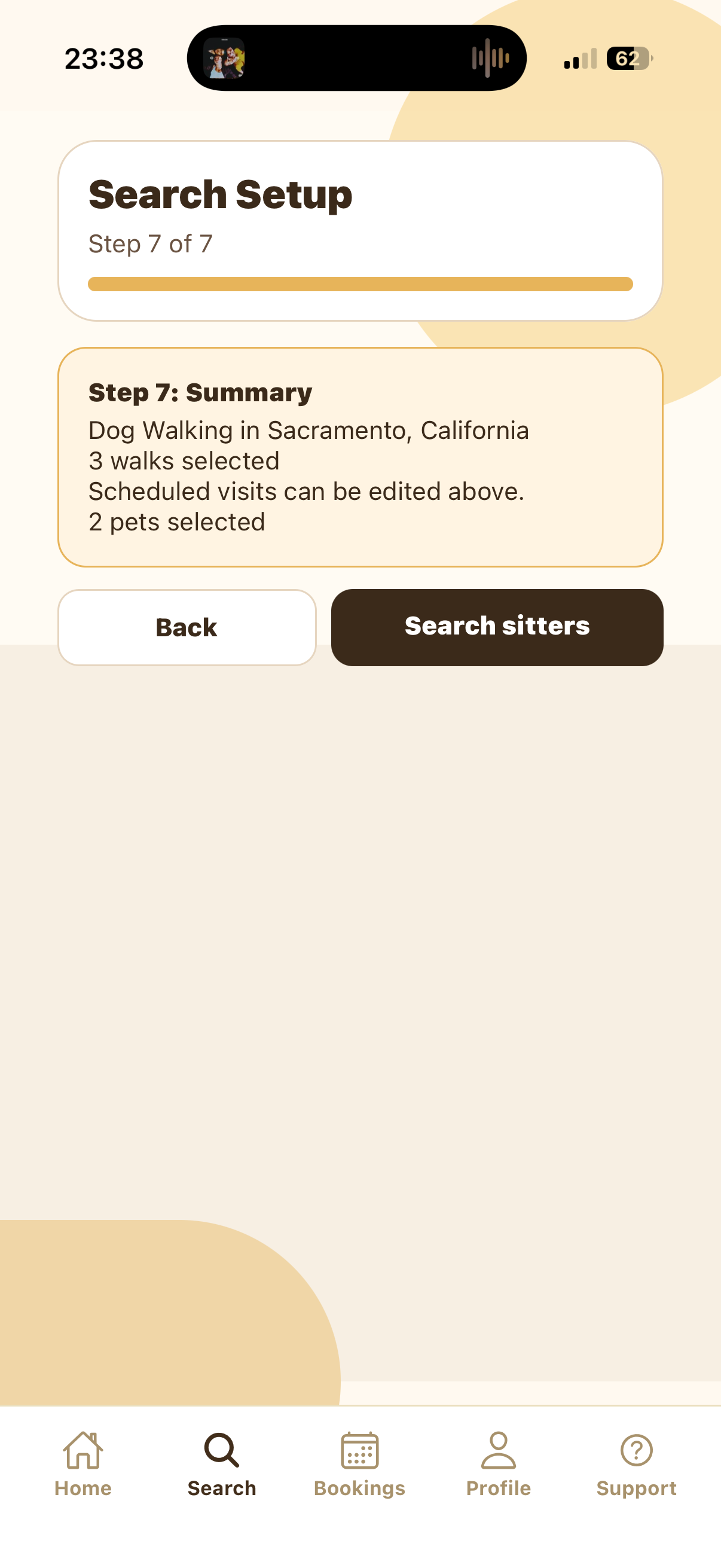
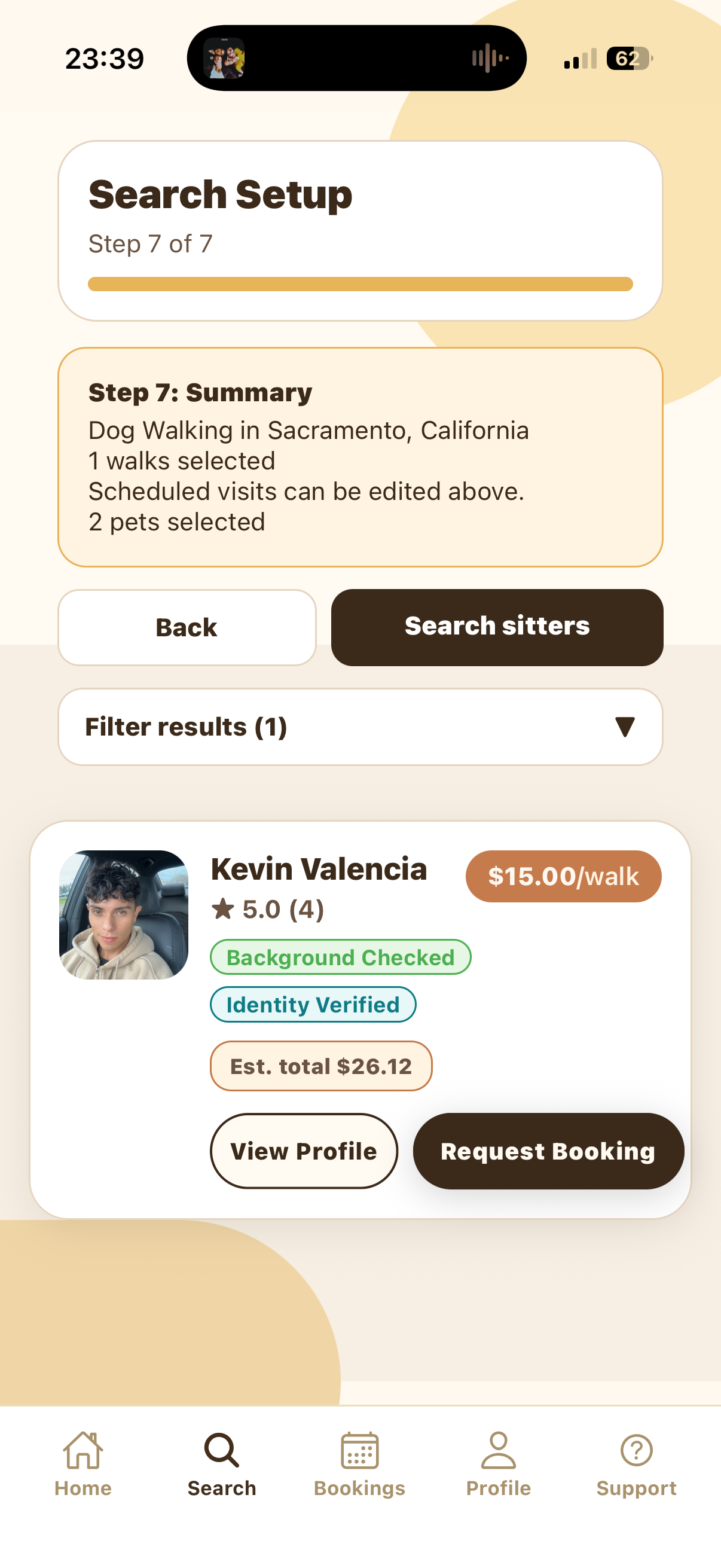
The Summary screen confirms the service, city, number of selected walks, and number of selected pets. If anything is wrong, tap Back and edit the previous step. If everything looks right, tap Search sitters.
The summary can show one walk or multiple walks depending on what you selected earlier.
Review sitter results
The search results page shows matching sitters for your dog walking request. Review the sitter name, rating, trust badges, price per walk, and estimated total. You can tap View Profile to read more before requesting.
Use the filter panel if you need to narrow results. If no sitters match, the app may suggest trying a nearby city or different dates.
Request the booking
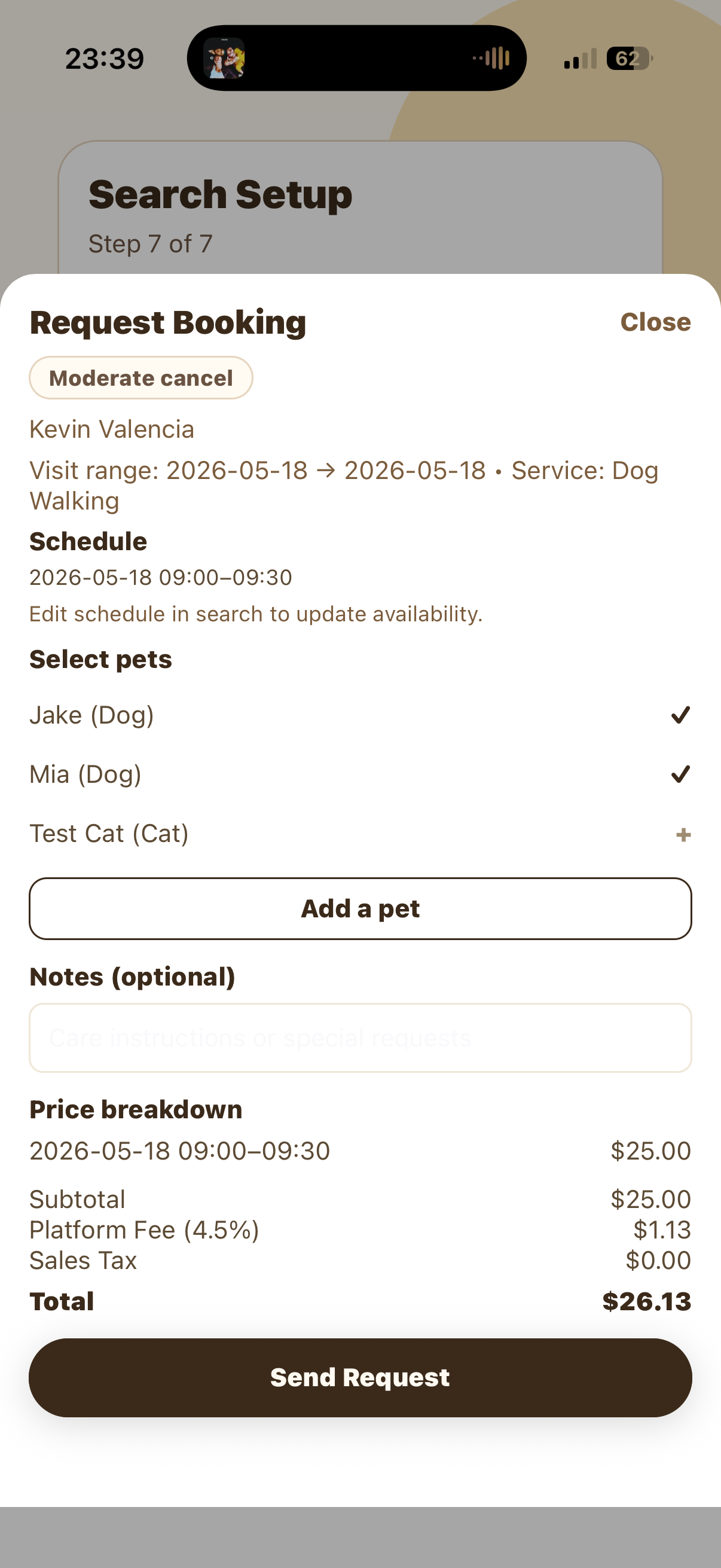
Tap Request Booking on the sitter card to open the request sheet. Review the sitter, visit range, service, and scheduled walk time. Select the pets included in the walk, add optional notes, and read the price breakdown.
The price breakdown shows the scheduled walk charge, subtotal, platform fee, sales tax, and total. When the details are correct, tap Send Request. The sitter will need to accept the request before the booking is confirmed.
Tips and troubleshooting
Try a nearby city, a different date, or fewer scheduled days. A sitter may not be available for the exact city and schedule you selected.
Yes. Use Back to return to the schedule step, adjust the selected days, then search again. The request sheet also reminds you that schedule availability is edited in Search.
Add leash location, entry instructions, walking preferences, behavior notes, medication reminders, or anything the sitter should know before accepting the walk.
Sending a request starts the booking process. The sitter still needs to accept it before the booking is confirmed.