SitSignal
Getting there
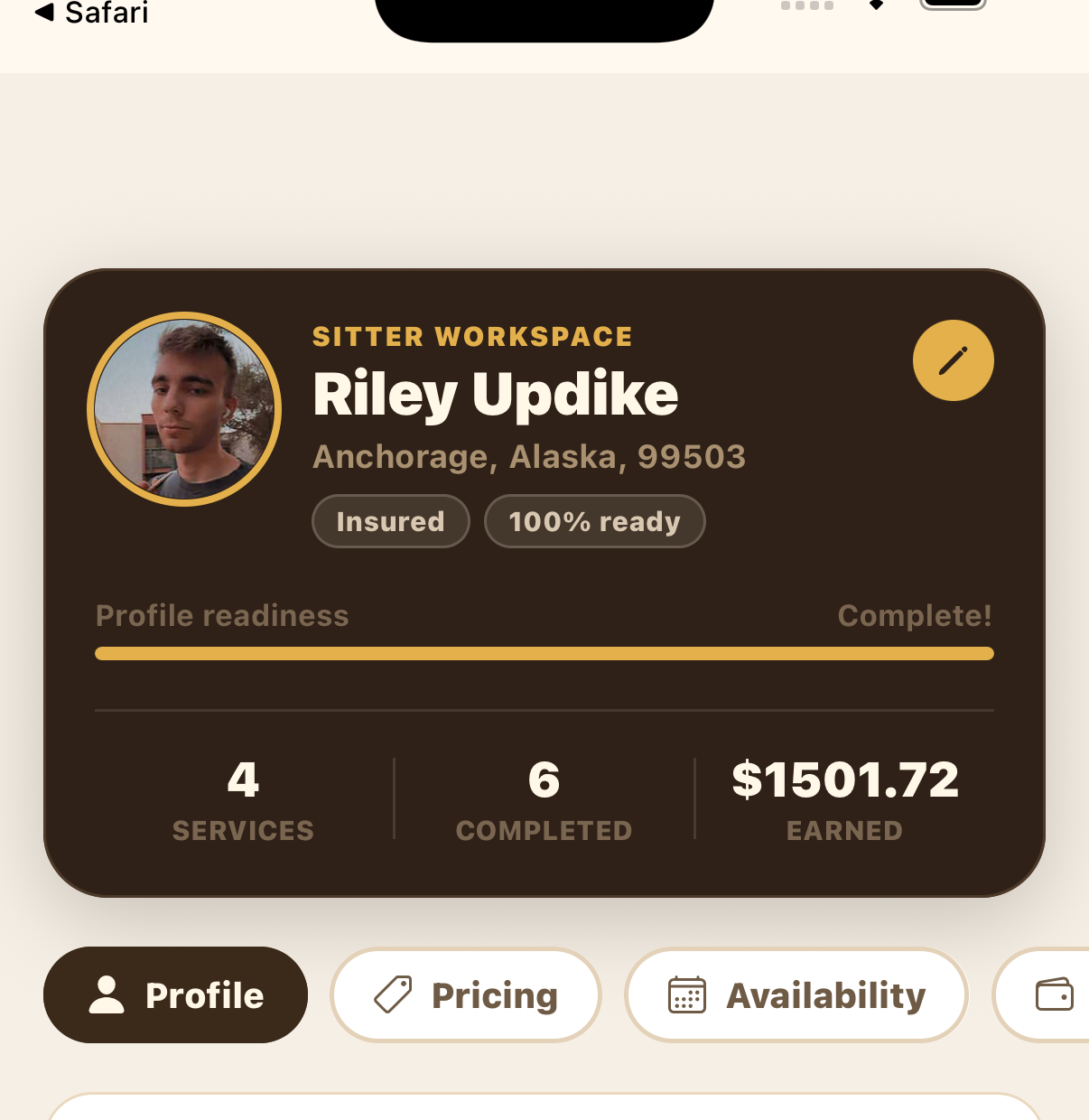
From the Sitter Home screen, tap Profile in the bottom menu. This opens your Sitter Workspace, where a row of tabs — Profile · Pricing · Availability · Payouts · Settings — controls everything below.
Edit your details on the Profile tab
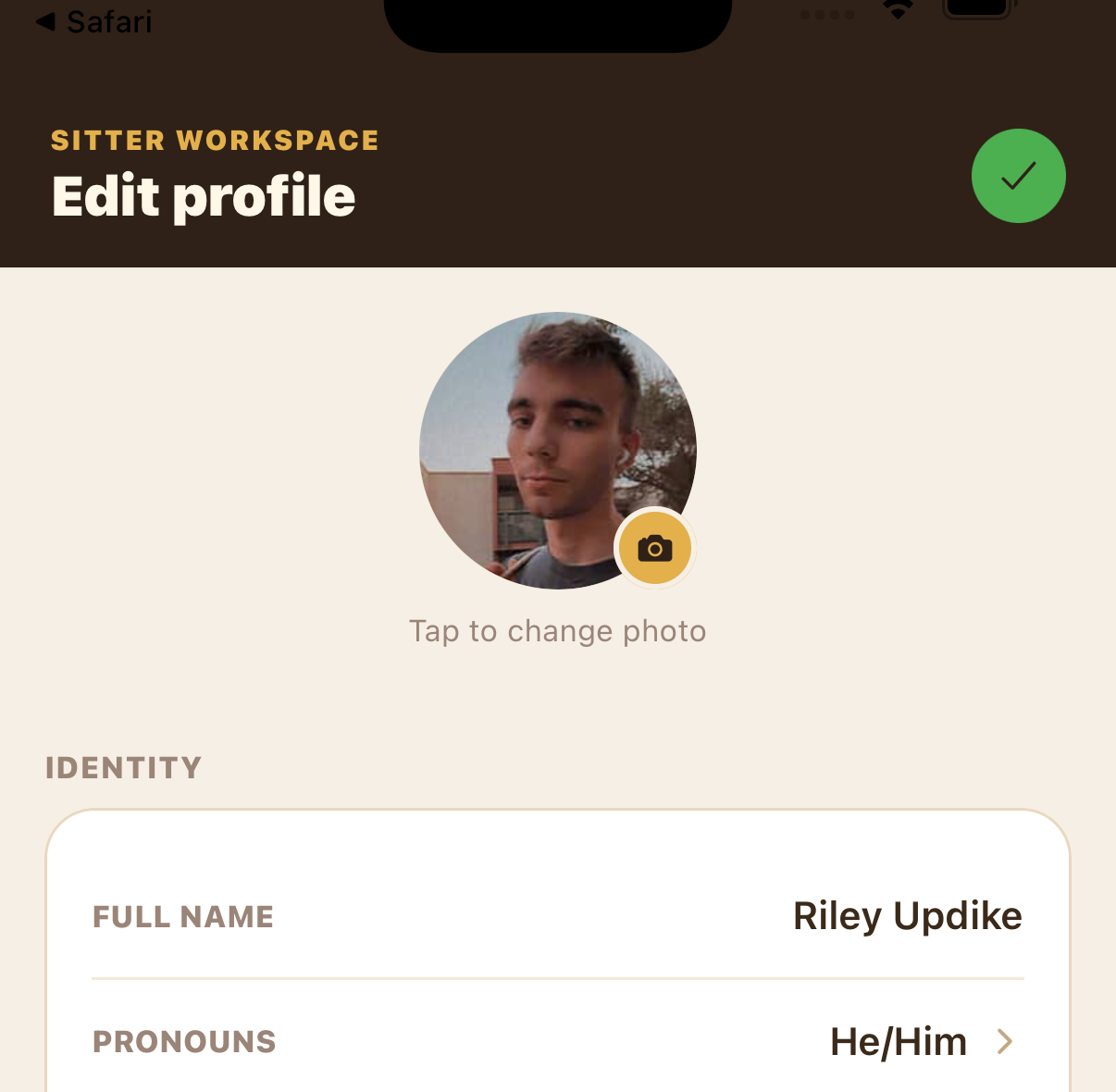
The Profile tab shows your client-facing details: location, services, cancellation policy, and bio. To edit them, tap the pencil icon in the top-right corner of the workspace card. On the Edit profile screen you can update your:
- Profile picture — tap the photo, then Tap to change photo
- Full name, Pronouns, and Phone
- Address — start typing the street and the city, state, and ZIP auto-fill (apt/unit is optional)
- Bio / About
Tap the green checkmark to save.
Set rates and services on the Pricing tab
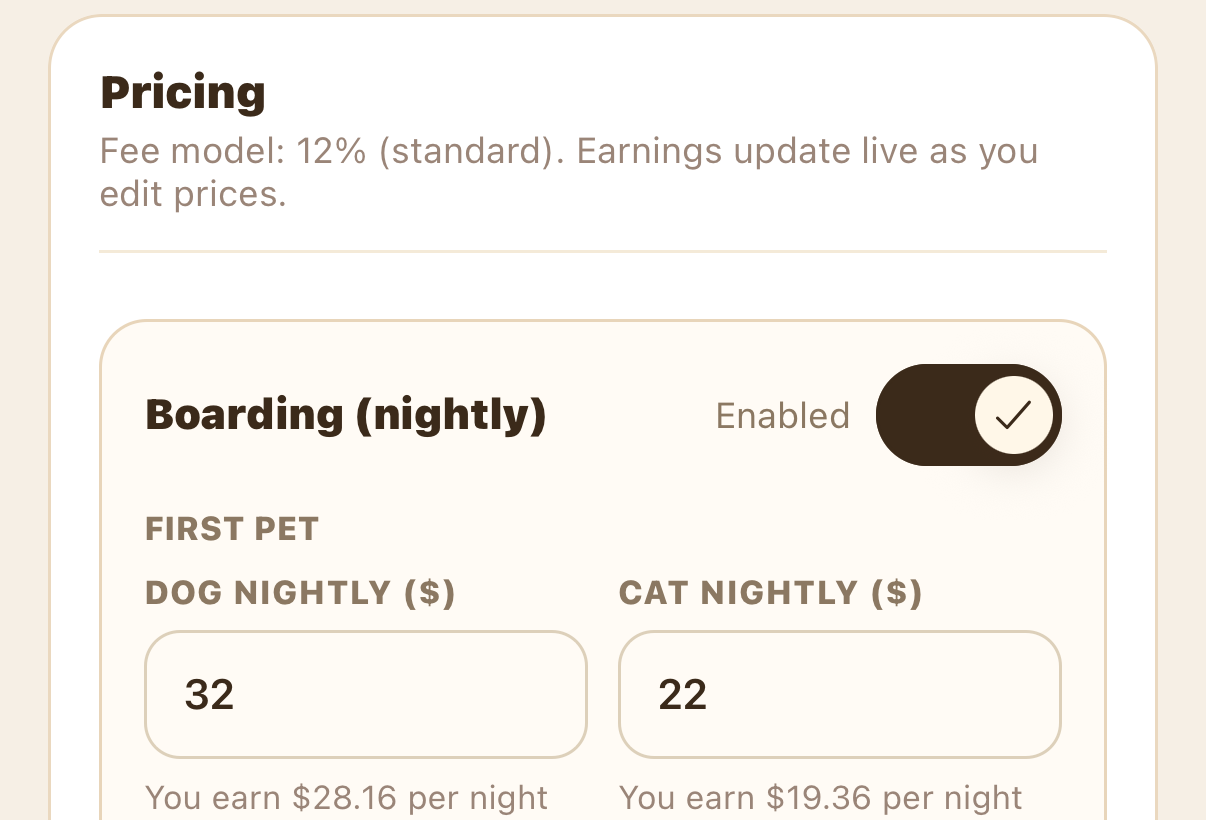
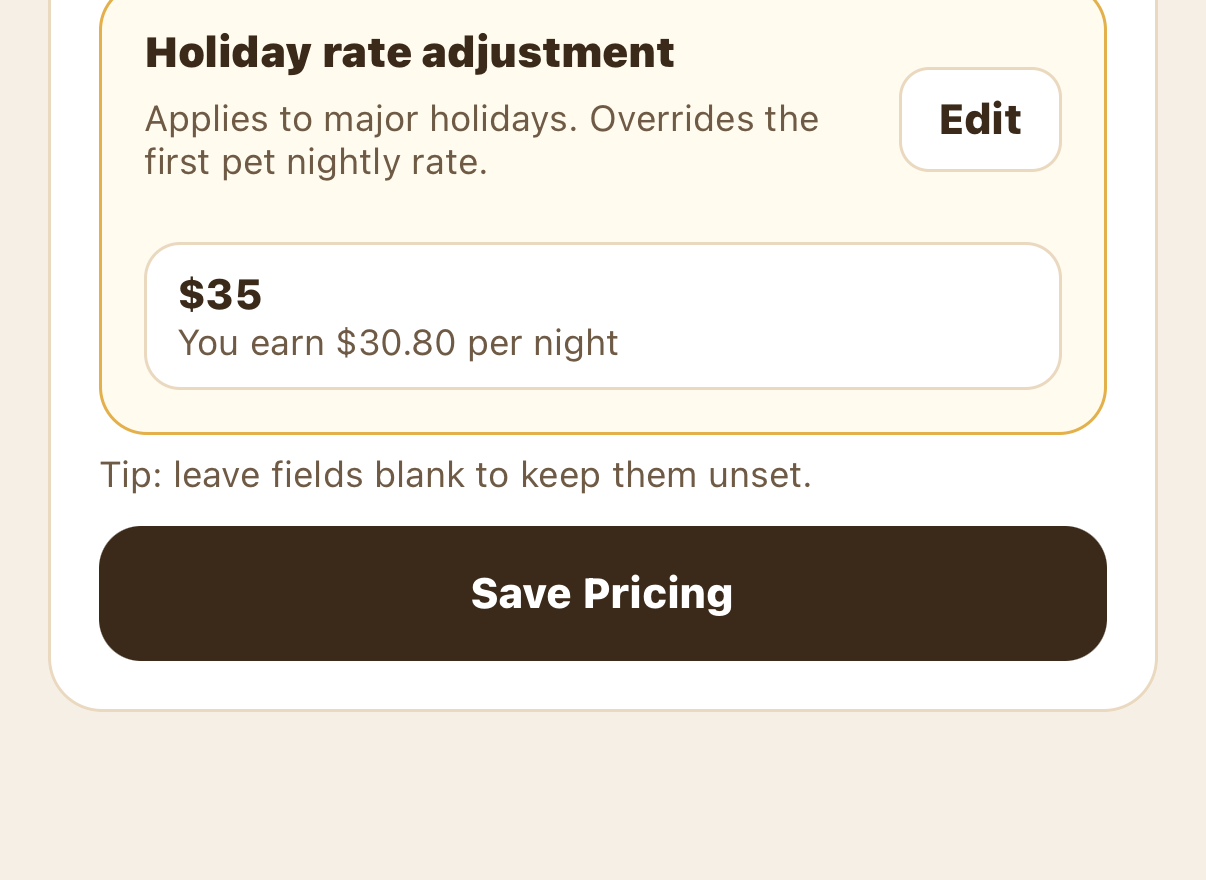
Tap Pricing to set what you charge. Earnings update live as you type (the standard fee model is 12%). Each service has an Enabled toggle so you can turn it on or off: Boarding (nightly), House Sitting (nightly), Dog Walking (per walk), and Drop-Ins (per visit).
For each service you set your first pet rate (dog/cat), additional pet rates, and other animal rates — birds, small mammals, reptiles, fish, farm animals, and other — which is where you price drop-ins and house sittings for pets beyond dogs and cats.
Set availability and travel radius
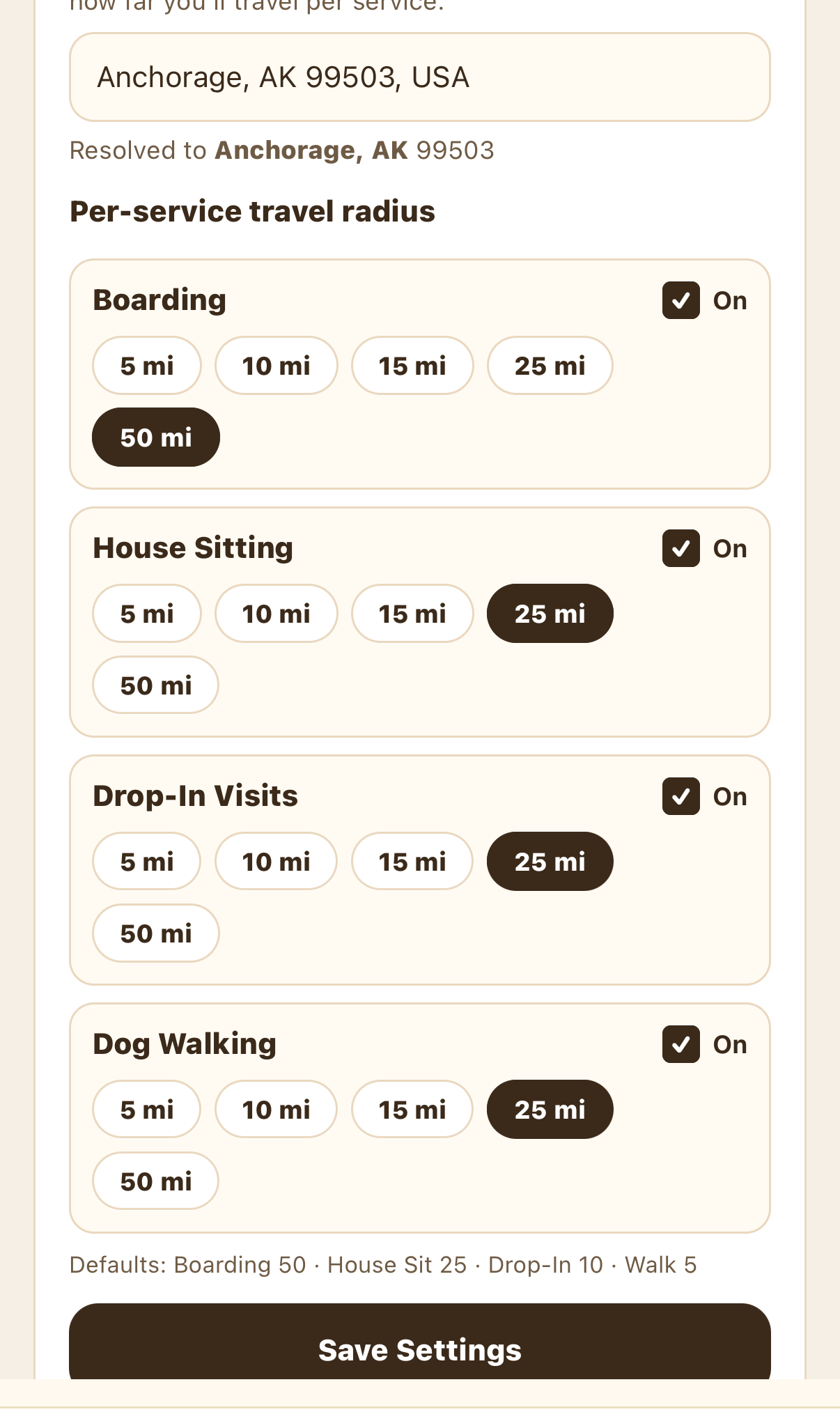
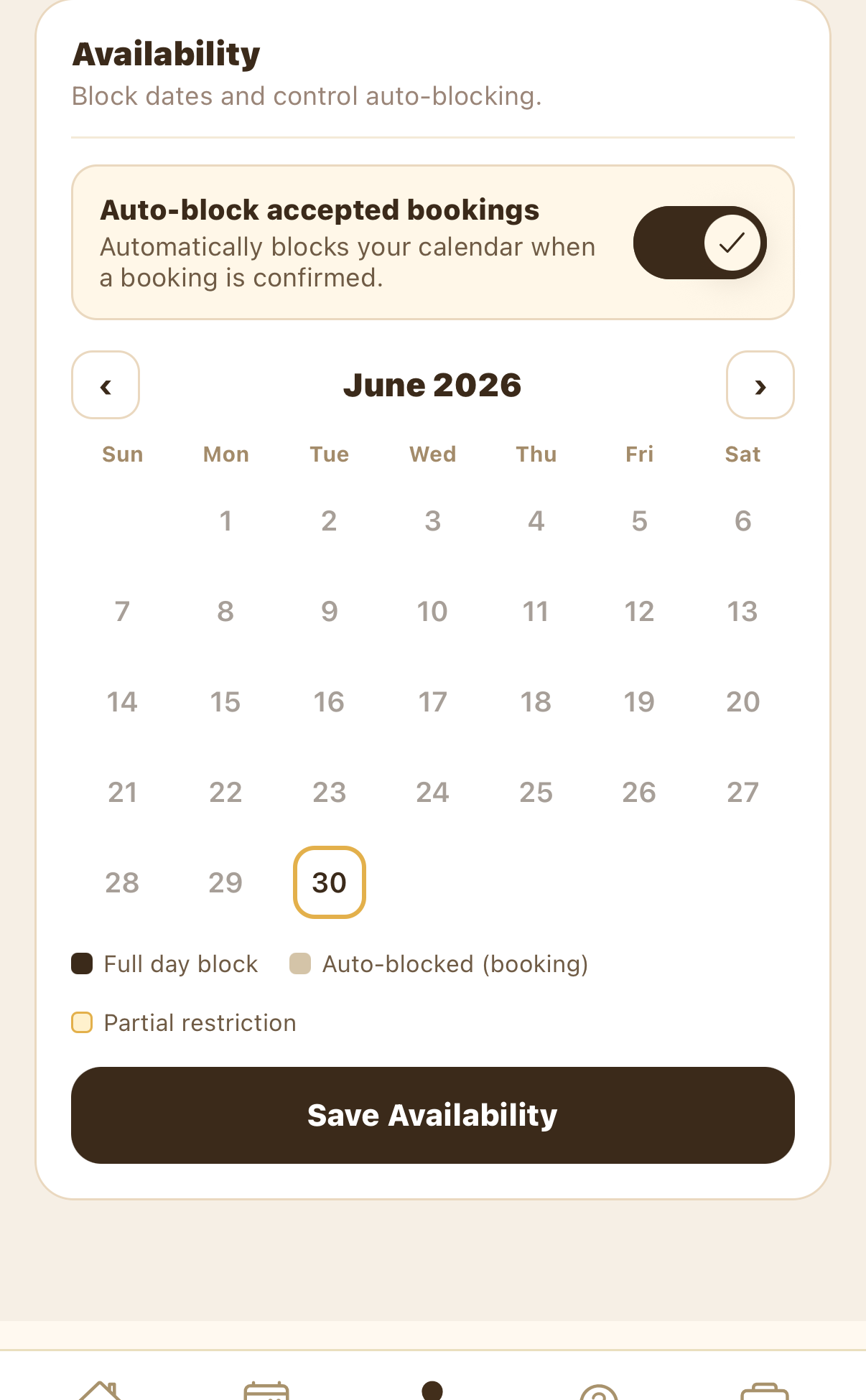
Tap Availability to control where and when you work. Under Service settings you set your cancellation policy, your service area (one service center by city, neighborhood, or ZIP), and a per-service travel radius (5 / 10 / 15 / 25 / 50 mi). Defaults are Boarding 50, House Sit 25, Drop-In 10, and Walk 5. Tap Save Settings.
Review payouts, tax, and performance
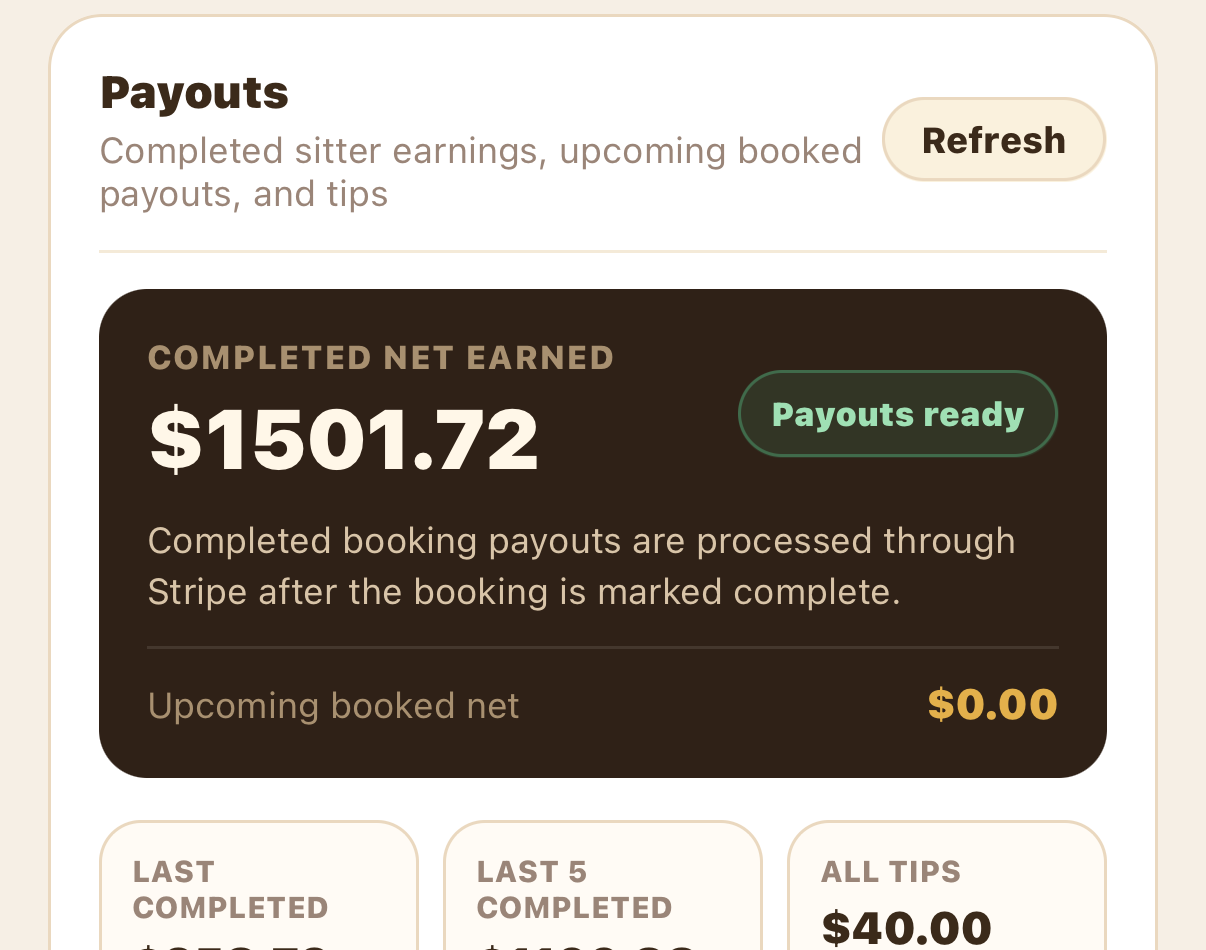
Tap Payouts to see your money. The top card shows completed net earned, your Payouts ready status, and upcoming booked net. Booking payouts process through Stripe after a booking is marked complete — tap Refresh to update. Below that you'll find your last completed, last 5 completed, and all tips (always 100% yours).
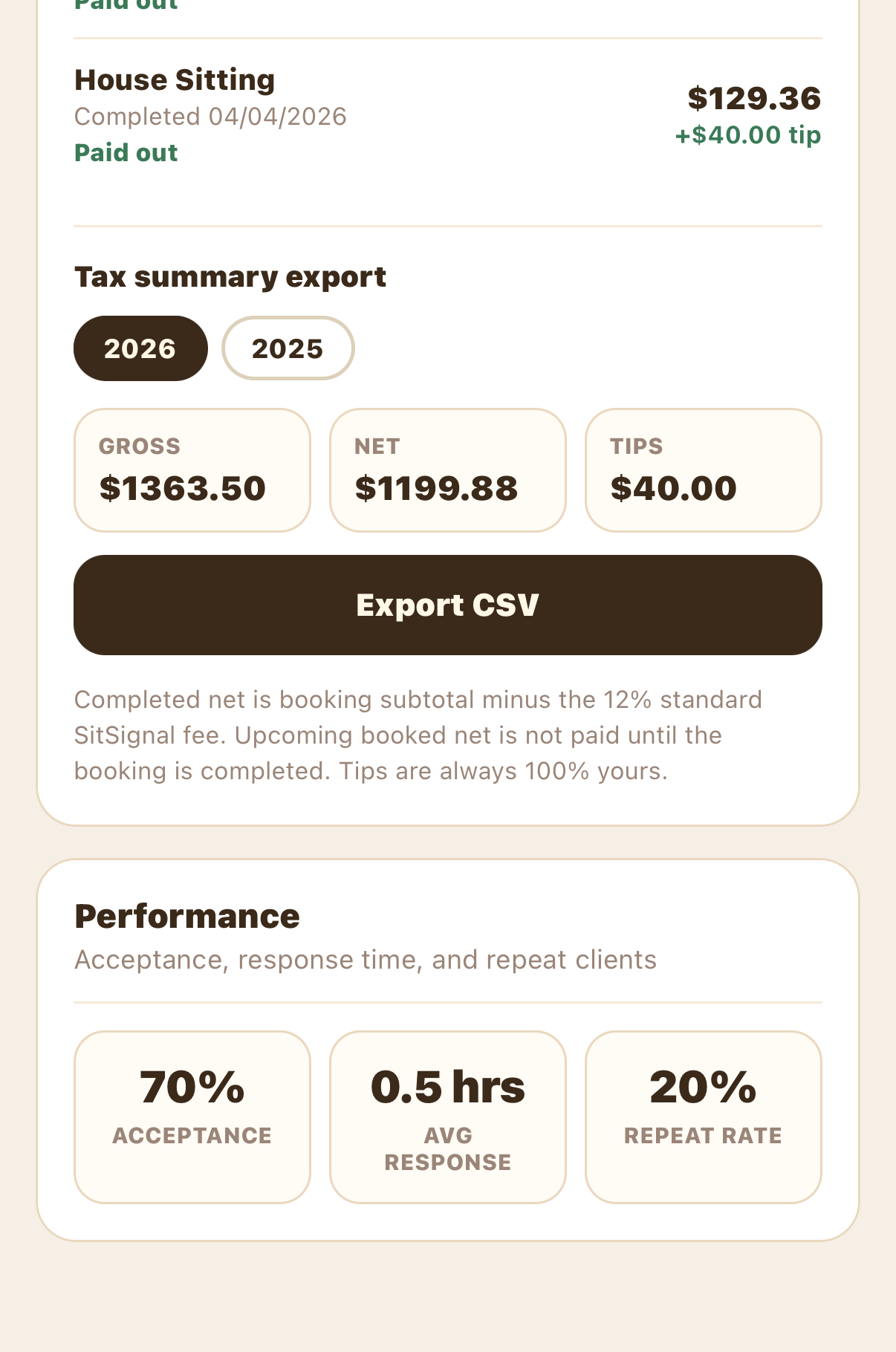
Scroll down for Recent completed payouts (tap View all to expand), the Tax summary export (pick a year, then Export CSV), and Performance — your acceptance rate, average response time, and repeat-client rate.
Manage app access, notifications, and account
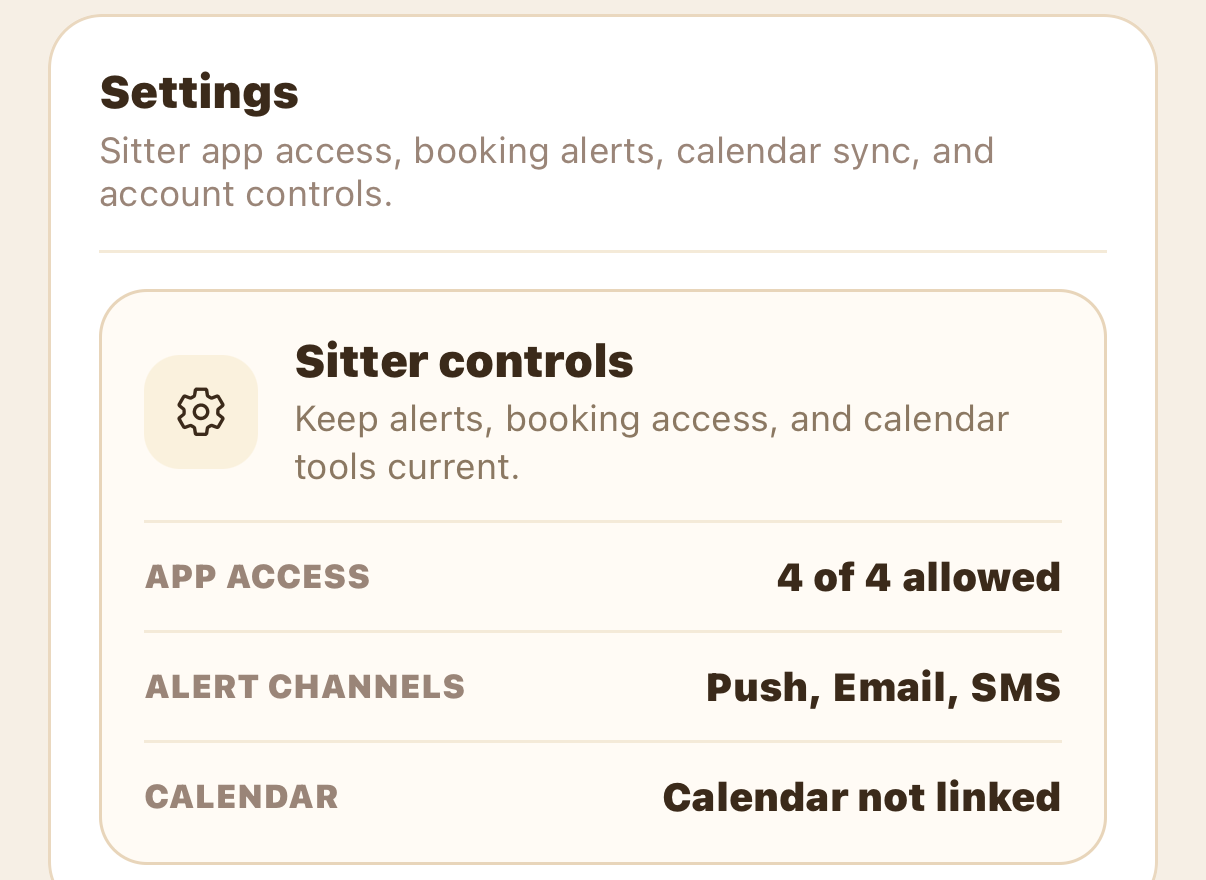
Tap Settings to manage permissions and your account. The Sitter controls card summarizes your app access, alert channels, and calendar status.
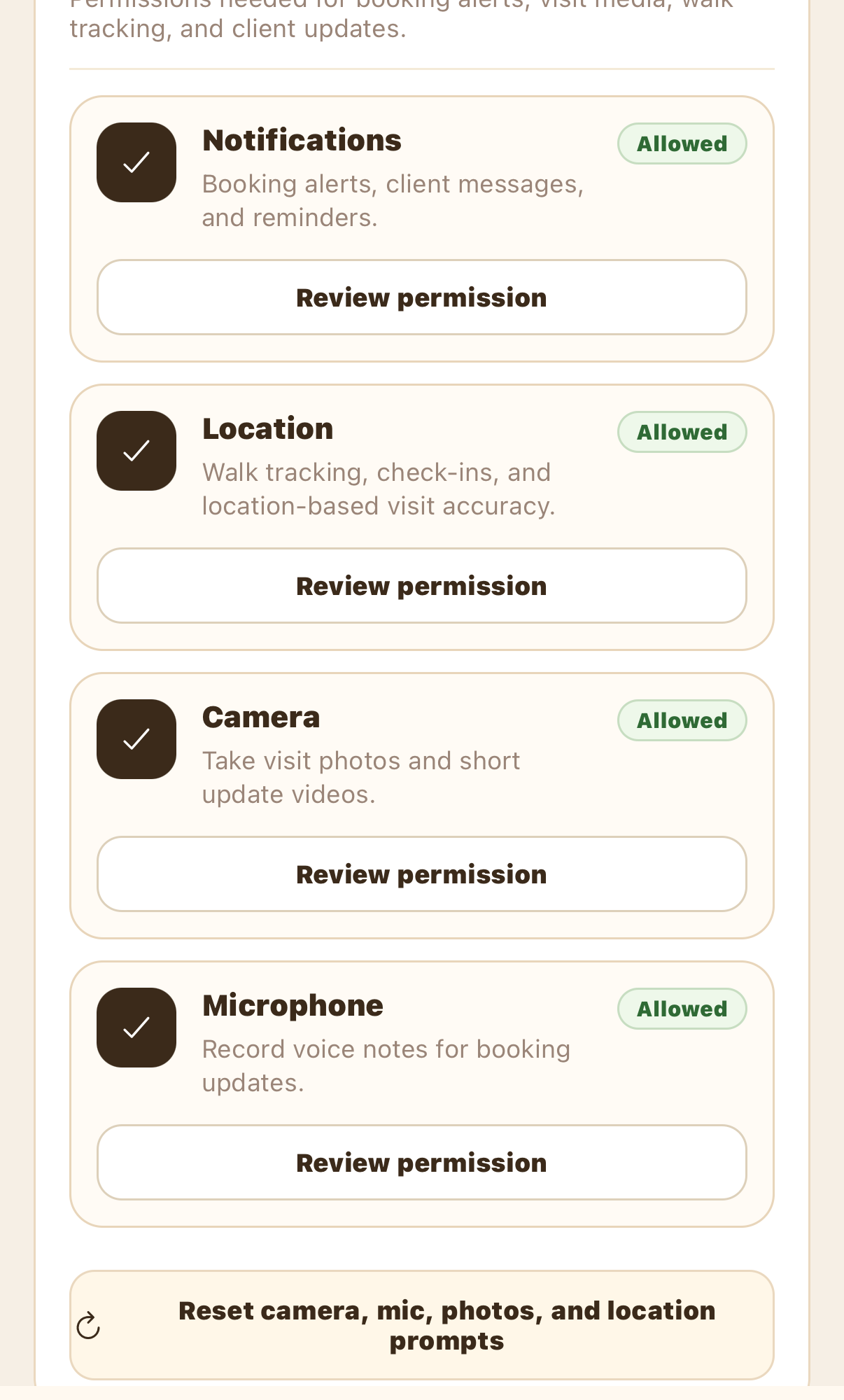
App access
Review permissions for Notifications, Location (walk tracking and check-ins), Camera, and Microphone. Tap Review permission on any of them, or Reset camera, mic, photos, and location prompts.
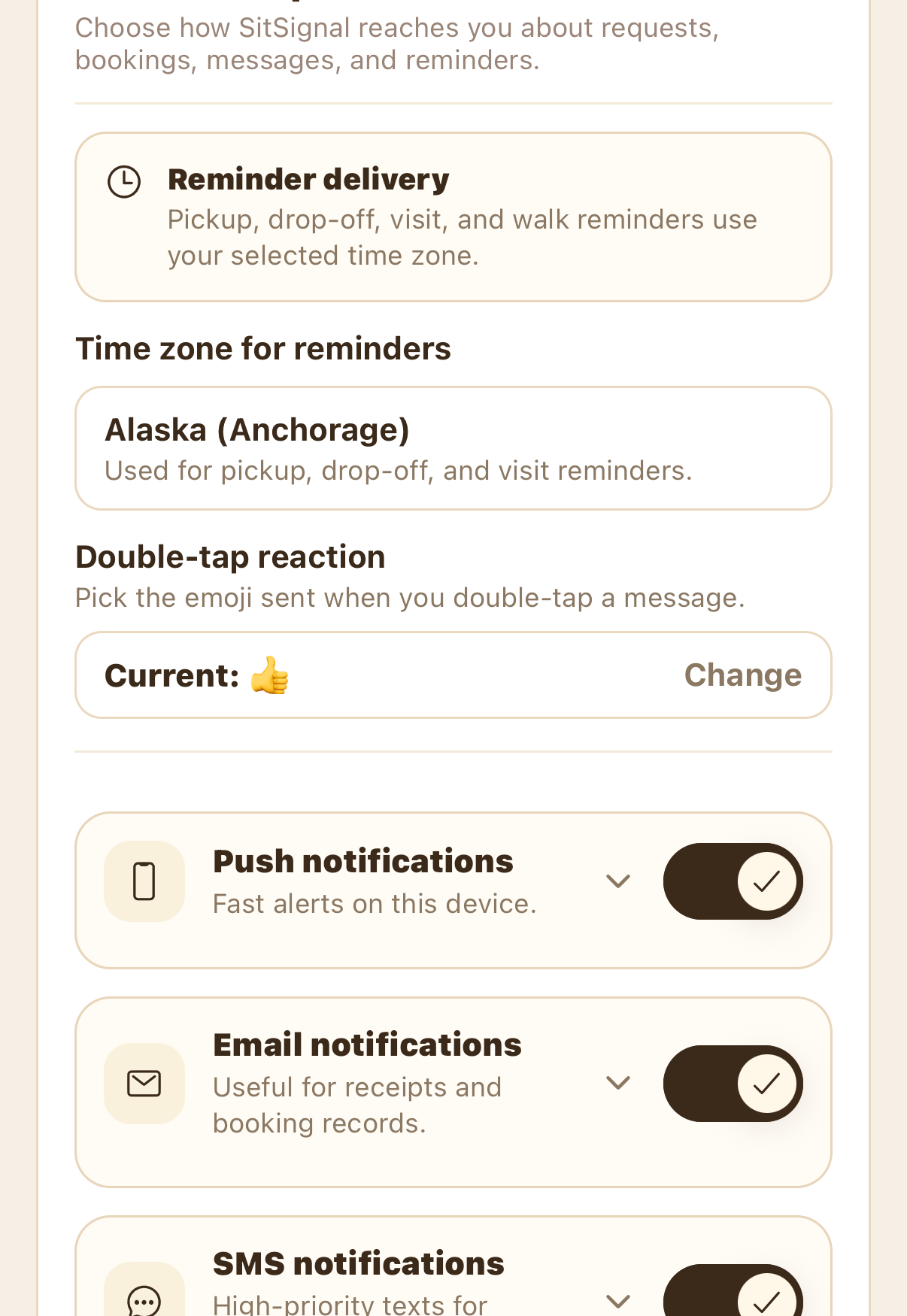
Notification preferences
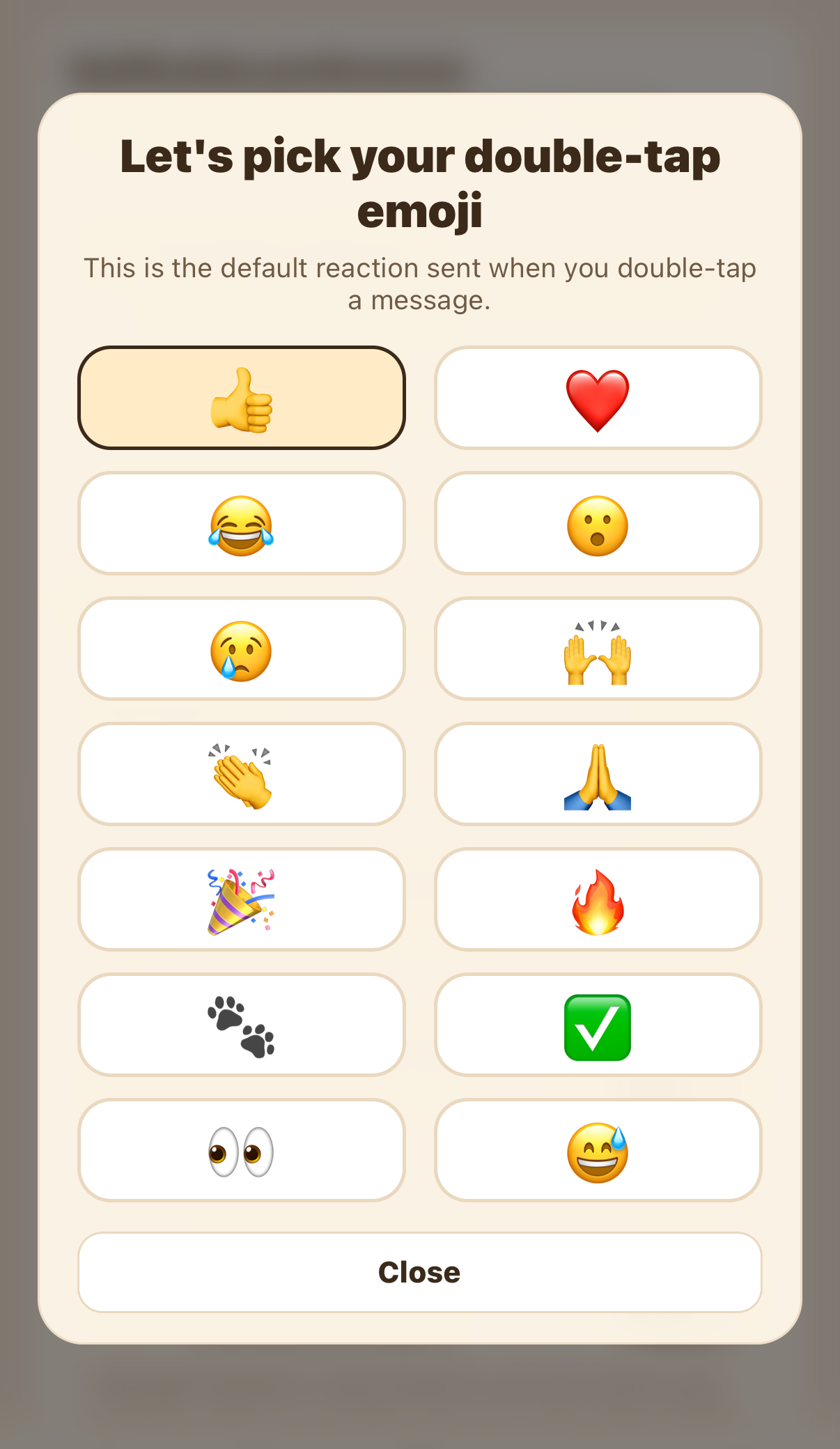
Set your time zone for reminders (used for pickup, drop-off, and visit reminders), pick your double-tap reaction emoji (tap Change to choose), and toggle Push, Email, and SMS notifications on or off.
Calendar sync and account
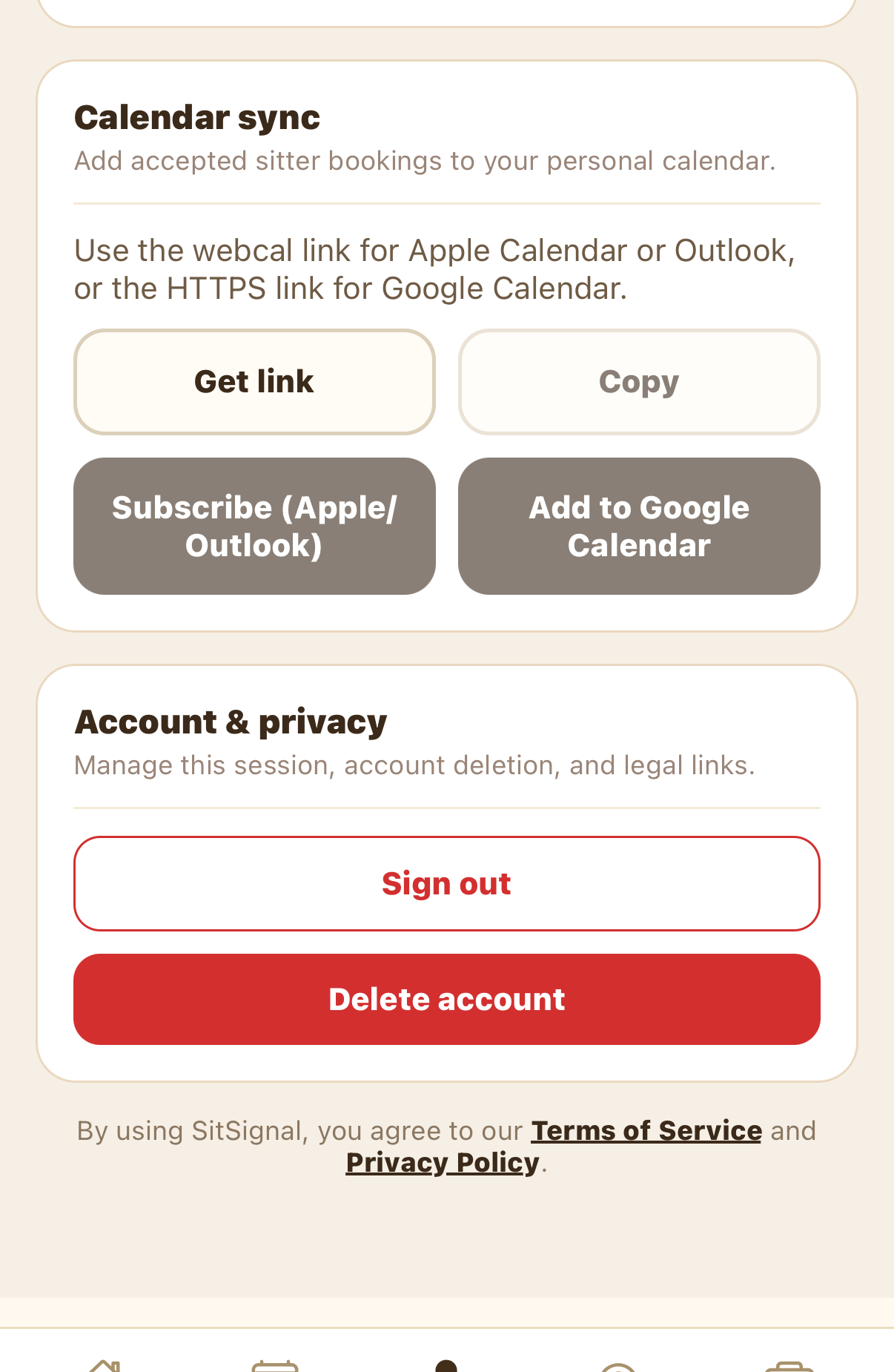
Link your bookings to your personal calendar so they update live: use Get link / Copy for the webcal link (Apple Calendar or Outlook) or the HTTPS link (Google Calendar), or tap Subscribe (Apple/Outlook) or Add to Google Calendar. At the bottom you can Sign out or request to Delete account.