 SitSignal
Getting there
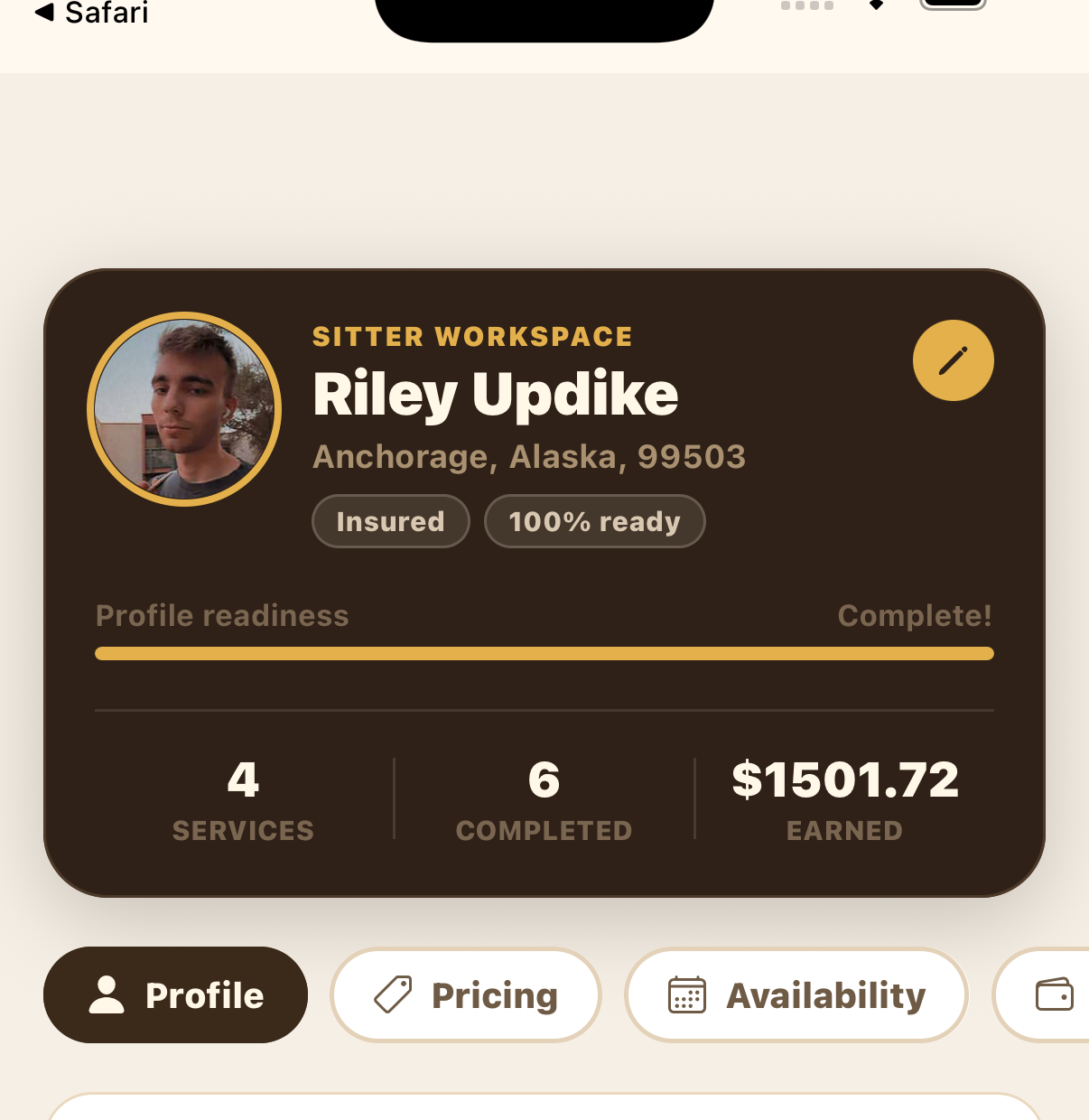
From the Sitter Home screen, tap Profile in the bottom menu to open your Sitter Workspace, then tap the Availability tab. This is where you control both when you work (the calendar) and where you work (your service area and travel radius).
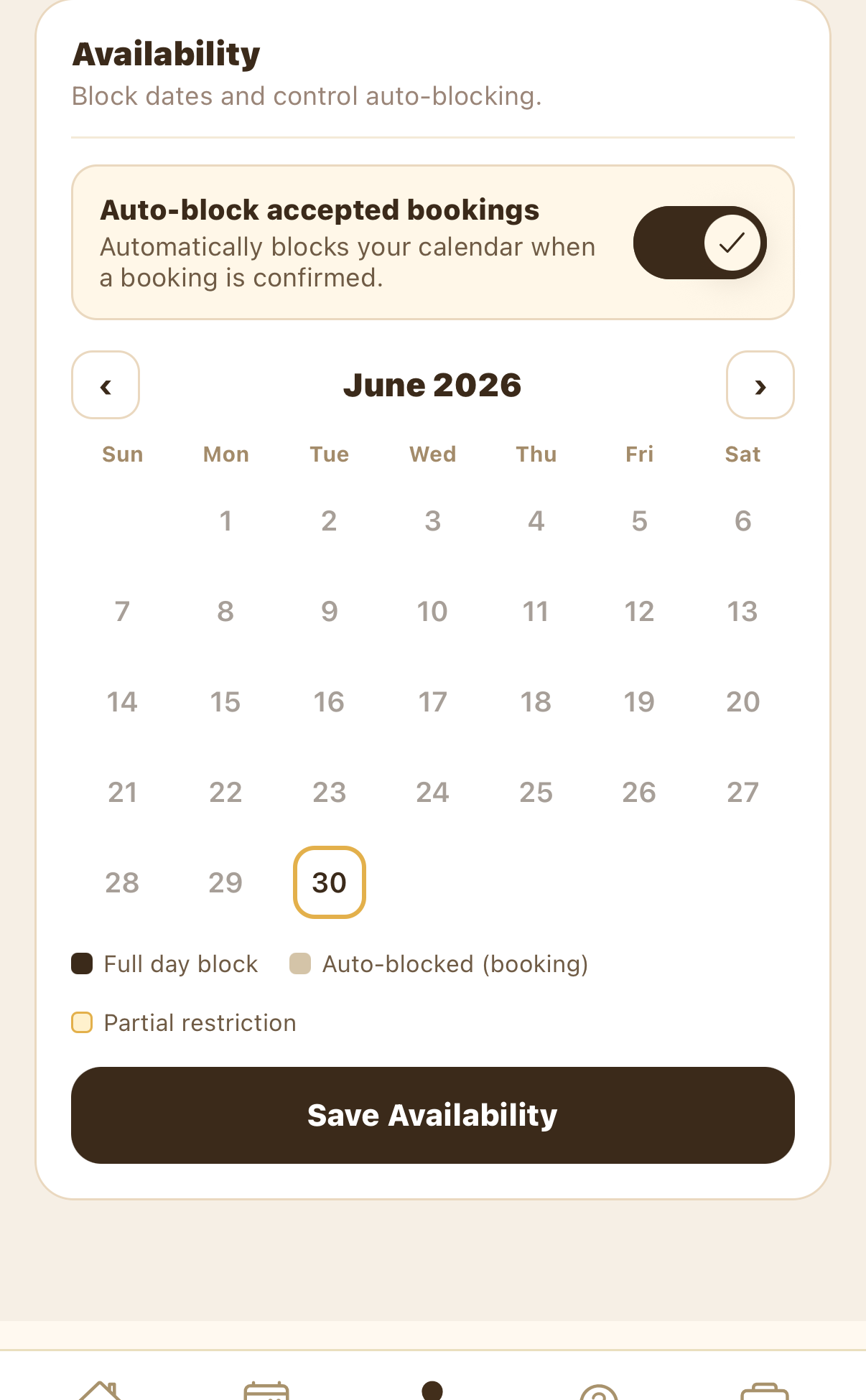
Block and unblock days on the calendar
The calendar shows the month ahead. Use the ‹ and › arrows to move between months. Tap any day to block it, and tap it again to reopen it. Blocked days are hidden from clients searching for those dates, so keep them accurate:
- Full day block — days you've blocked yourself (vacation, personal time)
- Auto-blocked (booking) — days taken by a confirmed booking
- Partial restriction — days with limited availability
Leave Auto-block accepted bookings on (the toggle at the top) so your calendar blocks itself automatically whenever a booking is confirmed — you won't get double-booked. Tap Save Availability when you're done.
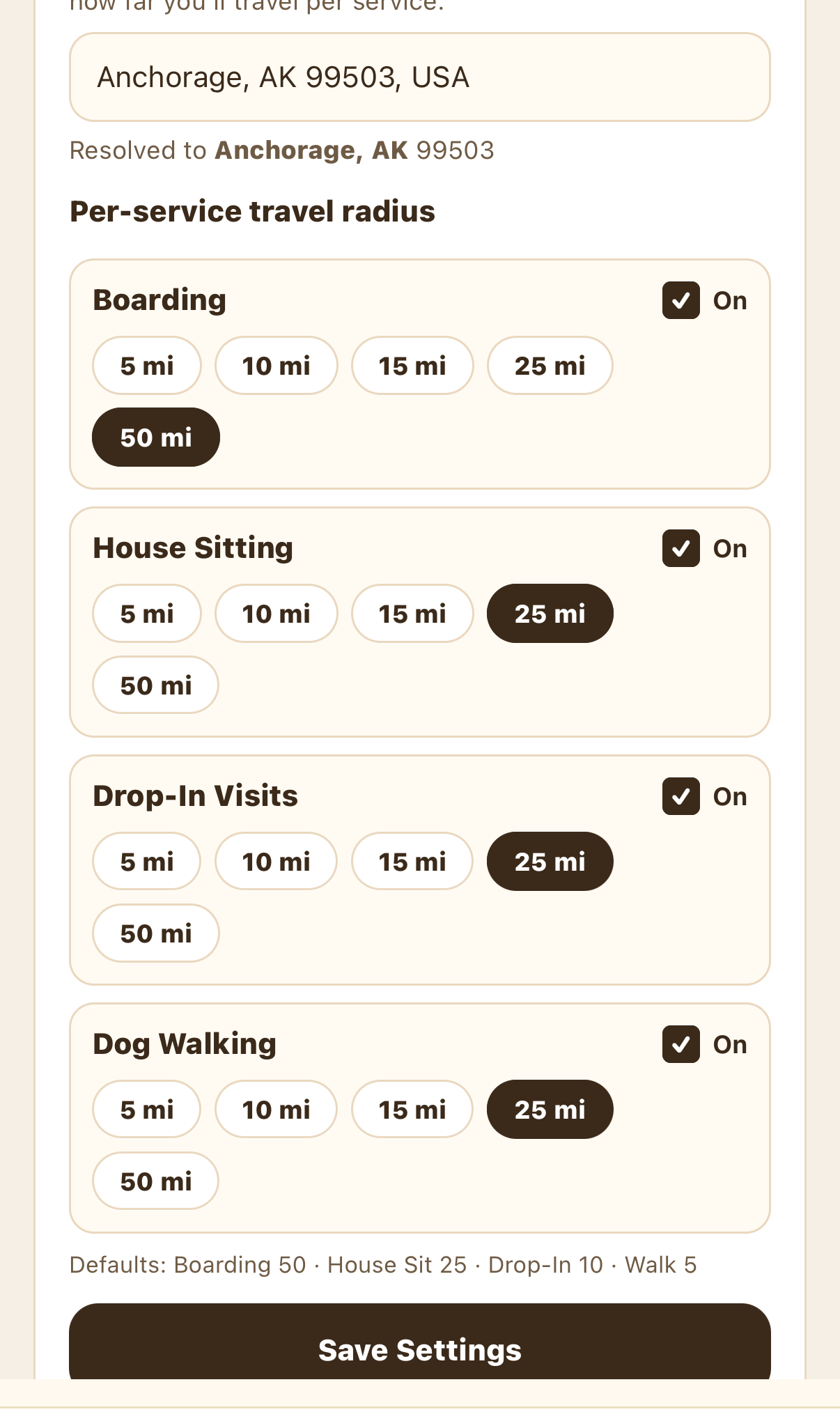
Confirm your service area and travel radius
Above the calendar, Service settings control your service area (one service center by city, neighborhood, or ZIP) and a per-service travel radius (5 / 10 / 15 / 25 / 50 mi). This decides which clients can find you. If you've moved, expanded how far you'll travel, or want more bookings, widen your radius here and tap Save Settings.
Update your availability every week
Make it a habit: open the Availability tab once a week — a good time is Sunday evening before the week ahead — and reopen or block days as your plans change. It takes about a minute and it matters more than most sitters realize:
- You rank higher in search. SitSignal surfaces sitters with fresh, current availability ahead of stale profiles, so a weekly update keeps you near the top of results.
- Clients see the truth. Accurate openings mean fewer requests for days you can't take, and more requests you can actually accept.
- You get booked faster. Sitters who look active and available win the bookings that outdated profiles miss.