 SitSignal
What a change request does
A change request updates a booking's dates and times — and, when a sitter sends it, optionally the nightly price. The app calculates the new total and shows the difference before anything is sent, so there are no surprises. Either side can start one, and whoever receives it approves.
Change requests cover overnight stays — house sitting and boarding. (For walks and drop-ins, message your sitter or client in the booking chat.)
Open a change request
Open the booking, then find the change-request controls:
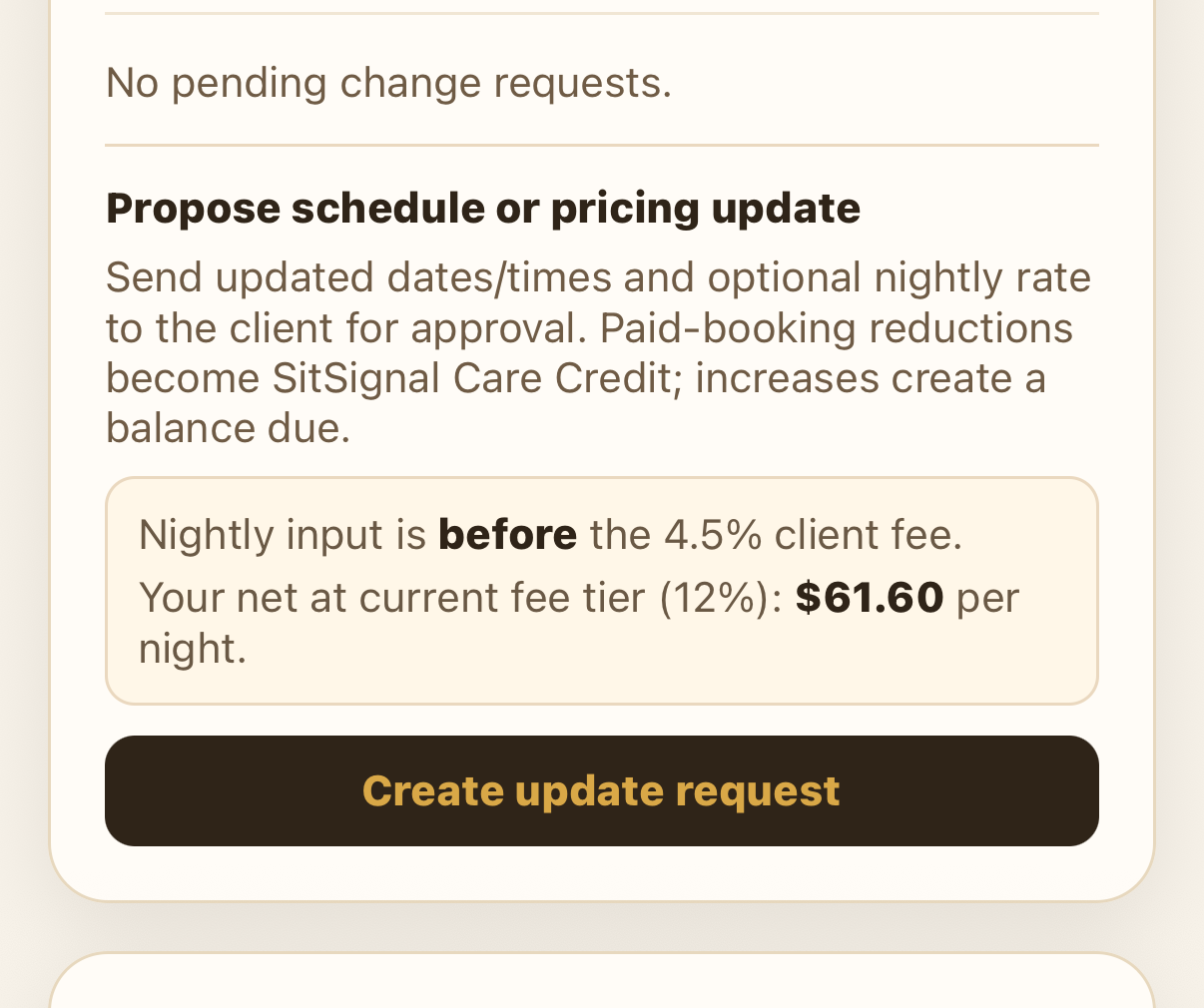
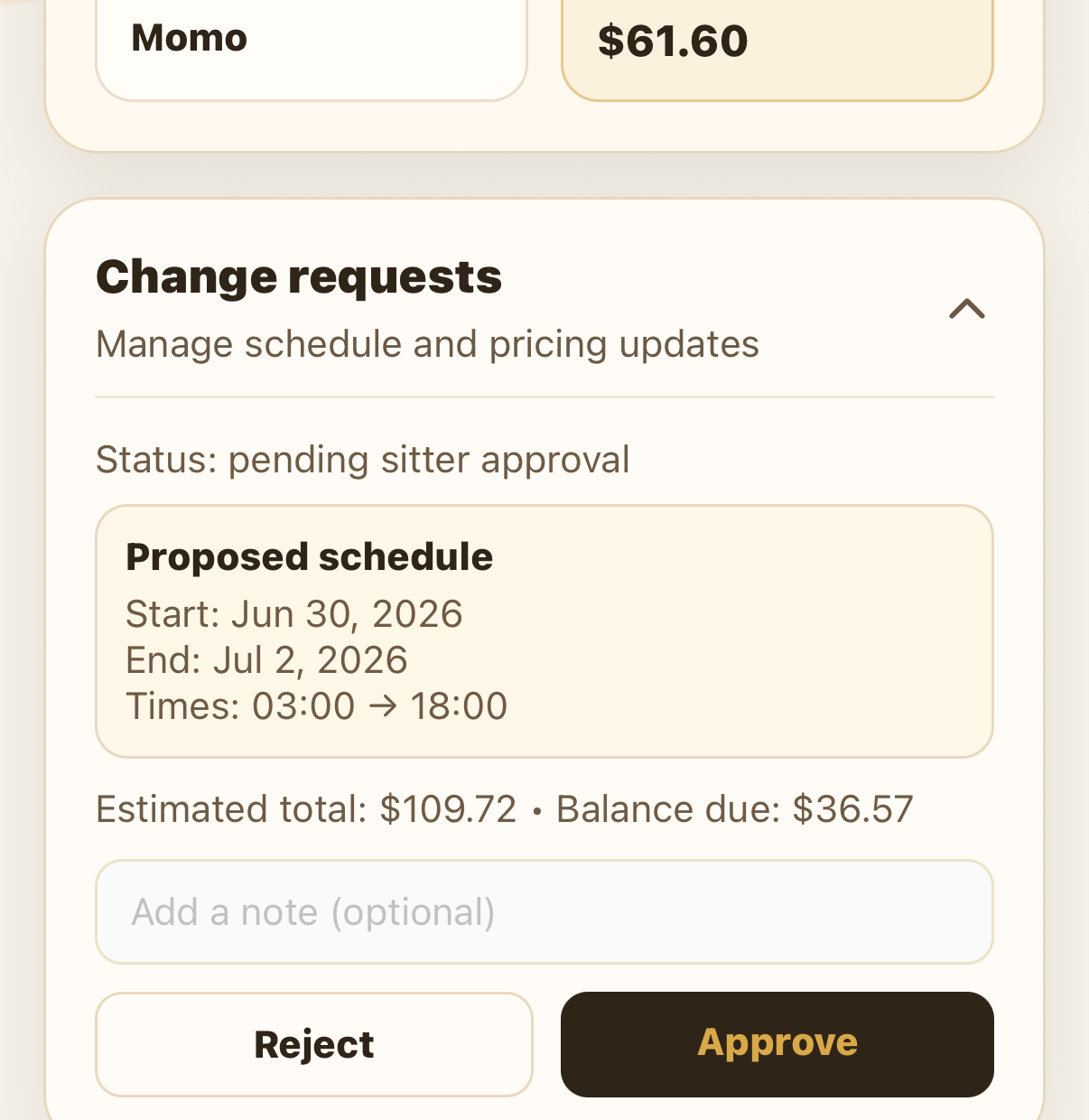
- Sitters — on the booking info screen, go to Change requests and tap Create update request.
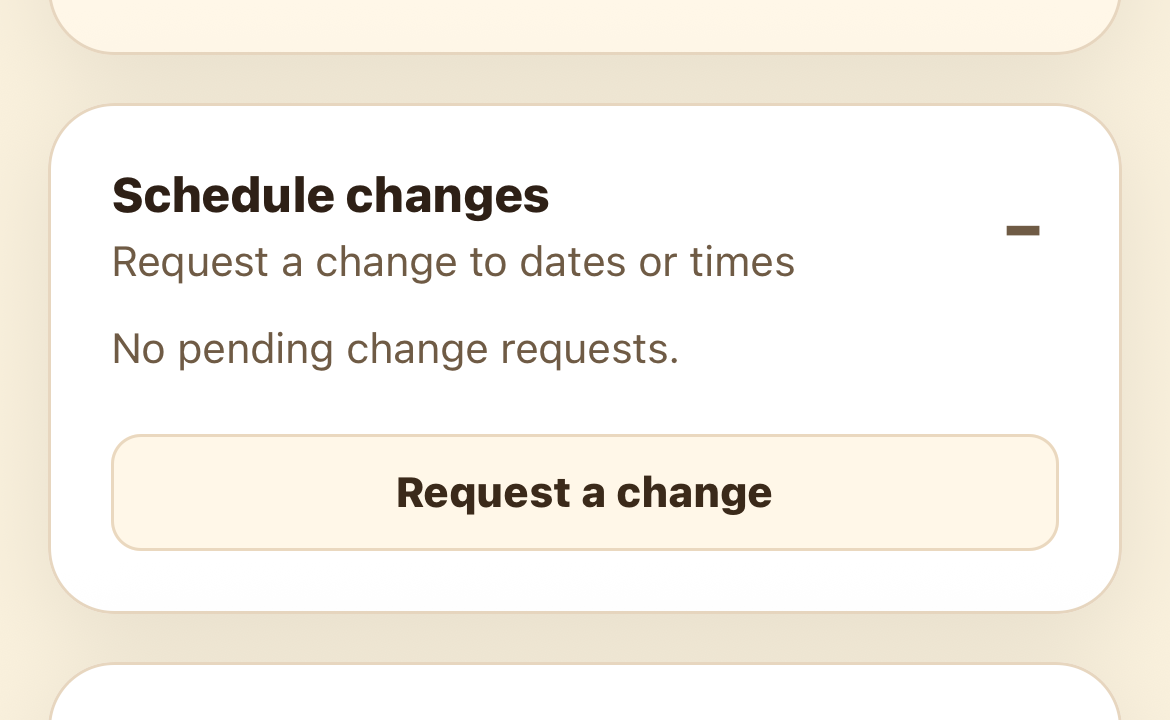
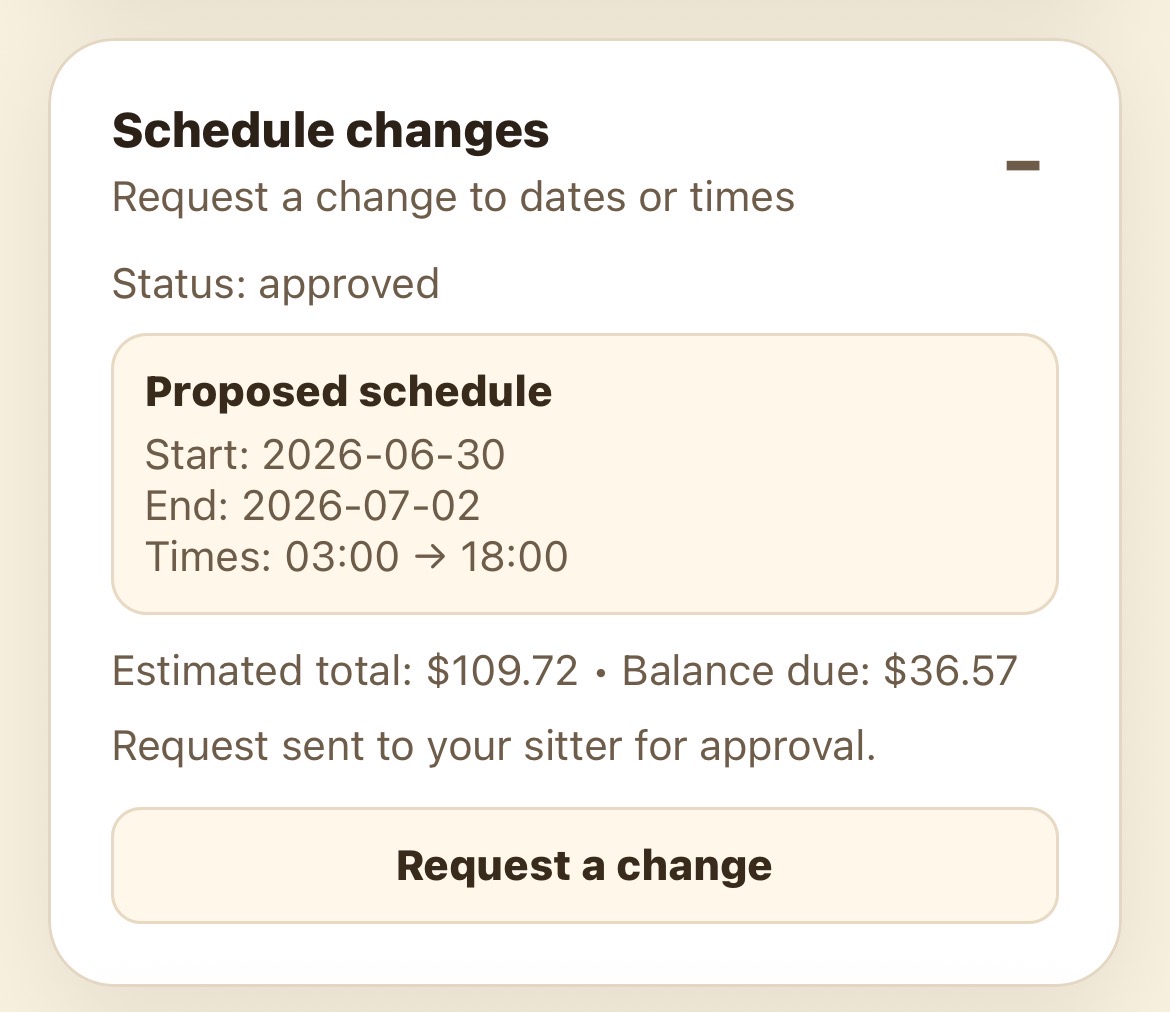
- Clients — on the booking, open Schedule changes and tap Request a change.
Enter the updated dates and times
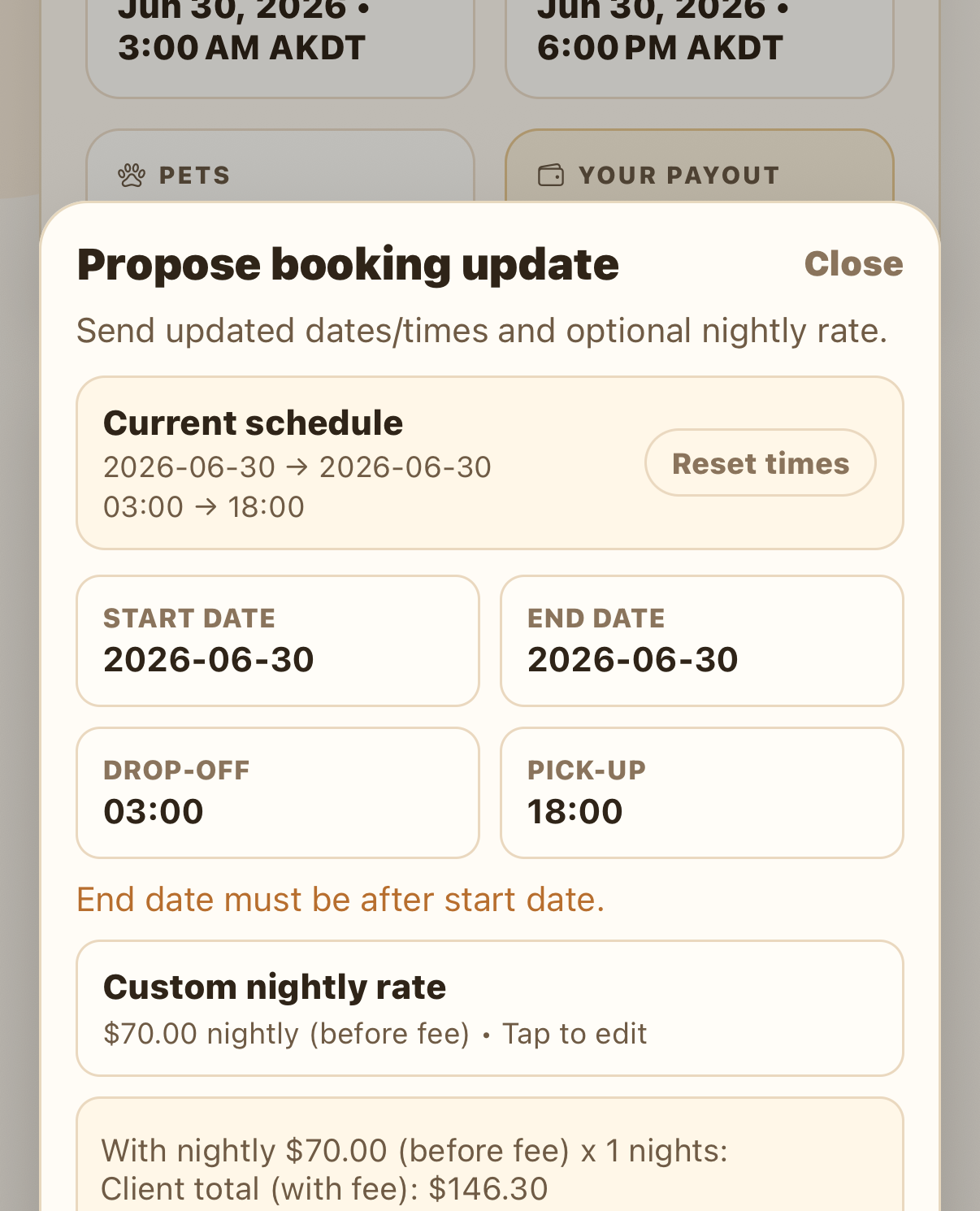
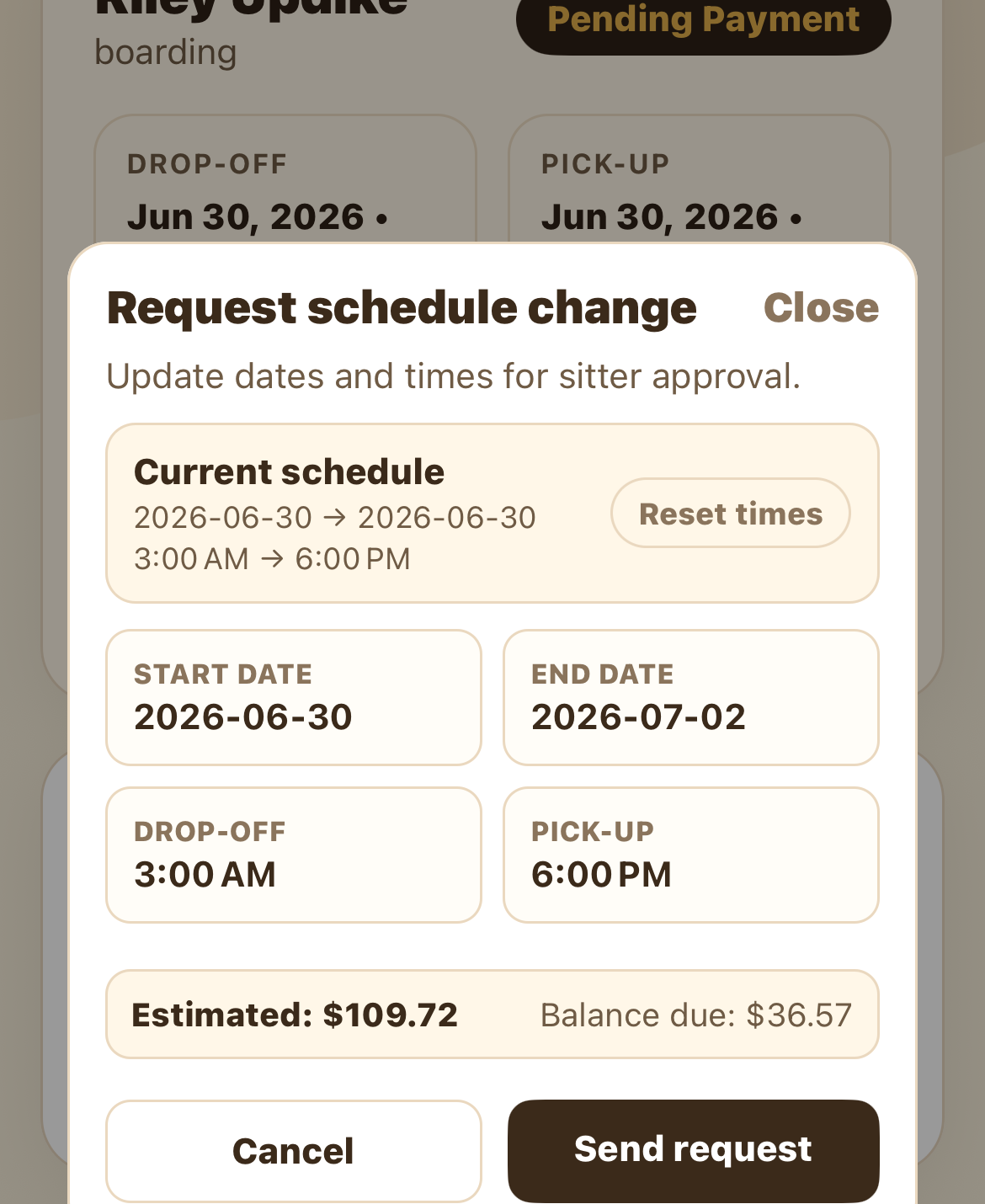
Set the new start and end dates and drop-off and pick-up times. As you edit, the app shows the new estimated total and the price difference — a balance due if it costs more, or a refund if it costs less. Update at least one field, then send.
Send it — then what happens
After you send the request, what happens next depends on where the booking is:
- Not yet approved by the sitter — the dates update automatically; no approval step needed.
- Approved but not yet paid — the other person (sitter or client) approves the change.
- Already paid — the other person approves, the difference becomes a balance due, and once the client pays it, the booking updates automatically.
Pricing & refunds
Increases are simple: the difference becomes a balance due that the client pays, and the booking updates once it's paid. Reductions on a booking that's already paid may create a refund, subject to the sitter's cancellation policy — with a couple of things to keep in mind.
There are two ways to take a refund:
The refund choice is communicated to the client shortly after the sitter or client approves the change request.
Sitters: set a special nightly rate
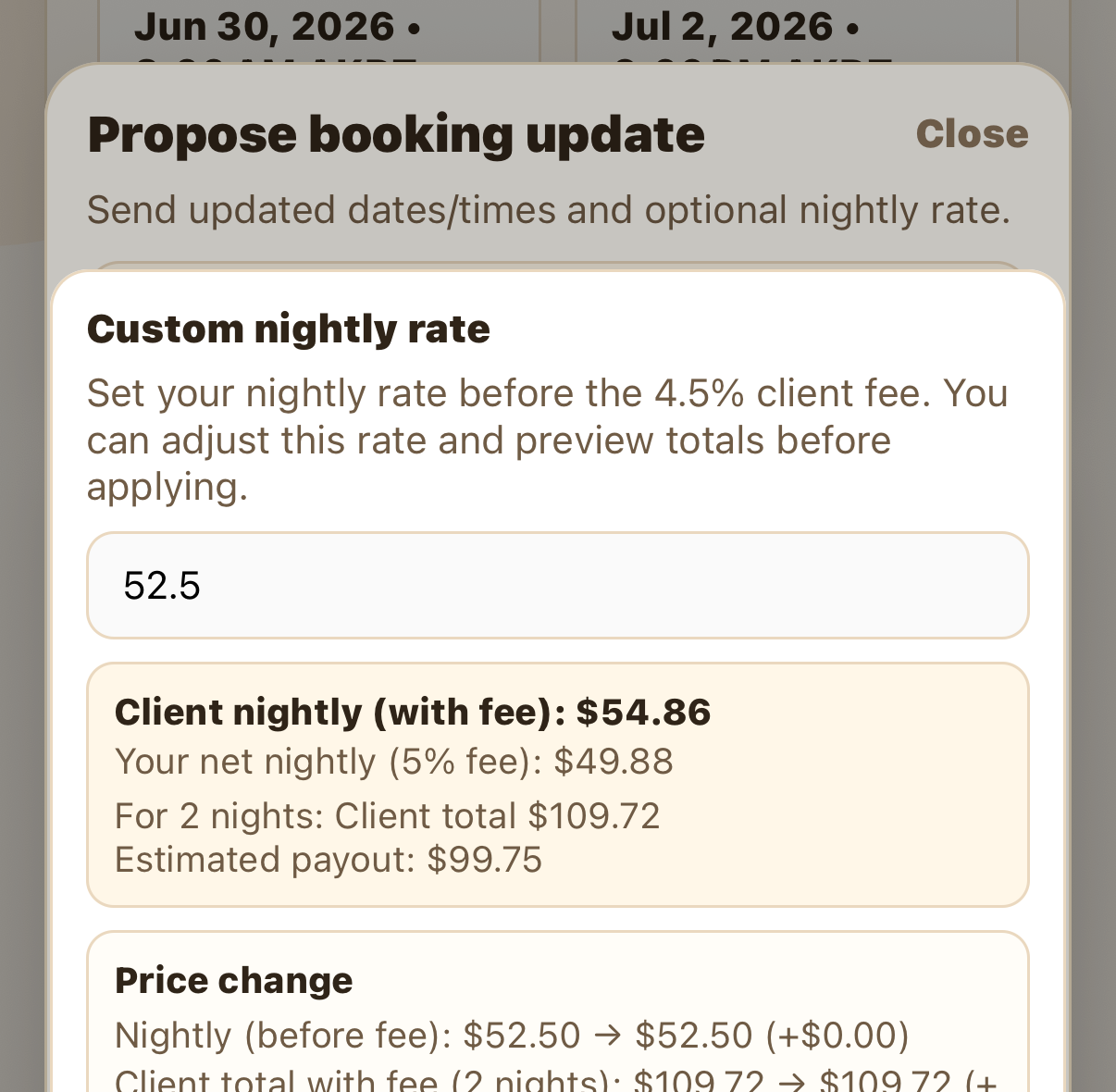
Sitters can set a custom price per night right in the change-request screen — handy for a longer stay, a repeat client, or a one-off adjustment. The nightly amount you enter is before the 4.5% client fee, and the form shows your net payout at your current fee tier as you type.
FAQ
Whoever receives it. If the sitter sends it, the client approves, and vice versa. The exception: before a booking is approved by the sitter, date changes update automatically.
It depends on the sitter's cancellation policy — a refund on a shortened booking is subject to that policy. A sitter may also choose to approve a refund outside their policy with SitSignal support. When an amount is eligible, the 4.5% client fee already paid is not returned, but you can take the eligible amount as SitSignal Credit (instant, never expires) or back to your card (up to 10 business days).
The difference becomes a balance due. Once the client pays it, the booking updates automatically.
Yes, on a booking that isn't paid yet — sitters can set a custom nightly rate in the change-request screen before sending it. Once a booking is paid, changes are schedule-only.