 SitSignal
When you pay
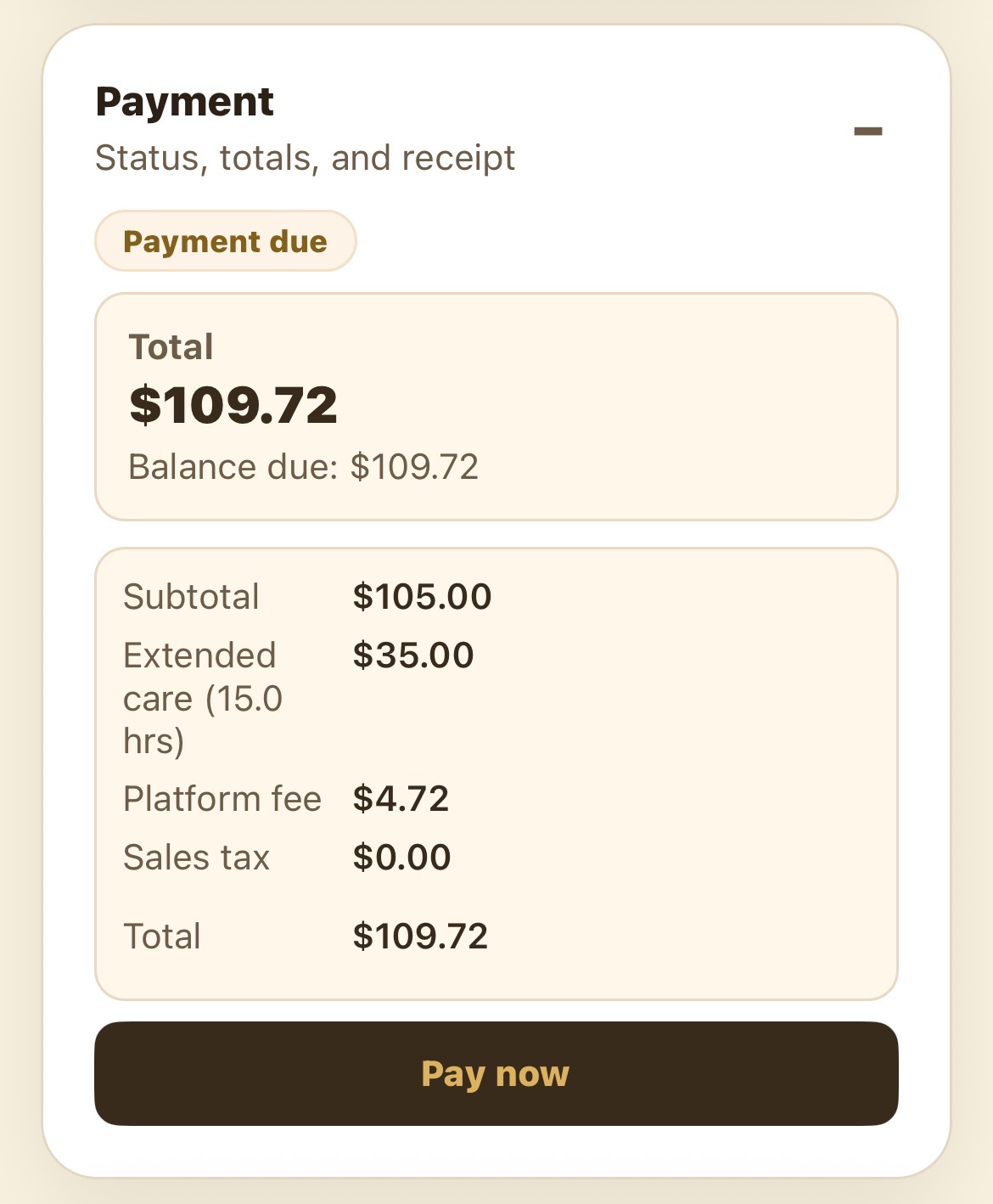
A booking shows Pending payment until it's paid. You can pay as soon as the booking is confirmed — the booking screen shows the full breakdown (subtotal, any extended care, the platform fee, and tax) so you always see exactly what you're paying.
Open the booking and tap Pay now
Open the booking from Bookings or your home screen. In the Payment section you'll see the total and balance due. Tap Pay now.
Review the booking summary
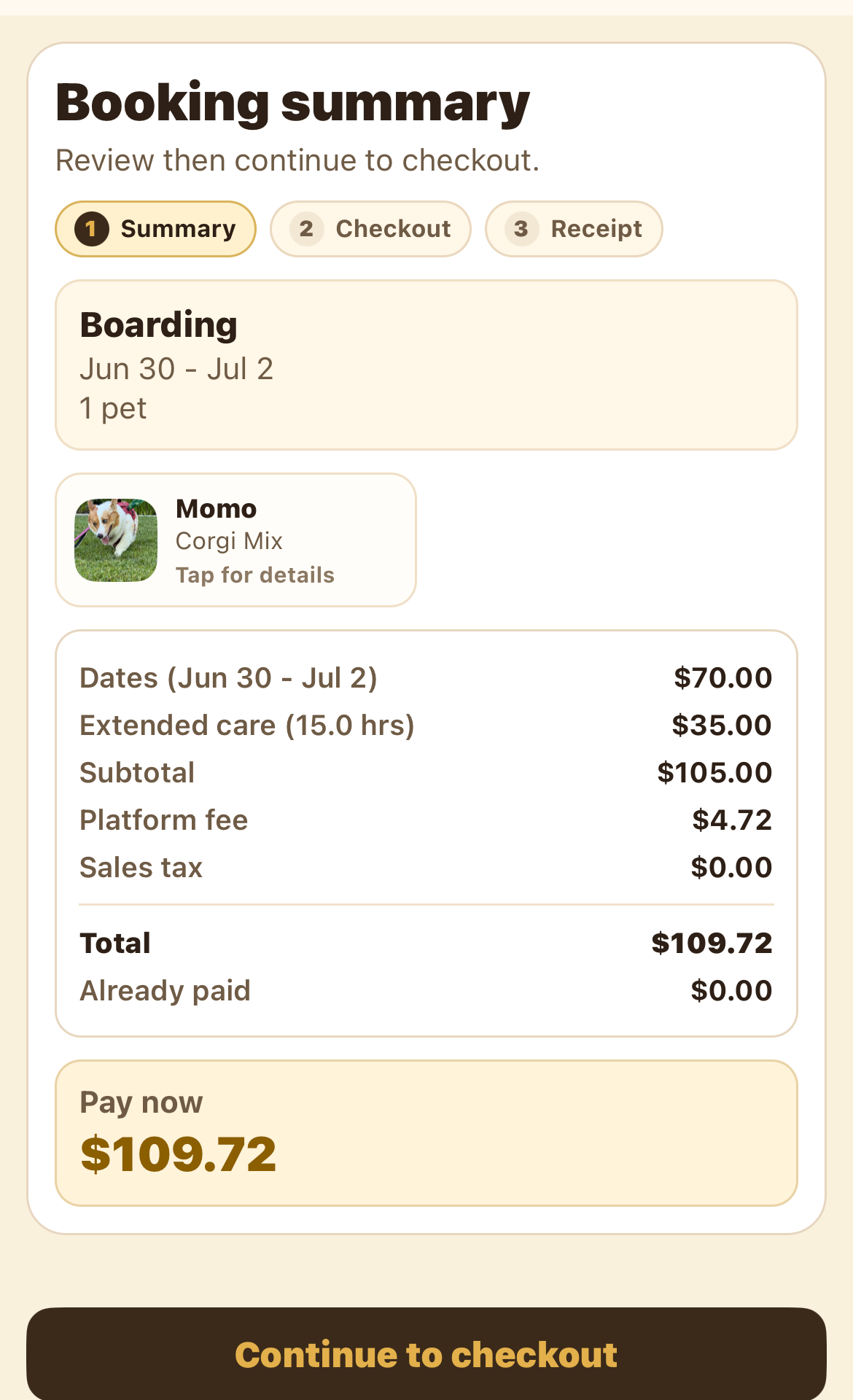
The Booking summary recaps the service, dates, pets, and every line item, plus anything already paid. When it looks right, tap Continue to checkout.
Choose how to pay
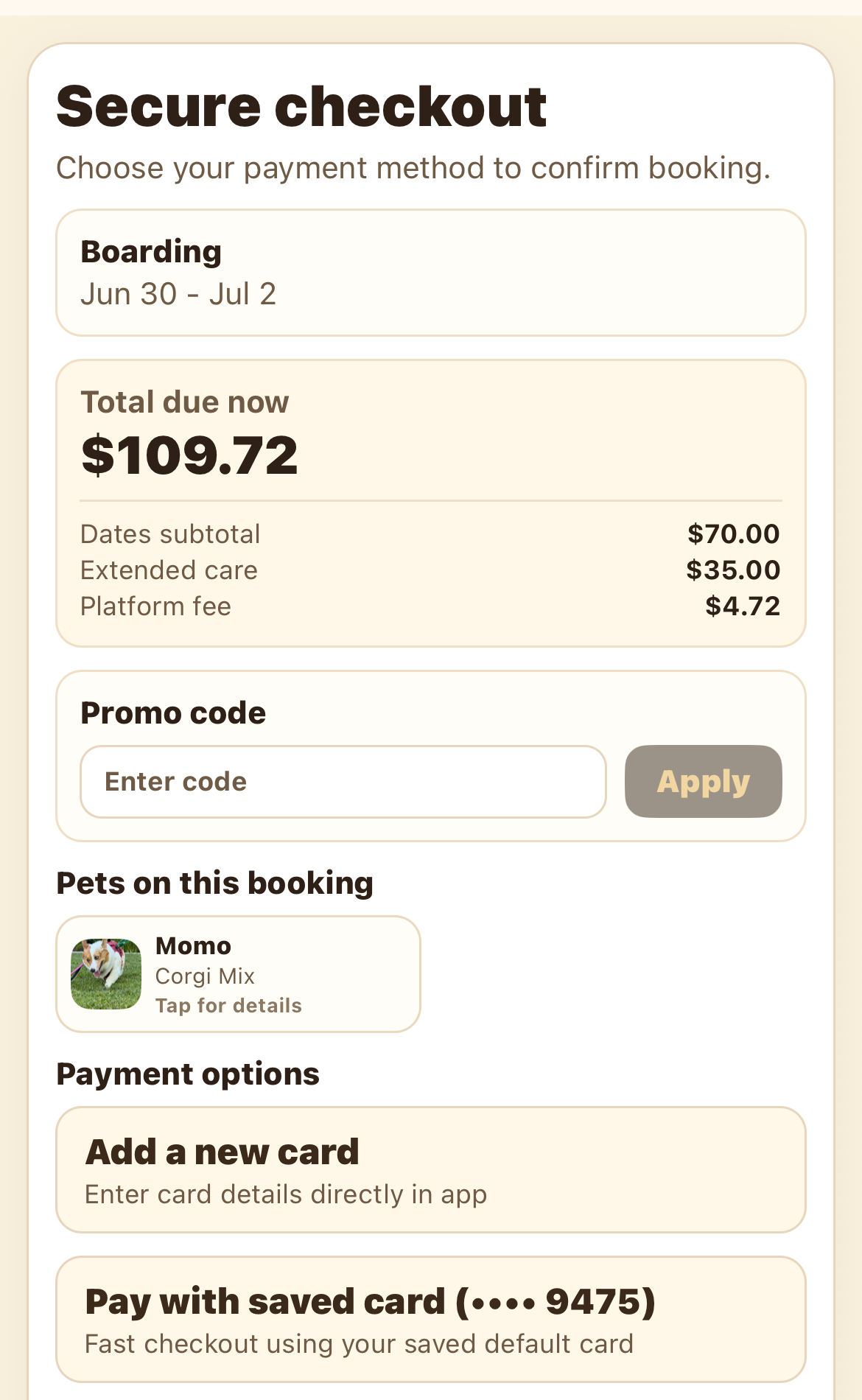
On Secure checkout, enter a promo code if you have one and tap Apply. Then pick a payment method: add a new card, use a saved card, or Apple Pay.
Pay
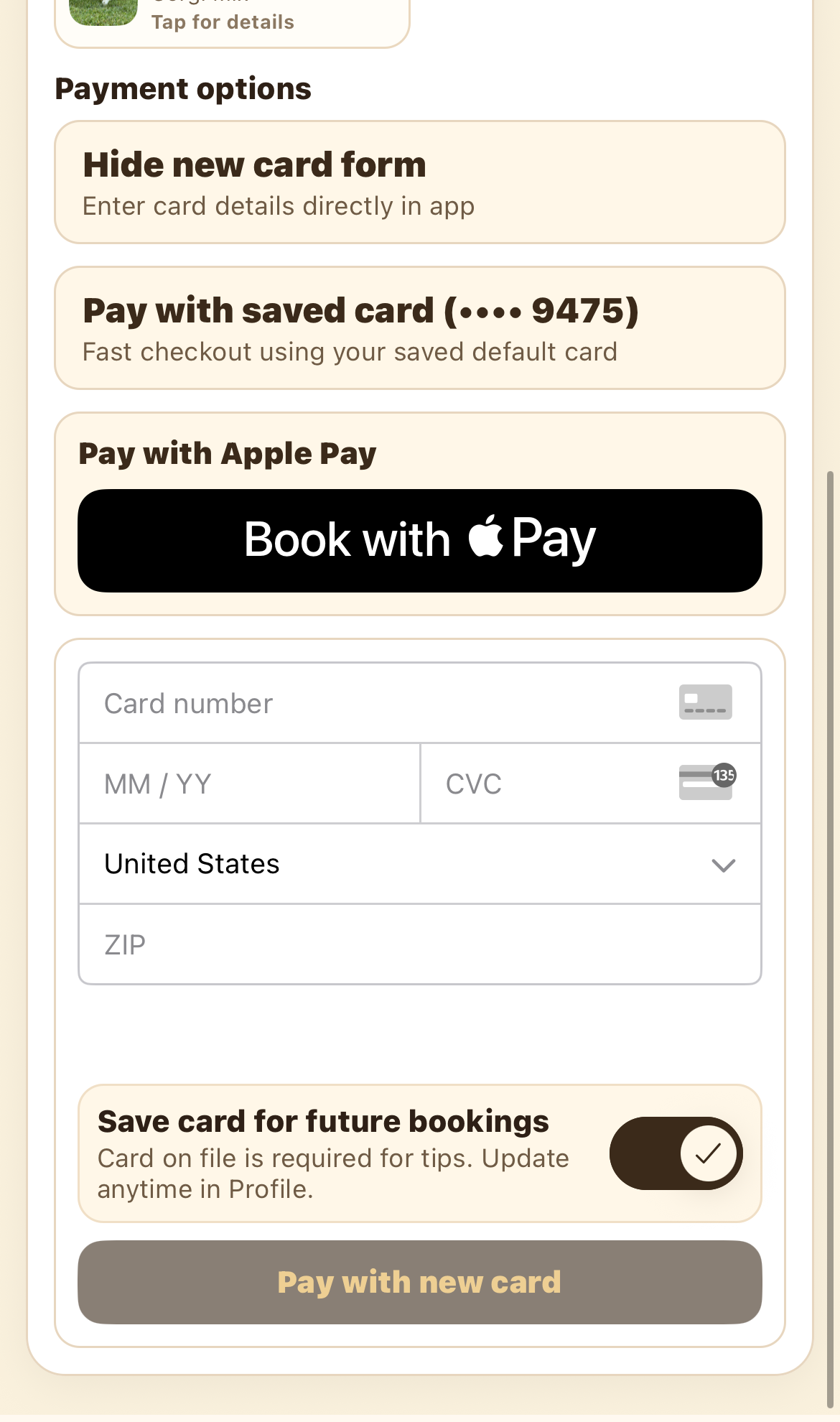
If you're adding a card, enter the number, expiry, CVC, and ZIP, then tap Pay with new card. Saved card and Apple Pay are one tap. After payment you'll land on the Receipt, and the booking flips to paid.
FAQ
Once the booking is confirmed and shows a balance due. Some flows let you pay right after booking.
Yes — enter it on the Secure checkout screen and tap Apply before paying.
No, but a card on file is required if you want to tip your sitter, and it makes future checkouts faster. You can manage it in Profile.
A 4.5% client fee is shown as a separate line item in the breakdown before you pay.