 SitSignal
Before you begin
Open the SitSignal app and tap the Search tab. House Sitting uses a shorter 5-step setup flow because you choose one overnight date range instead of creating individual walk or drop-in visits.
Select House Sitting
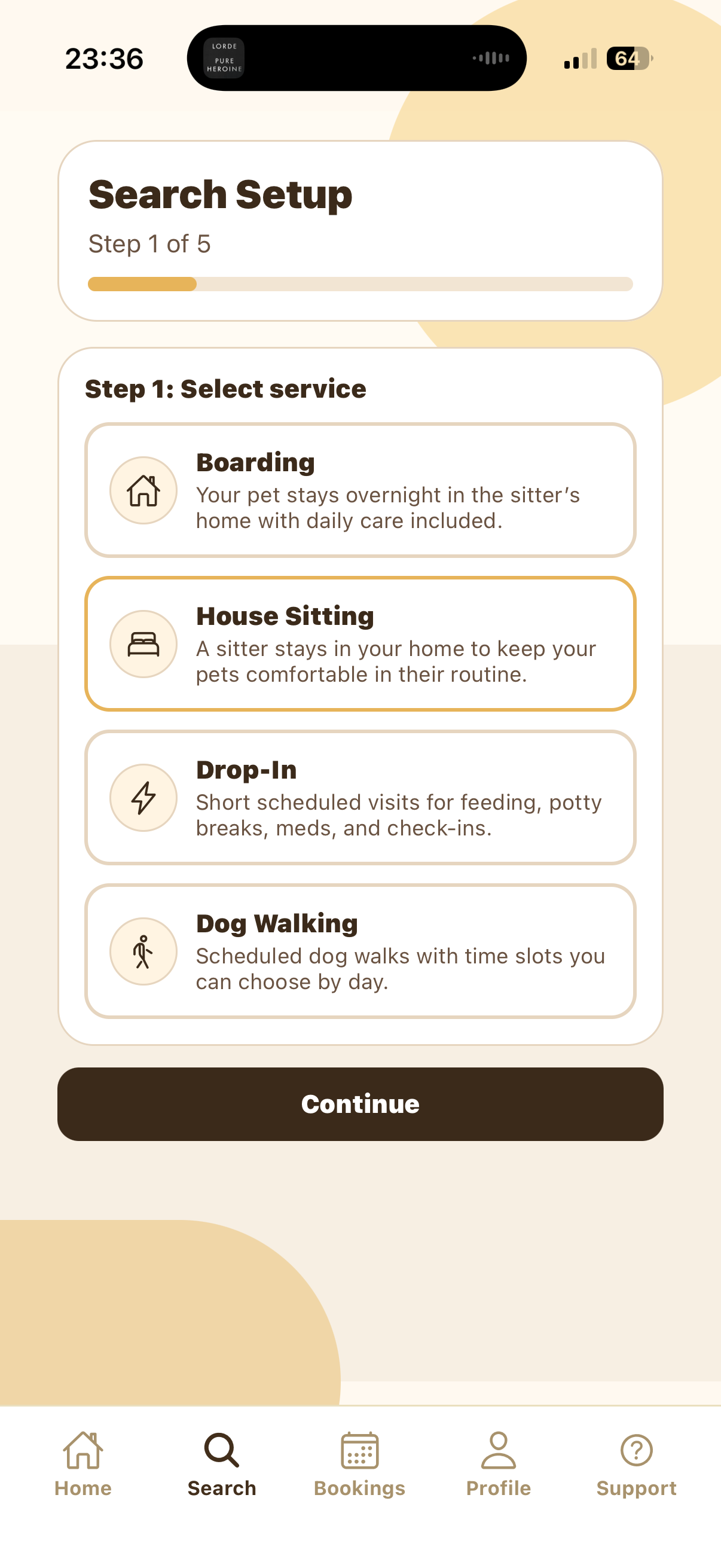
In Search Setup, choose House Sitting. This service is for care where the sitter stays in your home and keeps your pets in their regular environment.
The selected service is outlined in gold. Once House Sitting is selected, tap Continue.
Select your state and city
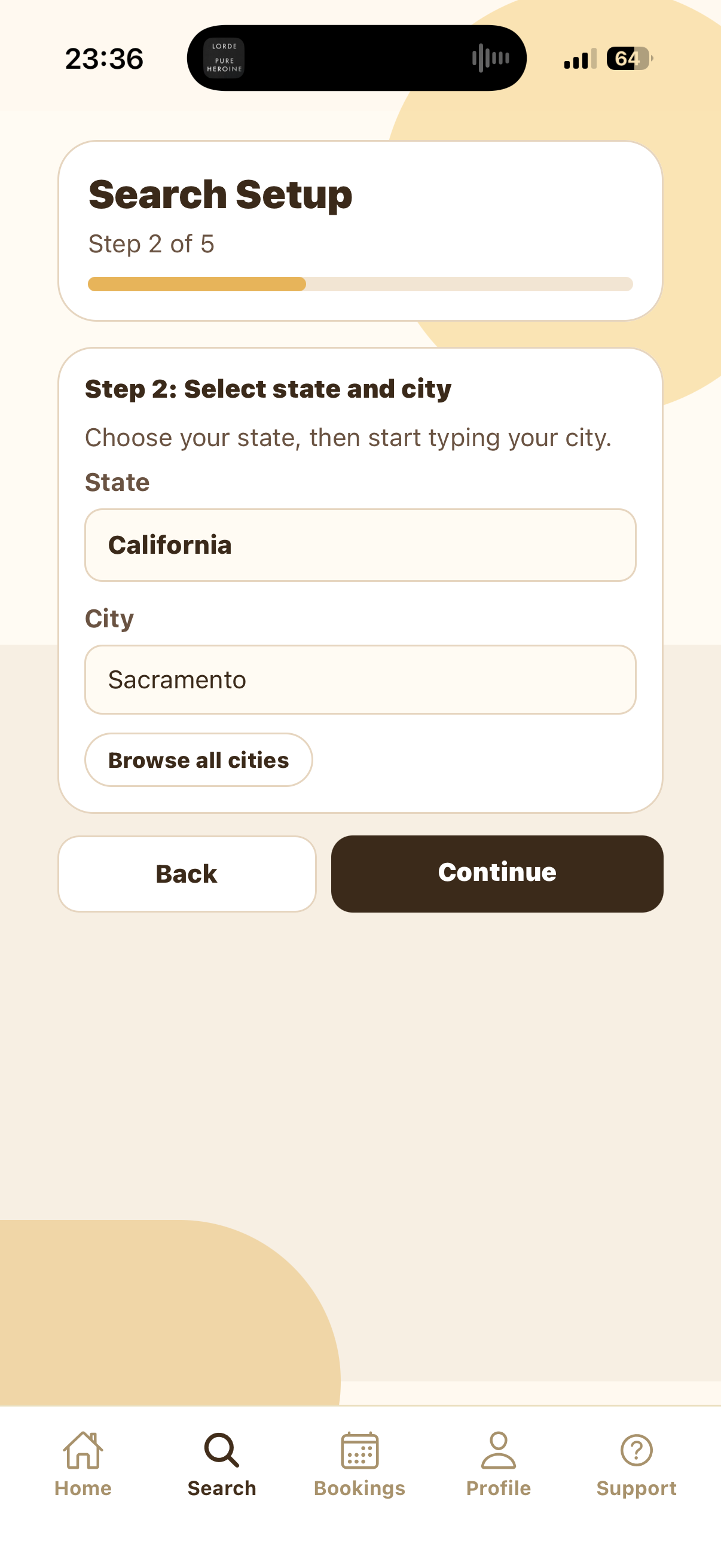
Choose the state first, then type your city. In the screenshot, the state is California and the city is Sacramento. You can also tap Browse all cities if you want to look through available SitSignal cities.
This location determines which House Sitting sitters appear in the results after your search setup is complete.
Choose dates and times
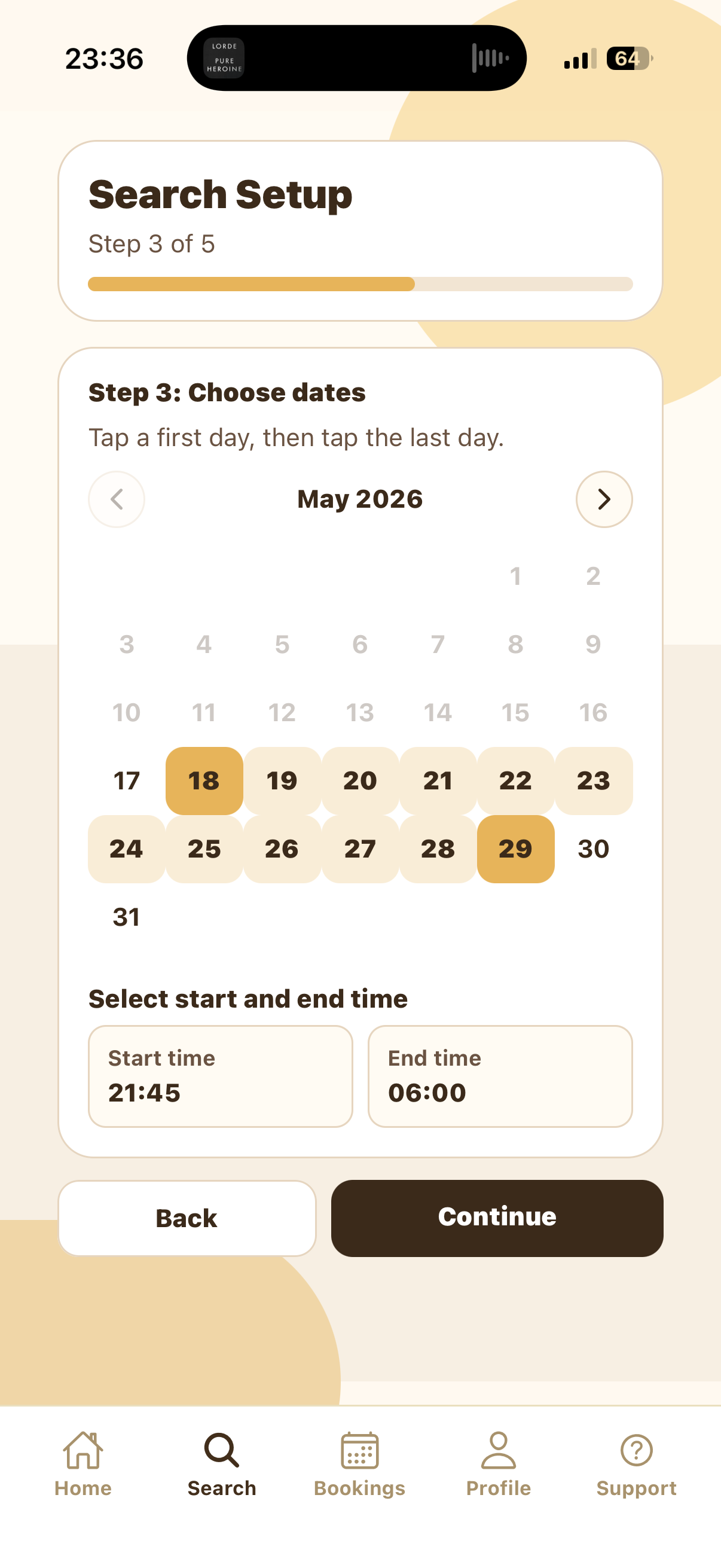
Tap the first day of the stay, then tap the last day. SitSignal highlights the full date range so you can confirm the entire overnight booking window before moving forward.
After the date range is selected, choose the sitter's Start time and End time. The example shows a stay from 2026-05-18 to 2026-05-29, starting at 21:45 and ending at 06:00.
Select the home profile
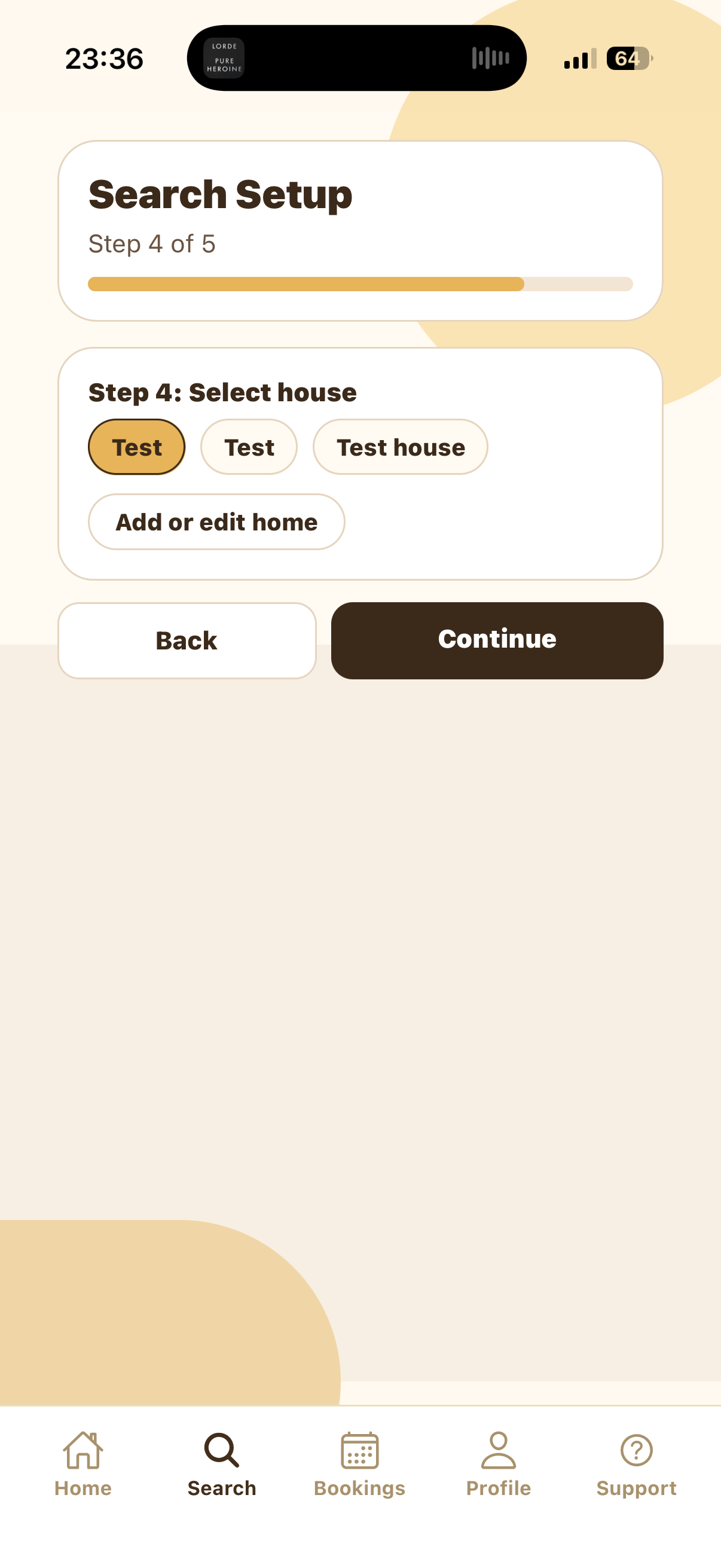
Choose the home where the sitter should stay. The selected home turns gold. If the right home is not listed, tap Add or edit home before continuing.
The home profile should include the address, entry details, Wi-Fi information if needed, parking notes, pet supply locations, and any house rules the sitter should know.
Review the summary
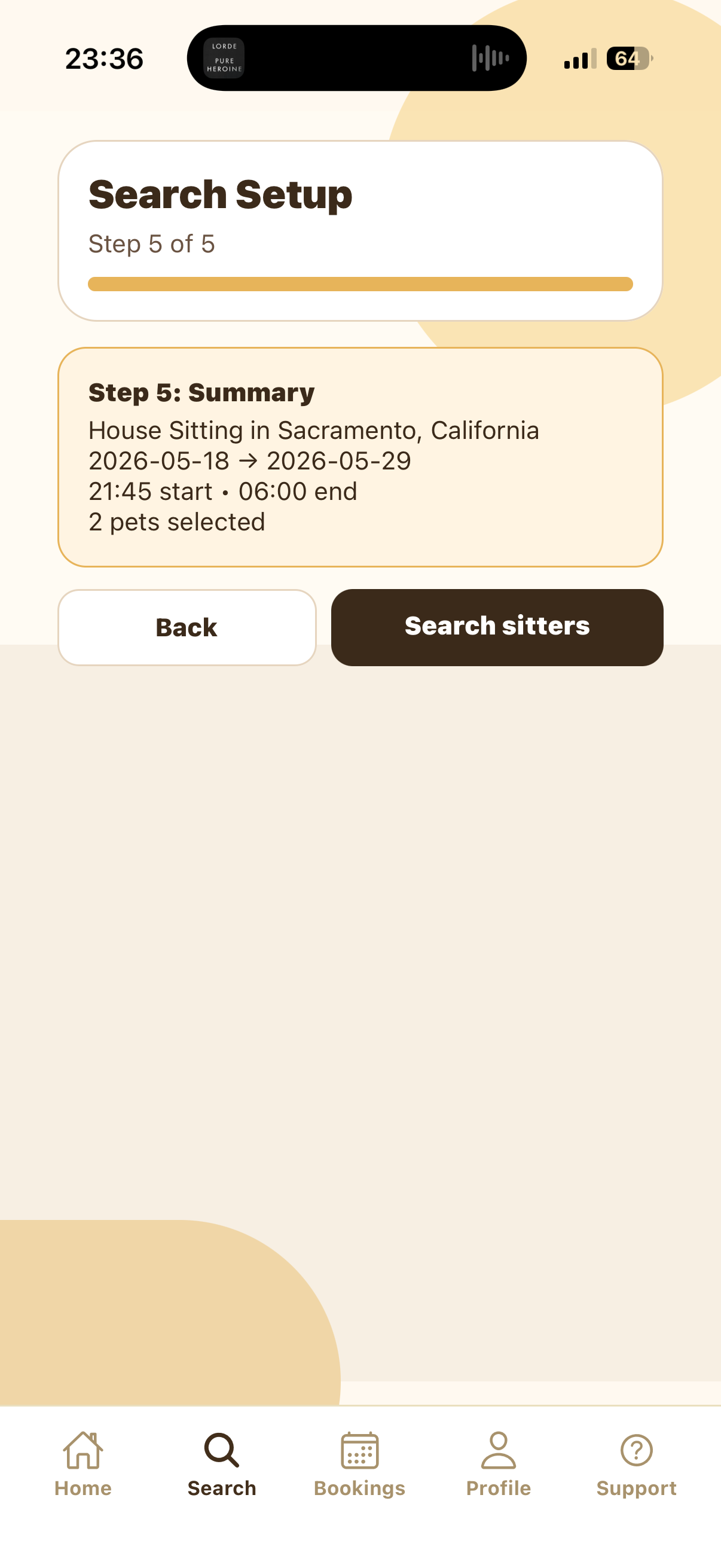
The Summary screen confirms the service, city, date range, start time, end time, and selected pets. If something is wrong, tap Back and adjust the previous step.
When everything looks right, tap Search sitters to view matching House Sitting sitters.
Tips and troubleshooting
Include feeding instructions, medication timing, potty and walk routines, sleeping arrangements, house rules, entry instructions, emergency contacts, and anything the sitter should check before leaving.
Select the overnight date range, then set the arrival as the Start time and the final departure as the End time. The summary will show both times before you search sitters.
Yes. Tap Back from the summary, return to Select house, choose the correct home, then continue again.
Try nearby cities, a different date range, or different arrival and departure times. A sitter may not be available for the exact overnight stay you selected.