 SitSignal
Before you begin
House profiles work best when they are specific. A sitter may rely on this information during a visit, drop-in, walk, or overnight stay, so include details that would help someone safely enter, care for your pets, and leave the home correctly.
Fill out the basics
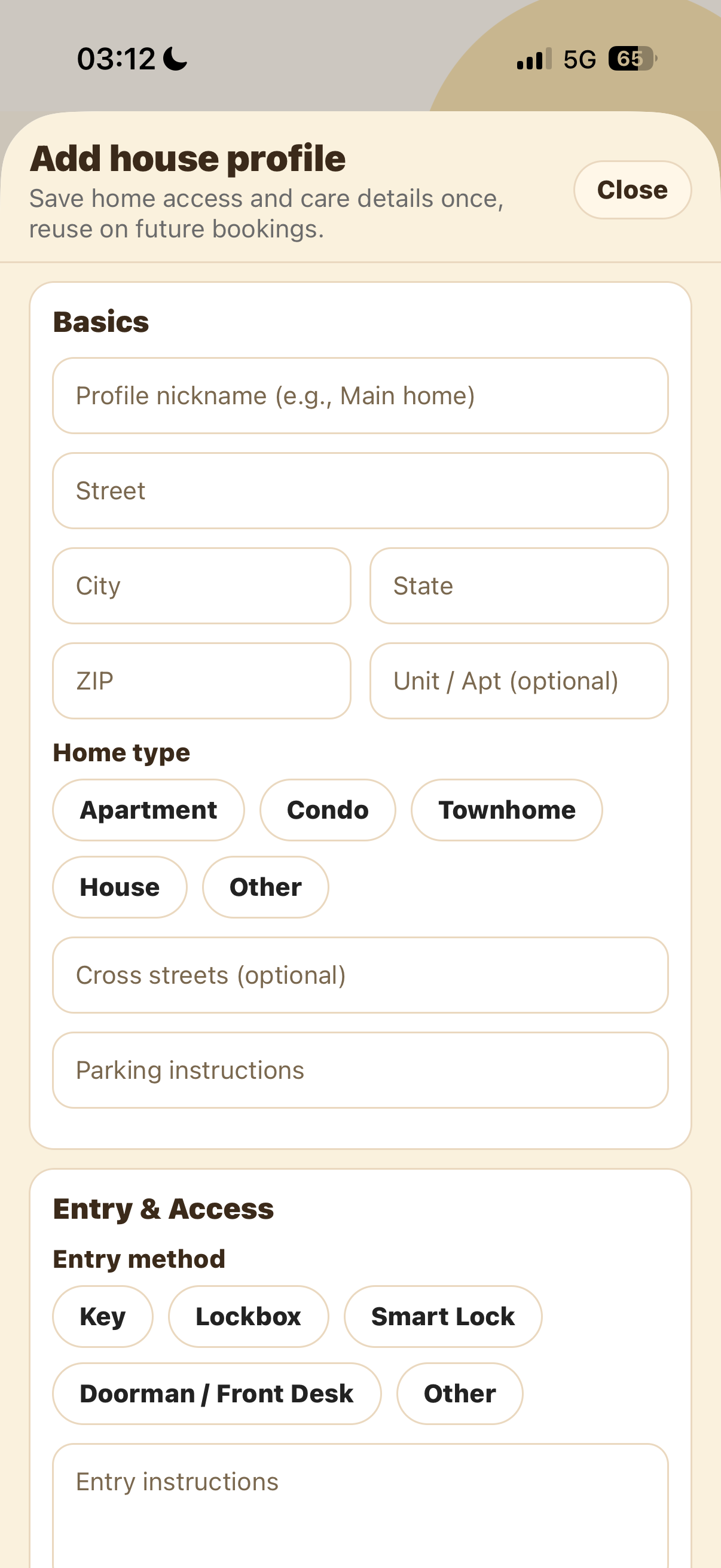
Start with a clear profile nickname, such as Main home, Apartment, or Parents house. Then enter the street address, city, state, ZIP, and unit or apartment number if needed.
Choose the home type and add cross streets or parking instructions. Parking notes are especially useful for sitters who need to arrive quickly or avoid restricted parking.
Add entry and access details
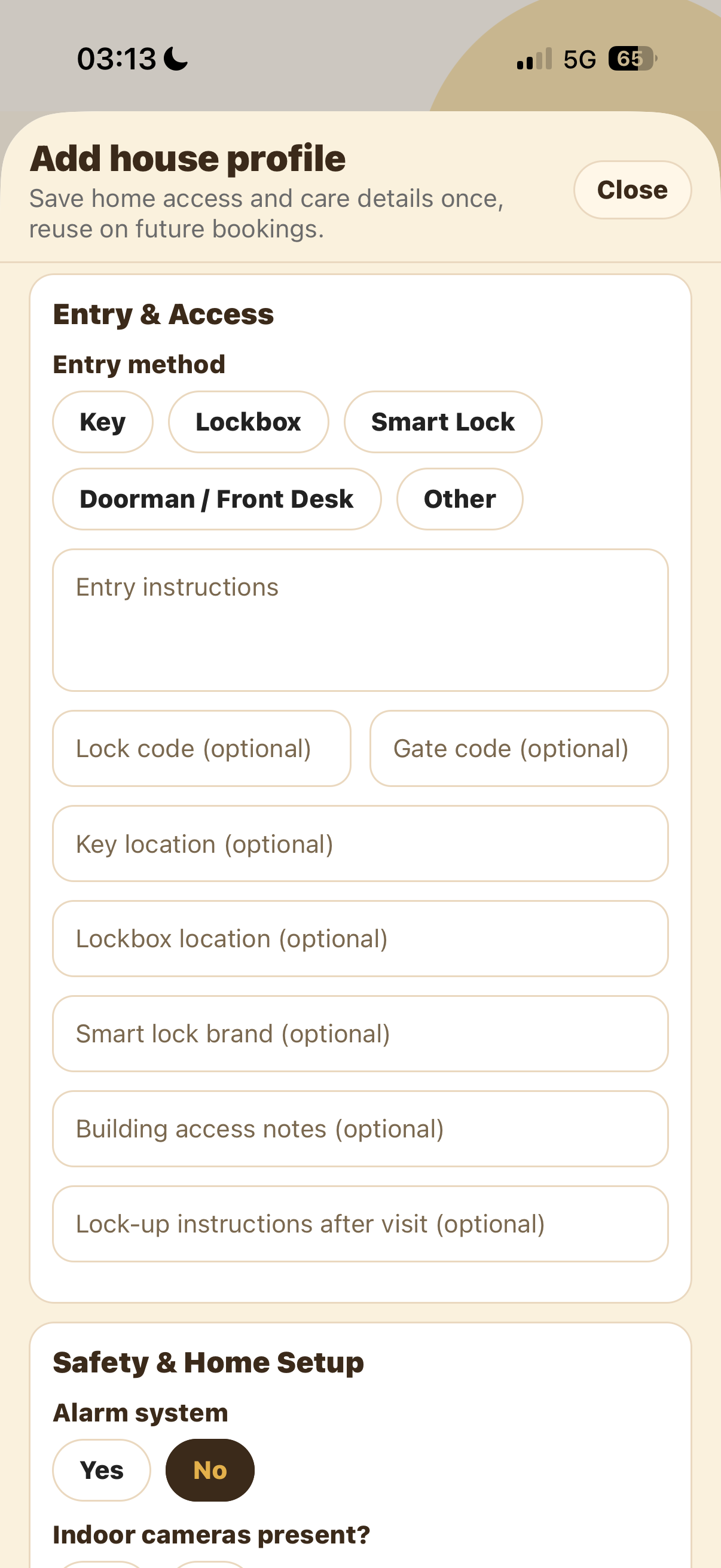
Choose the entry method: key, lockbox, smart lock, doorman or front desk, or other. Then add clear entry instructions so the sitter knows exactly how to get inside.
Use the optional fields for lock code, gate code, key location, lockbox location, smart lock brand, building access notes, and lock-up instructions after the visit.
Add safety and home setup details
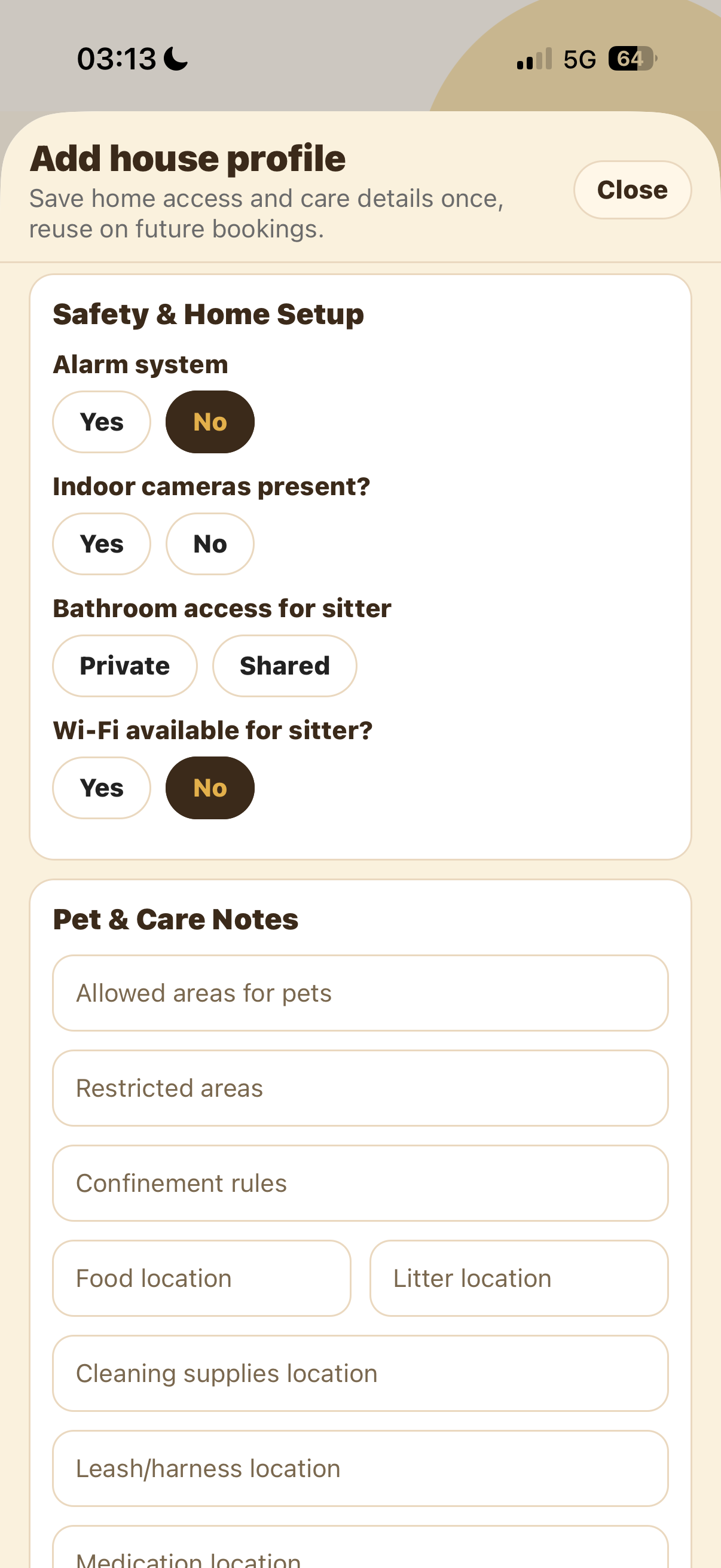
Answer whether the home has an alarm system, indoor cameras, bathroom access for the sitter, and Wi-Fi available for the sitter. These settings help set expectations before care begins.
If you select Yes for any safety item, use nearby notes fields to explain what the sitter needs to know, such as alarm handling, camera locations, or Wi-Fi access.
Add pet and care notes
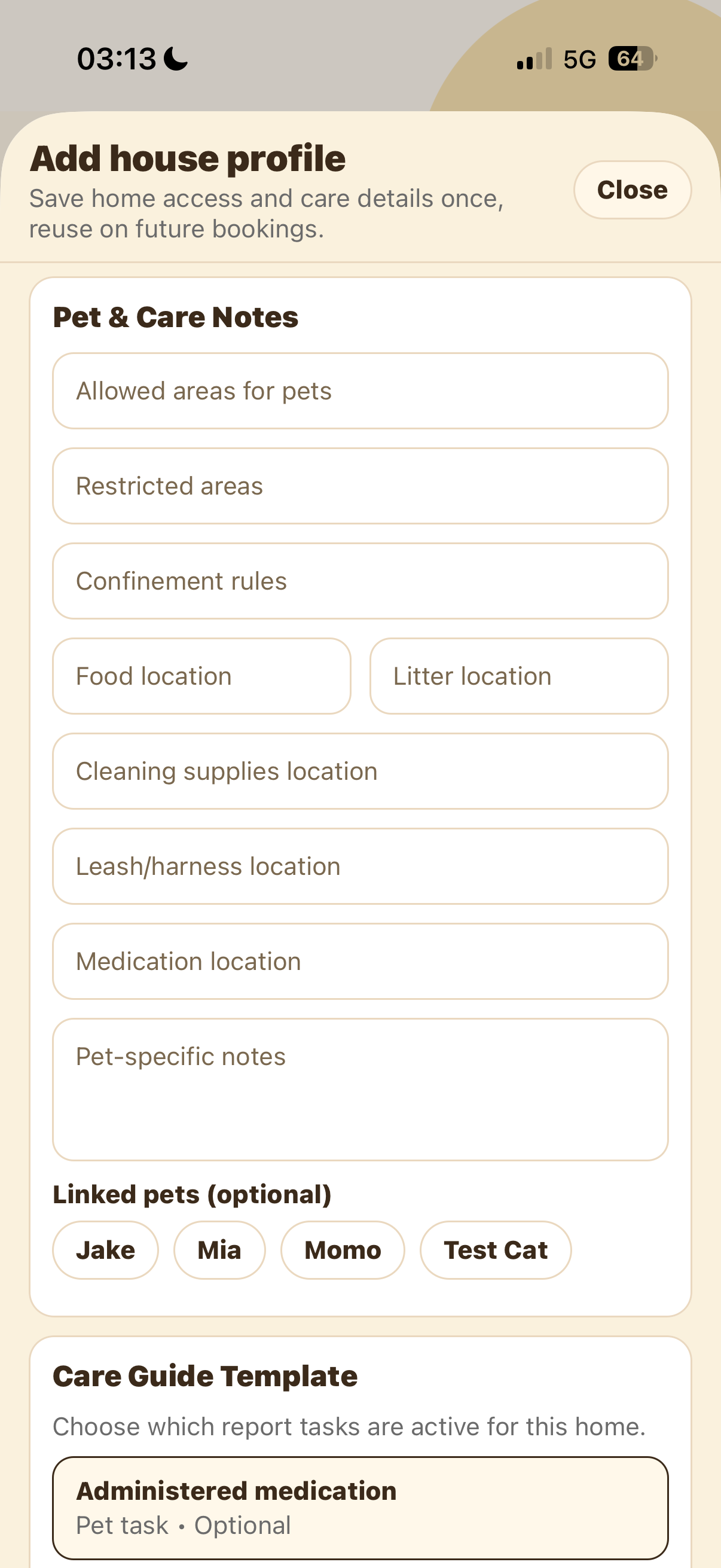
Use Pet and Care Notes to explain allowed areas, restricted areas, confinement rules, and where key supplies are stored. Add food, litter, cleaning supplies, leash or harness, and medication locations.
Add pet-specific notes when one pet has special instructions. Then link the pets who normally use this house profile so future bookings can reuse the right setup.
Review the care guide template
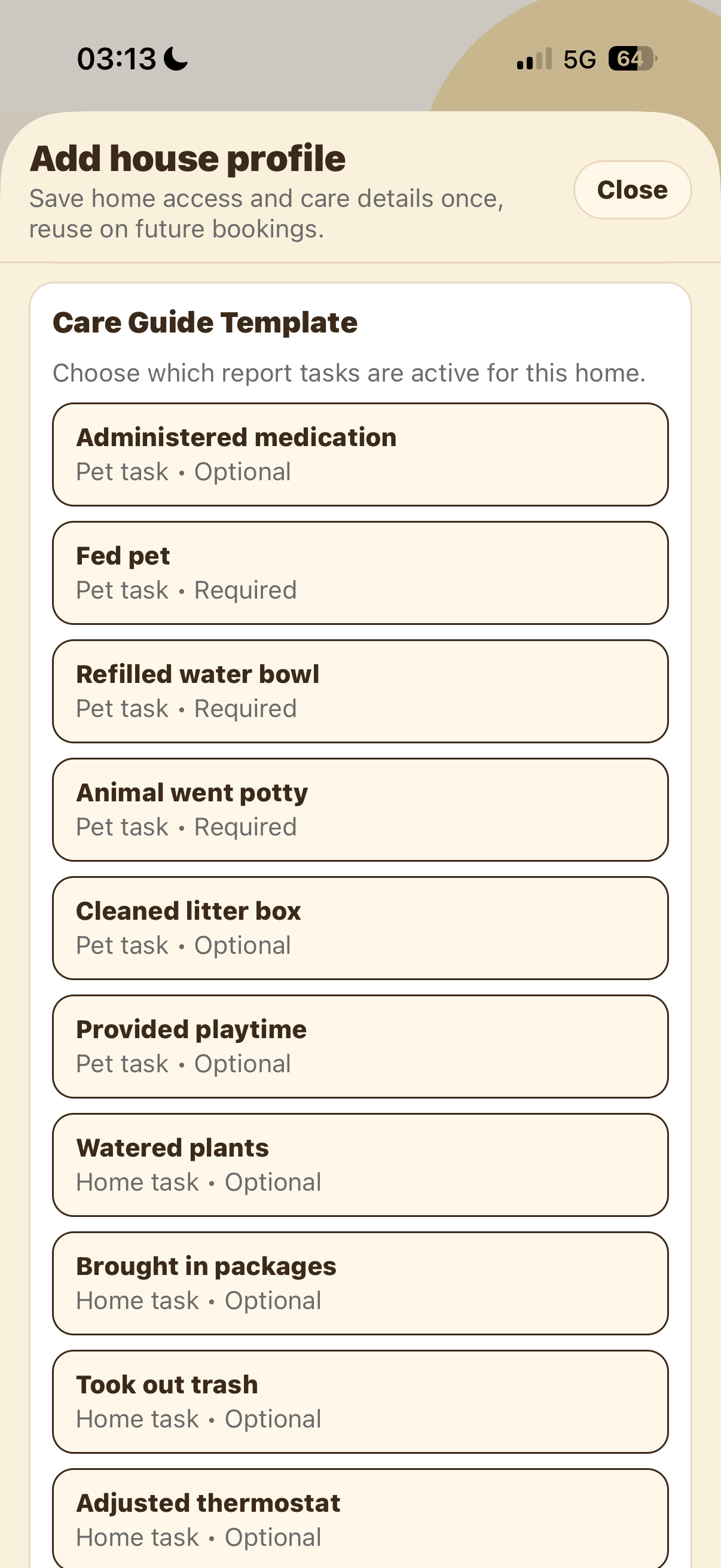
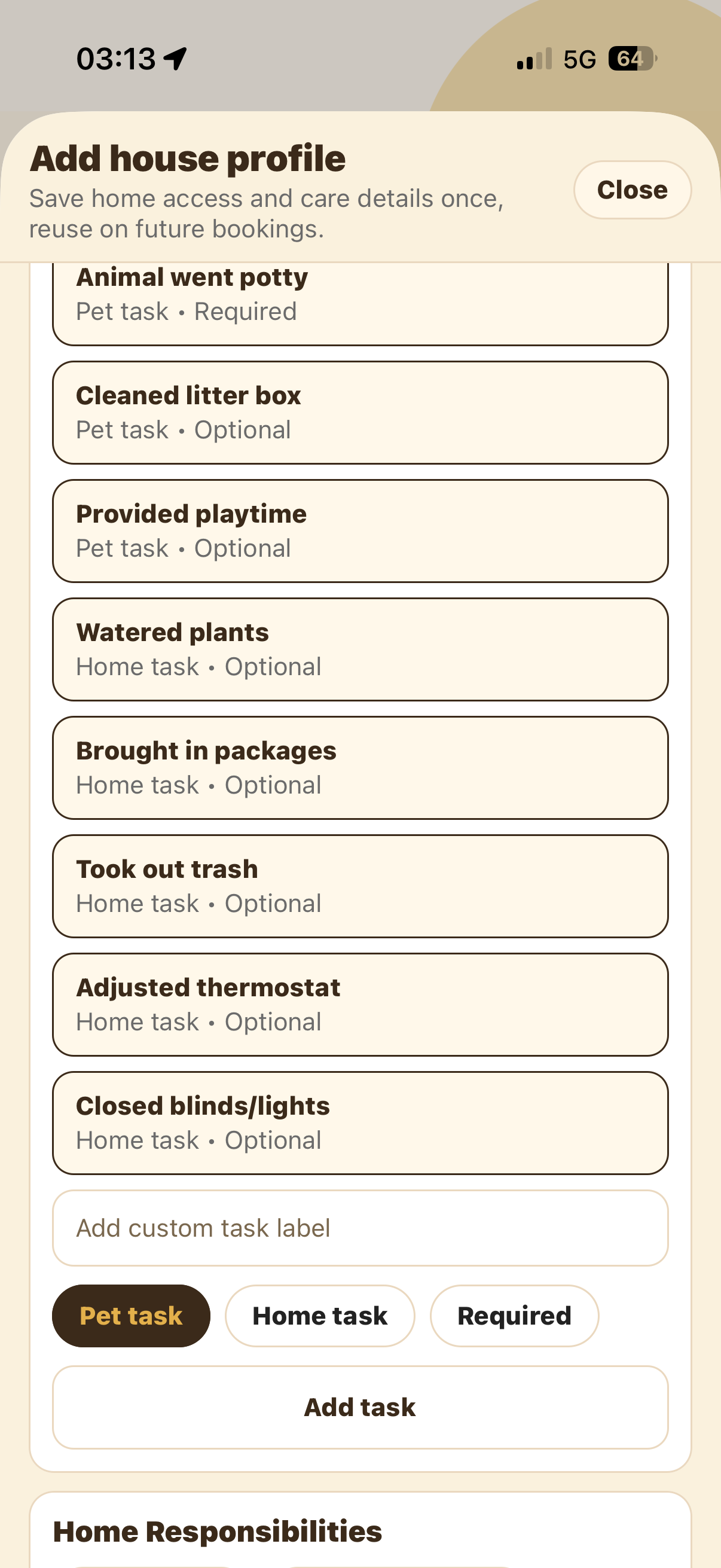
The Care Guide Template controls which report tasks are active for this home. Some pet tasks are required, like feeding, water, and potty updates. Others are optional, like medication, litter box, playtime, or home tasks.
Add home responsibilities and sitter rules
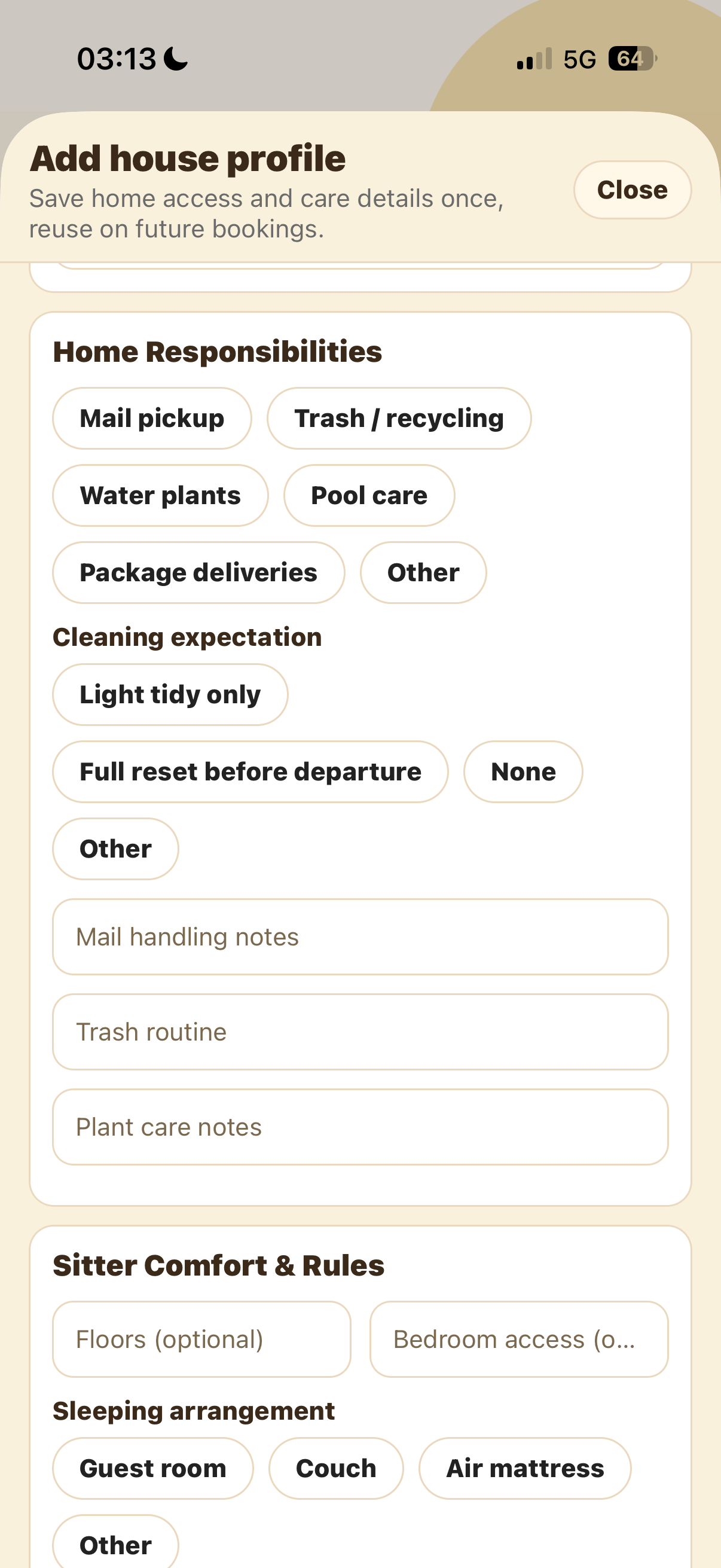
Home Responsibilities let you describe mail pickup, trash or recycling, water plants, pool care, package deliveries, and cleaning expectations. Add notes for mail handling, trash routines, and plant care when those tasks are part of the booking.
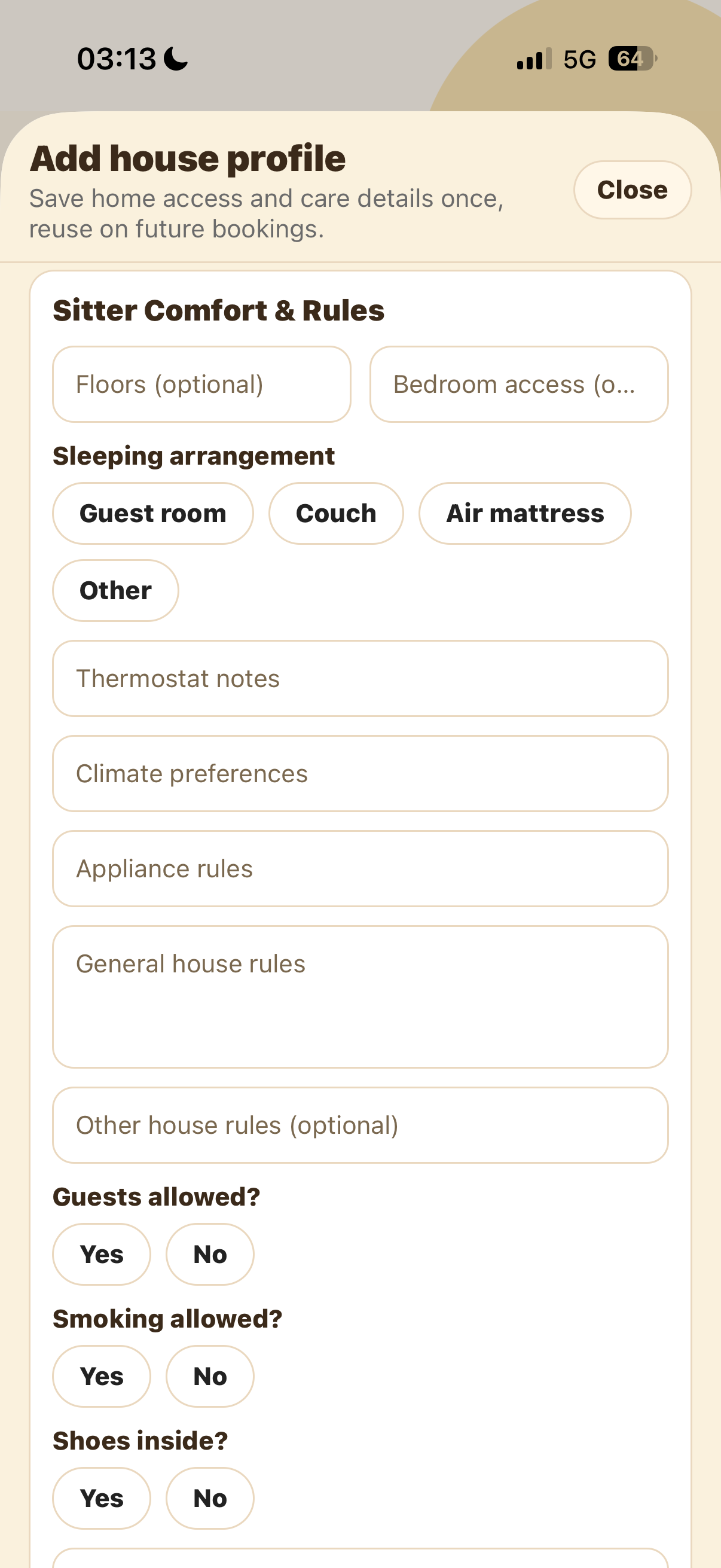
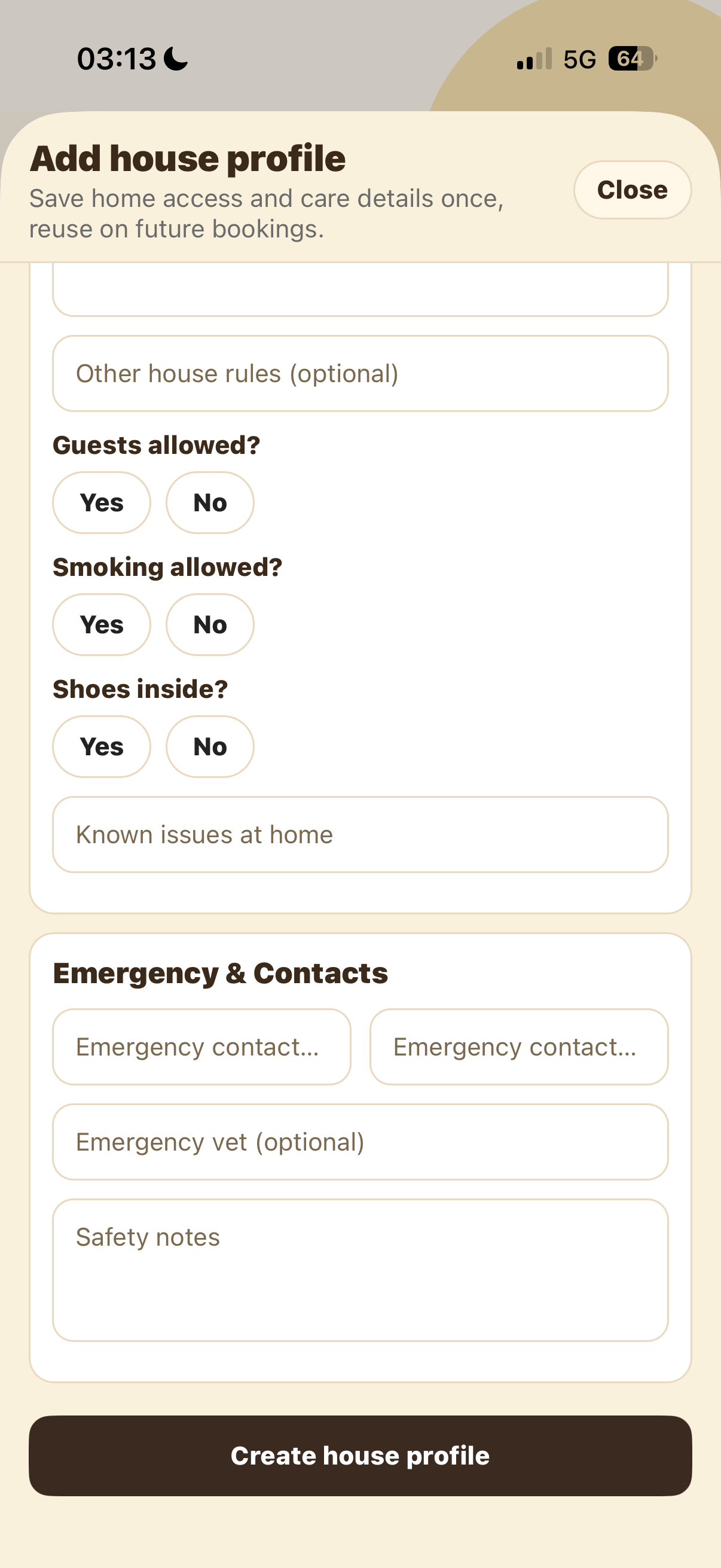
Sitter Comfort and Rules covers floors, bedroom access, sleeping arrangements, thermostat notes, climate preferences, appliance rules, general house rules, guests, smoking, shoes inside, and known issues at home.
Add emergency contacts and create the profile
Finish with emergency contact information, an emergency vet if you have one, and safety notes. Use this section for anything the sitter should know if something urgent happens.
Review the form once more. When the information is complete, tap Create house profile. You can then reuse the profile on future bookings.
Common mistakes to avoid
A house profile only helps if it's complete. The most common gaps that slow a sitter down:
- Leaving entry instructions blank
- Not updating gate or alarm codes after they change
- Forgetting to say where pets are when the sitter arrives
- Not listing where medication is stored
- Giving unclear parking directions
Tips and troubleshooting
Include enough detail that a sitter can enter, find supplies, complete care, and leave the home safely without guessing.
Yes, if a code is required for entry. Keep the instructions current and update the profile whenever a code, lockbox, or entry process changes.
Linking pets helps future bookings use the right home and pet care details together, especially when different pets have different routines.
Yes. Update the house profile whenever you move supplies, change access details, add a pet, or change safety and house rules.