 SitSignal
How the handoff works
The handoff is a two-sided record at both ends of a stay. The sitter records what happened; the client confirms it's right. Once both agree, the record locks — a time-stamped account that can't be quietly changed.
Handoffs apply to overnight stays — required for boarding and available for house sitting. (Dog walks and drop-ins don't use handoffs.) This guide covers drop-off first, then pick-up.
Start the drop-off (sitter)
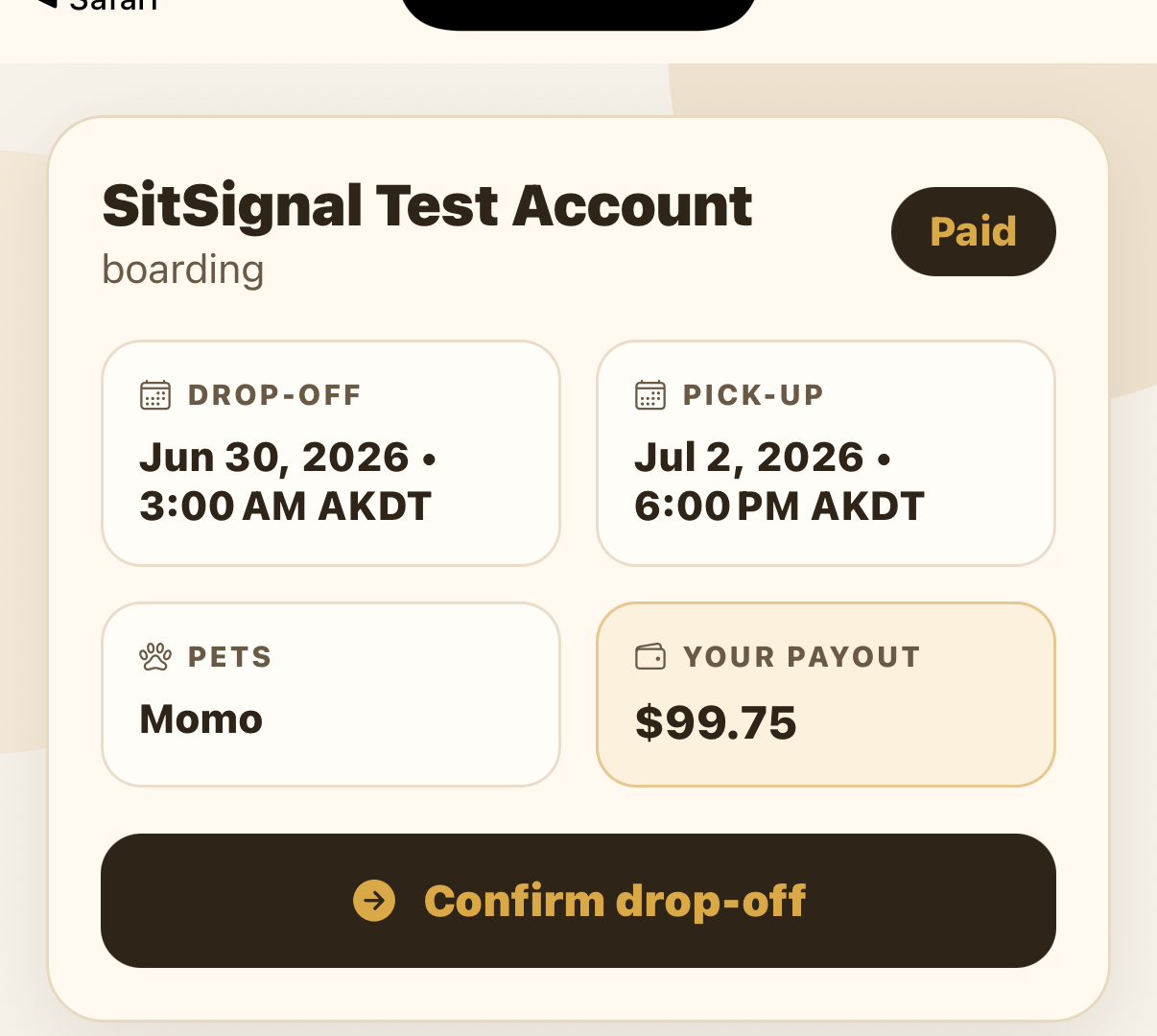
When the pet arrives, open the booking and tap Confirm drop-off. This opens a guided six-step intake.
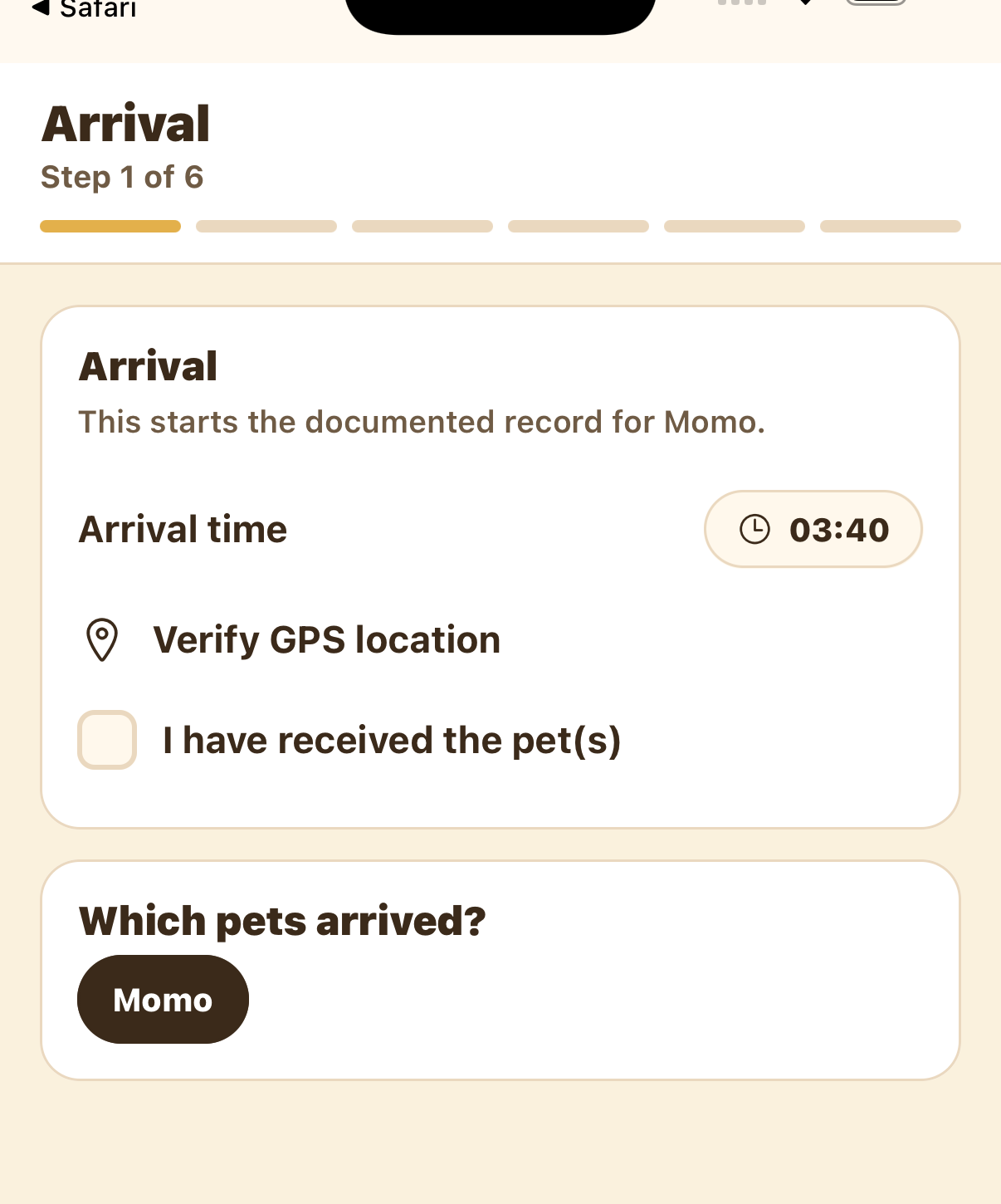
Step 1 — Arrival
Arrival starts the documented record. Set the arrival time, tap Verify GPS location, check I have received the pet(s), and confirm which pets arrived.
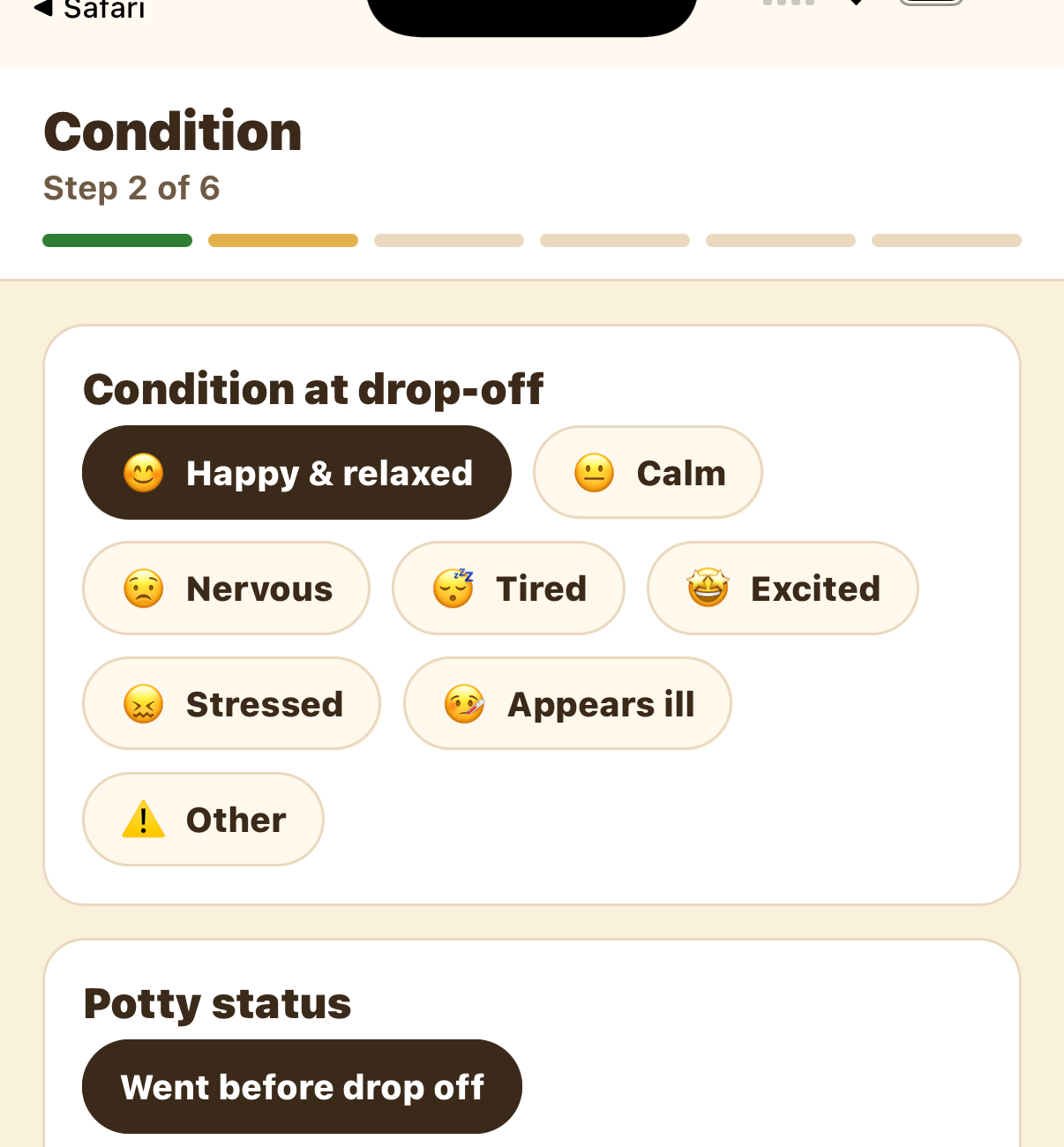
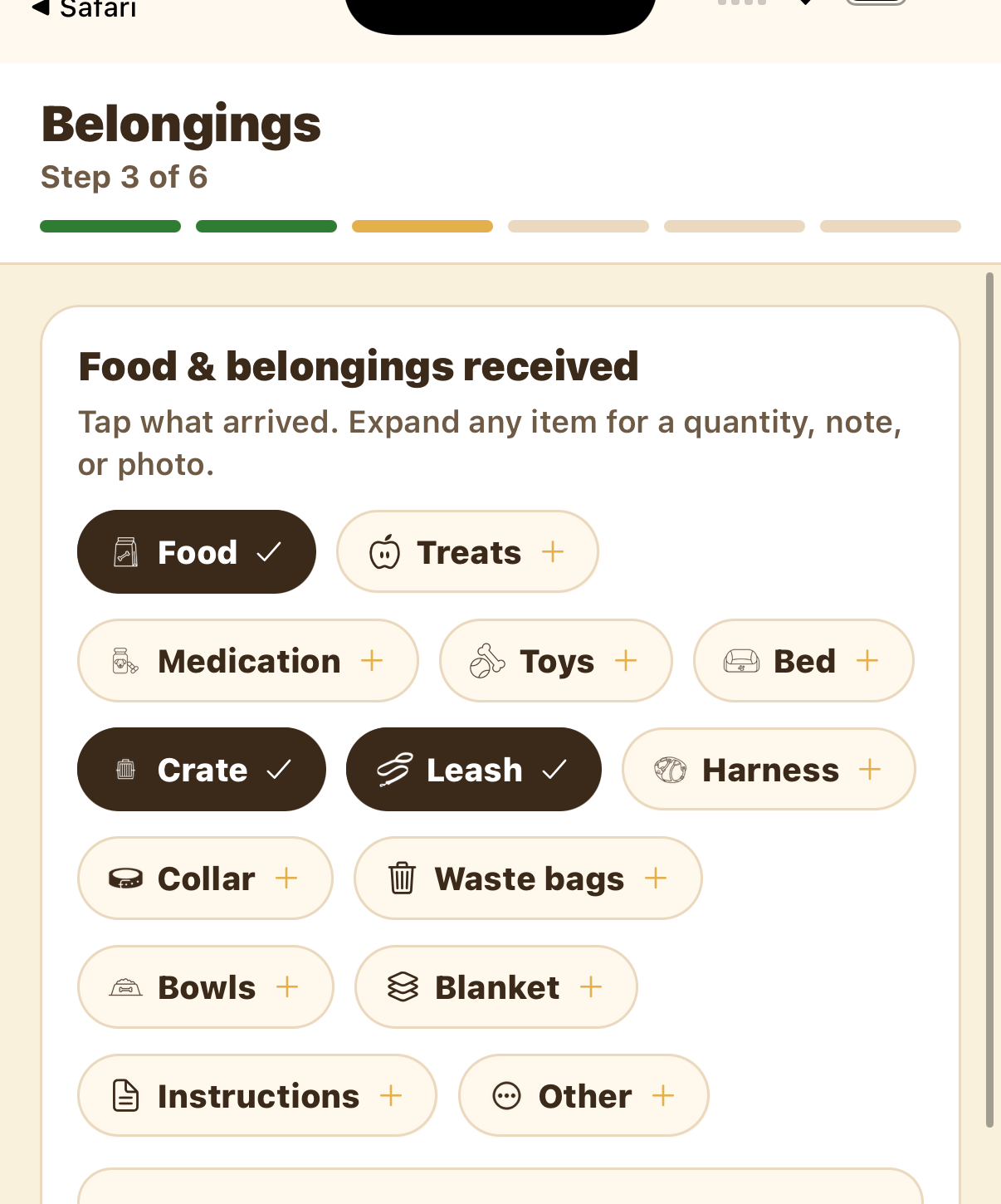
Steps 2 & 3 — Condition and belongings
Record the pet's condition at drop-off (and potty status), then tap what food & belongings arrived. Expand any item to add a quantity, note, or photo — handy for things like food brand and portion.
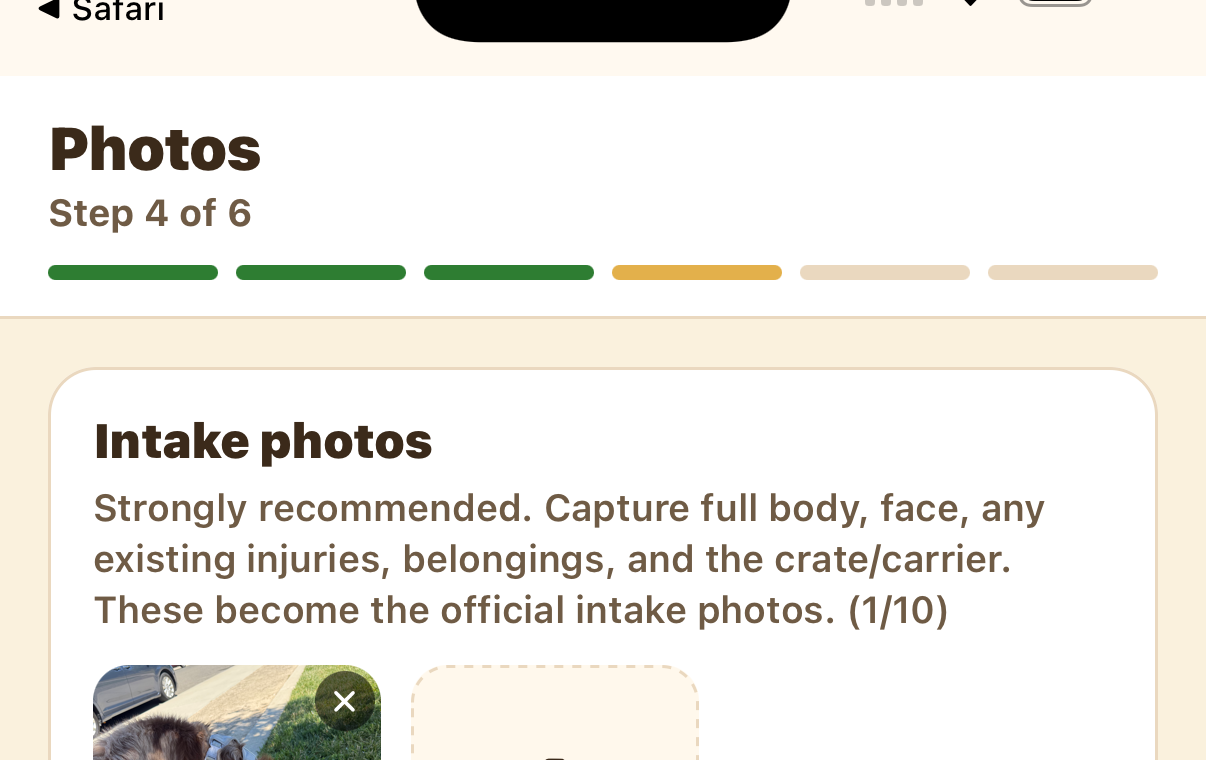
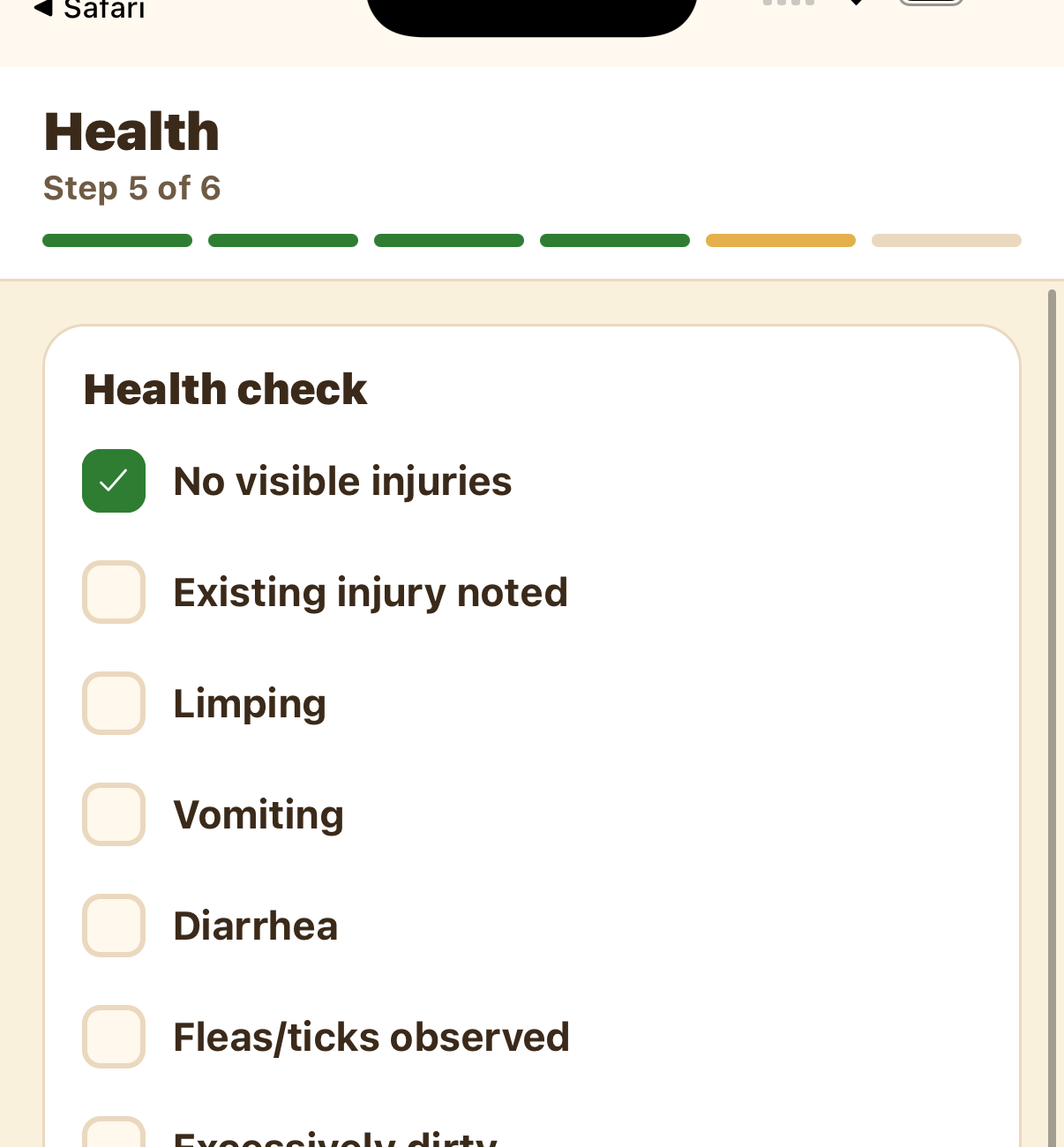
Steps 4 & 5 — Photos and health
Capture intake photos — full body, face, any existing injuries, belongings, and the crate/carrier. These become the official intake photos, so they're strongly recommended. Then complete the health check (injuries, behavior at intake, and appearance).
Step 6 — Review and confirm
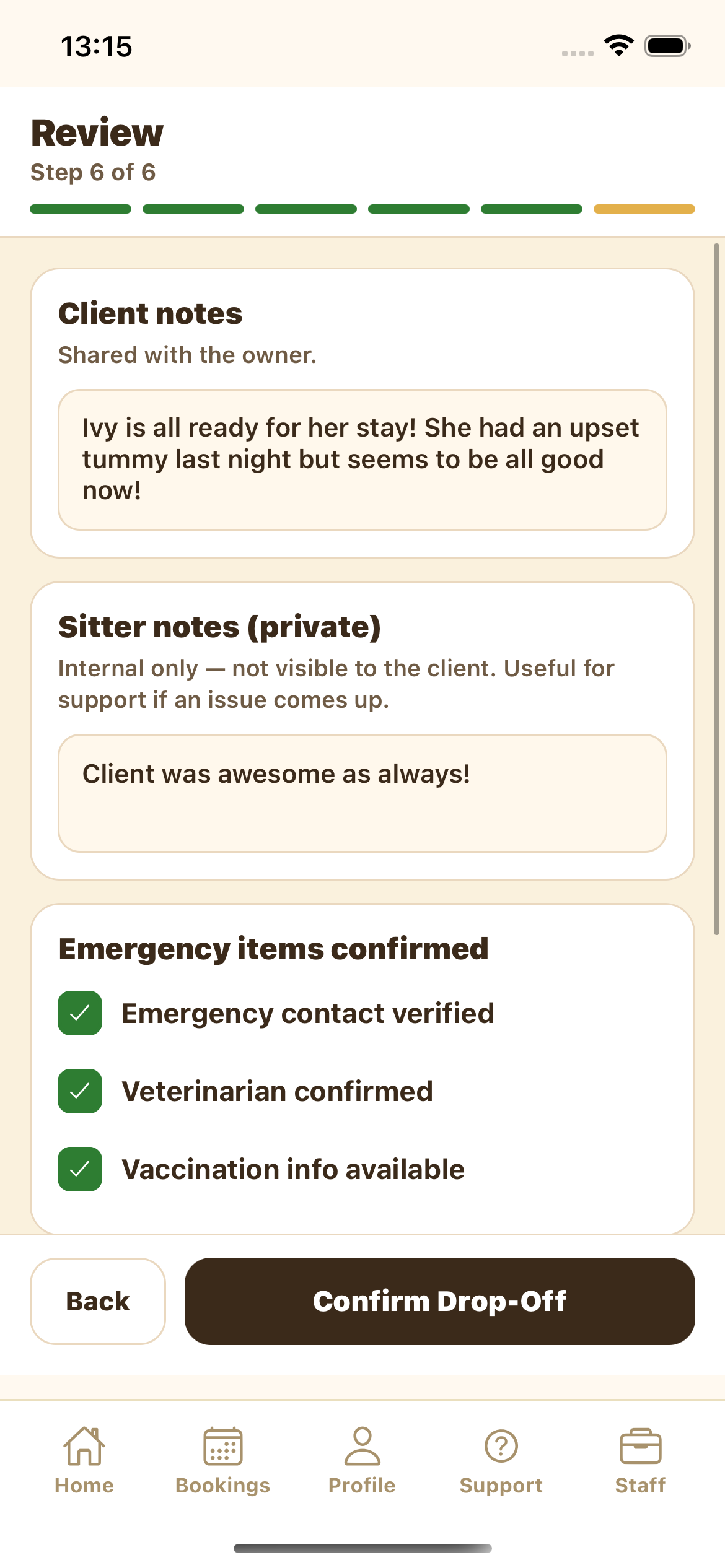
Leave a note for the owner in Client notes (shared with the client), plus any Sitter notes that stay private — internal only, handy if support ever needs context. Confirm the emergency items (emergency contact, vet, vaccination info), check the final confirmation summary — arrival time, pets received, photos uploaded, and whether GPS was verified — then tap Confirm Drop-Off. Keep the app open while photos upload; you'll then see Waiting for your client to confirm.
The client confirms (or edits and sends it back)
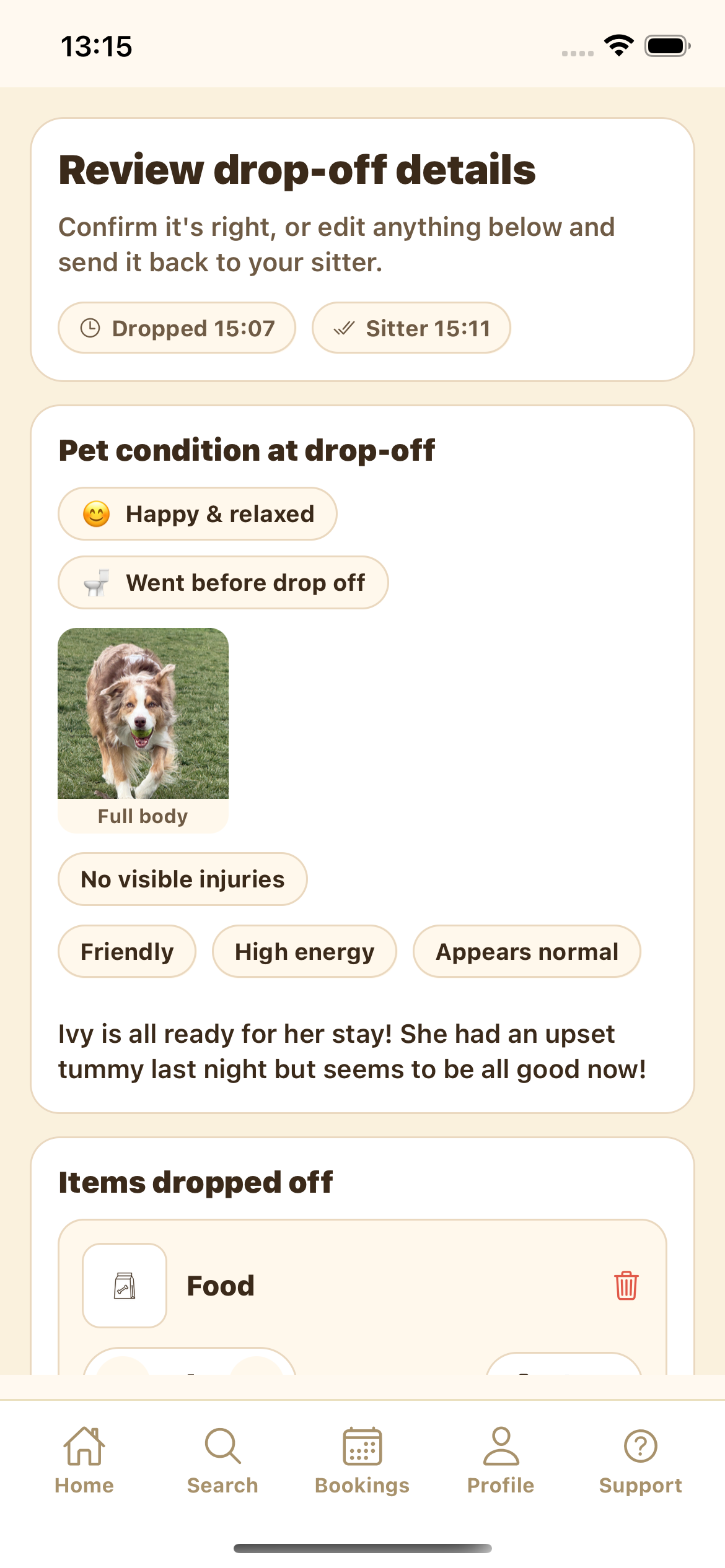
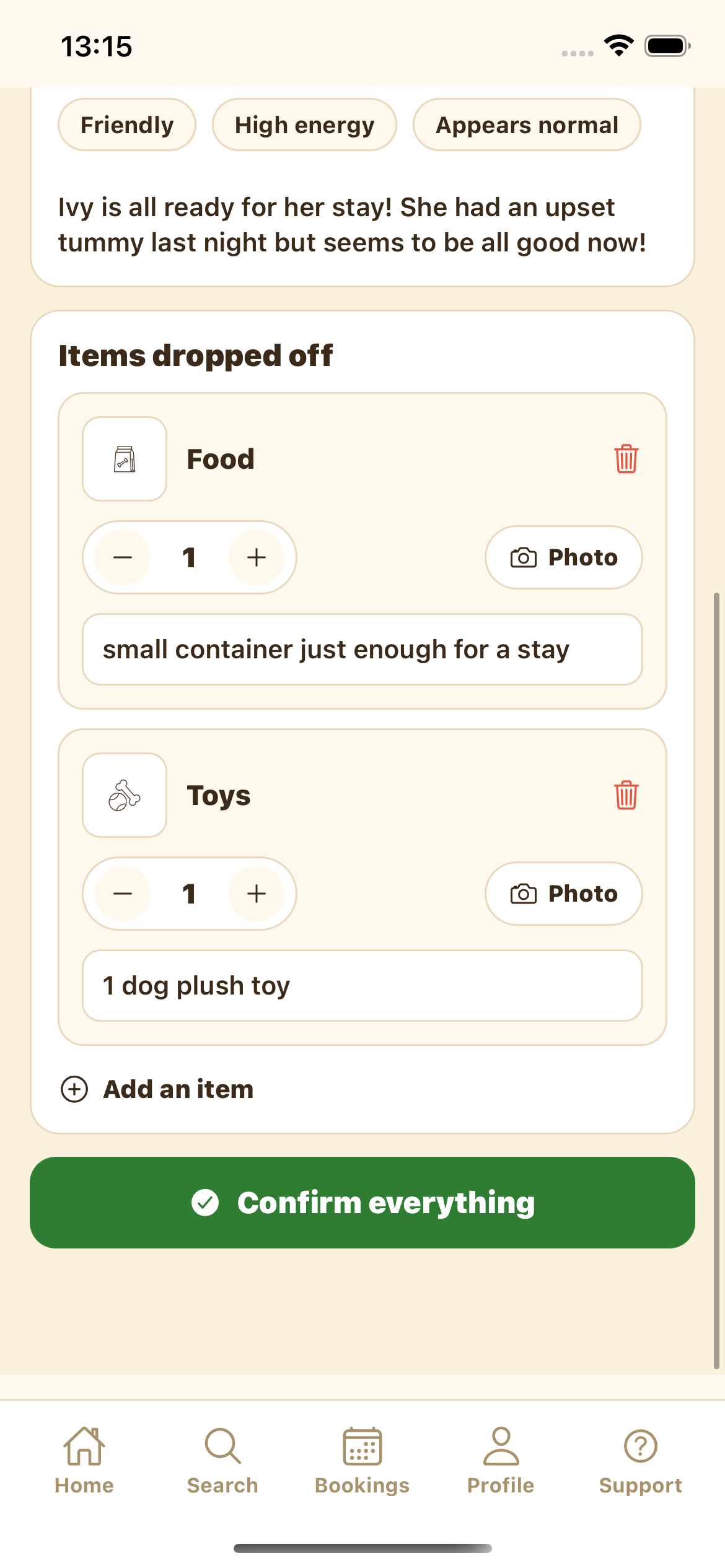
From the booking's Handoff card the client taps Review drop-off and sees exactly what the sitter recorded — condition, intake photo, health, the note left for them, and every item dropped off. If it's all right, they tap Confirm everything.
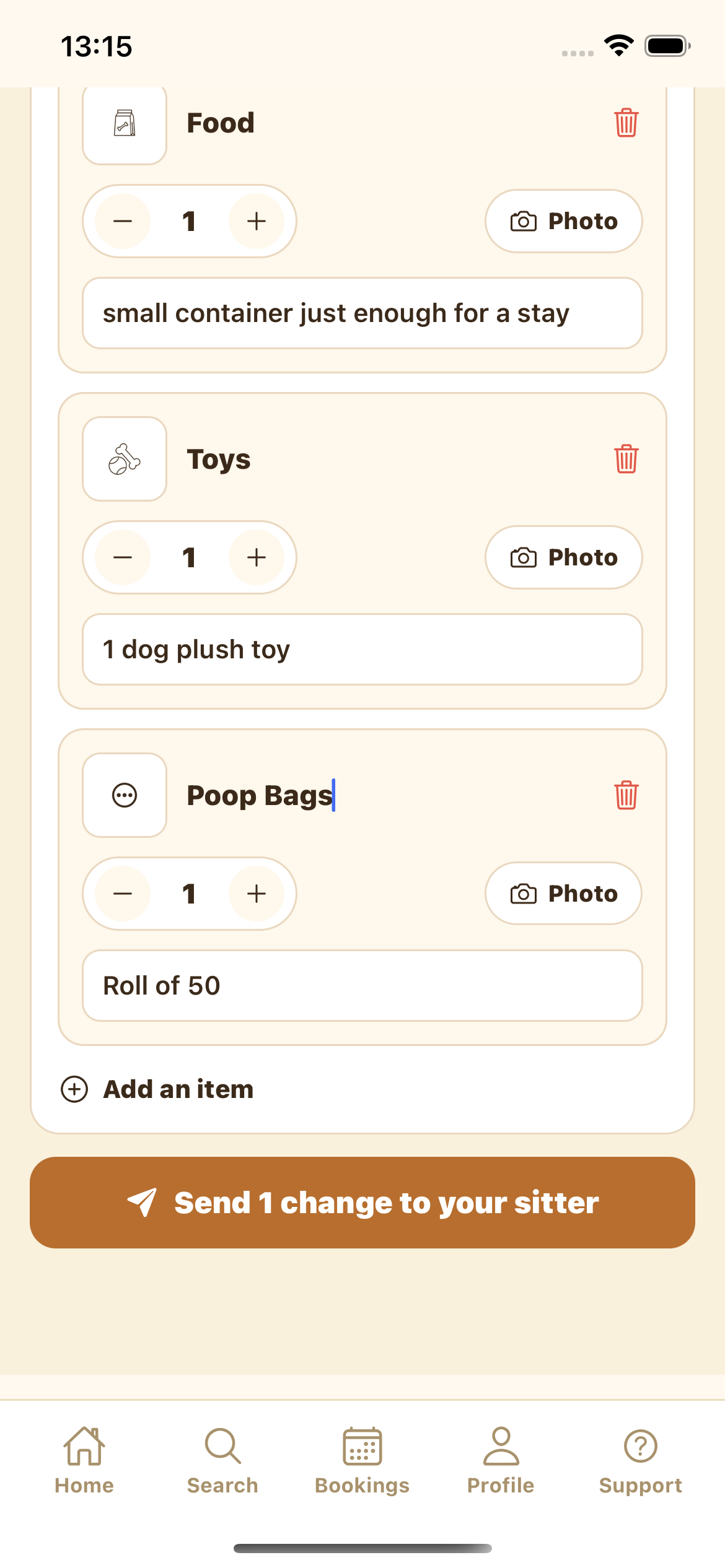
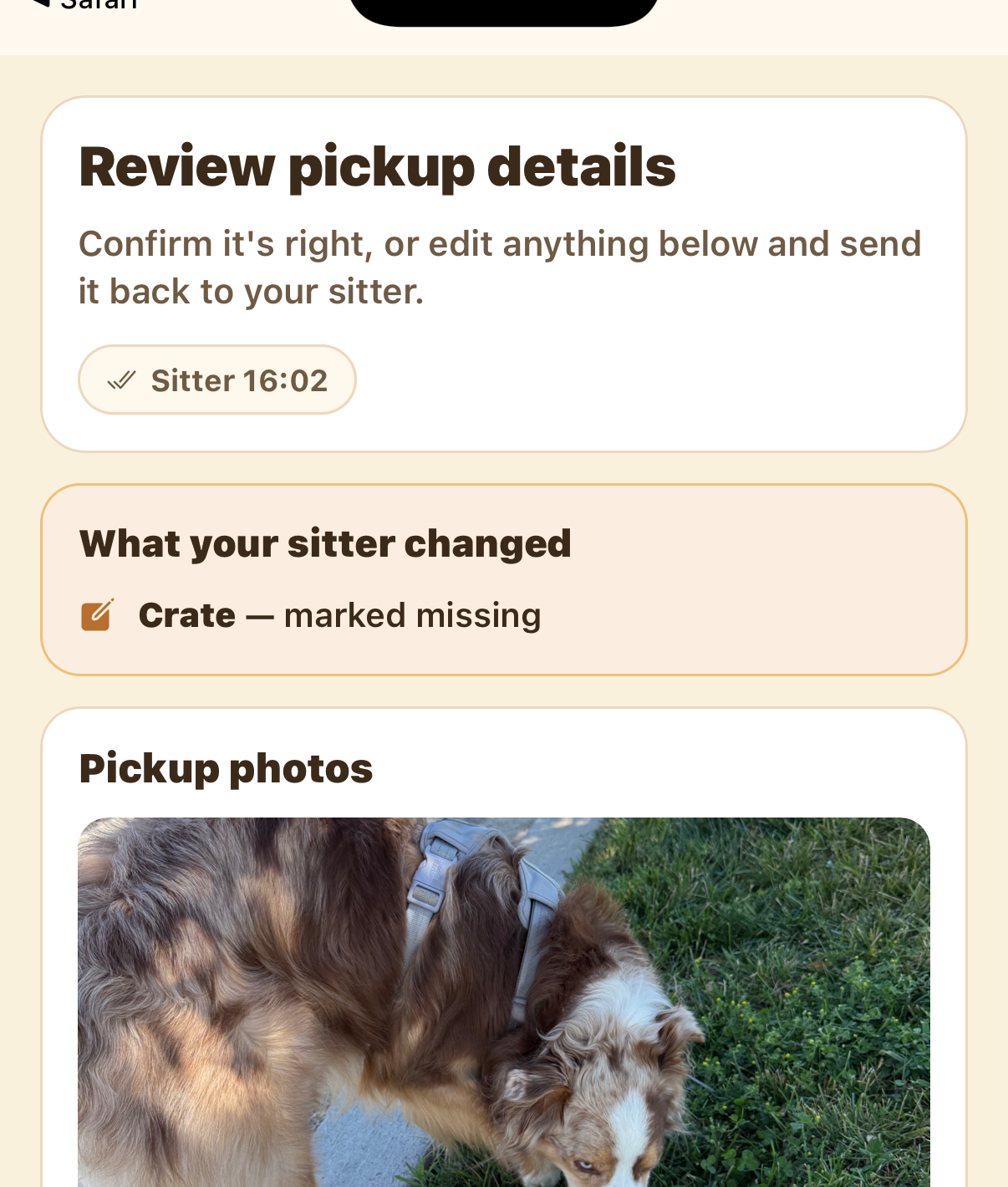
If something's off, they don't file a separate request — they edit the record directly: change a quantity, add a missed item with Add an item, or remove one. The button then reads Send N changes to your sitter, and the sitter sees a What your sitter changed summary of exactly what moved.
Pick-up — mark what came back (sitter)
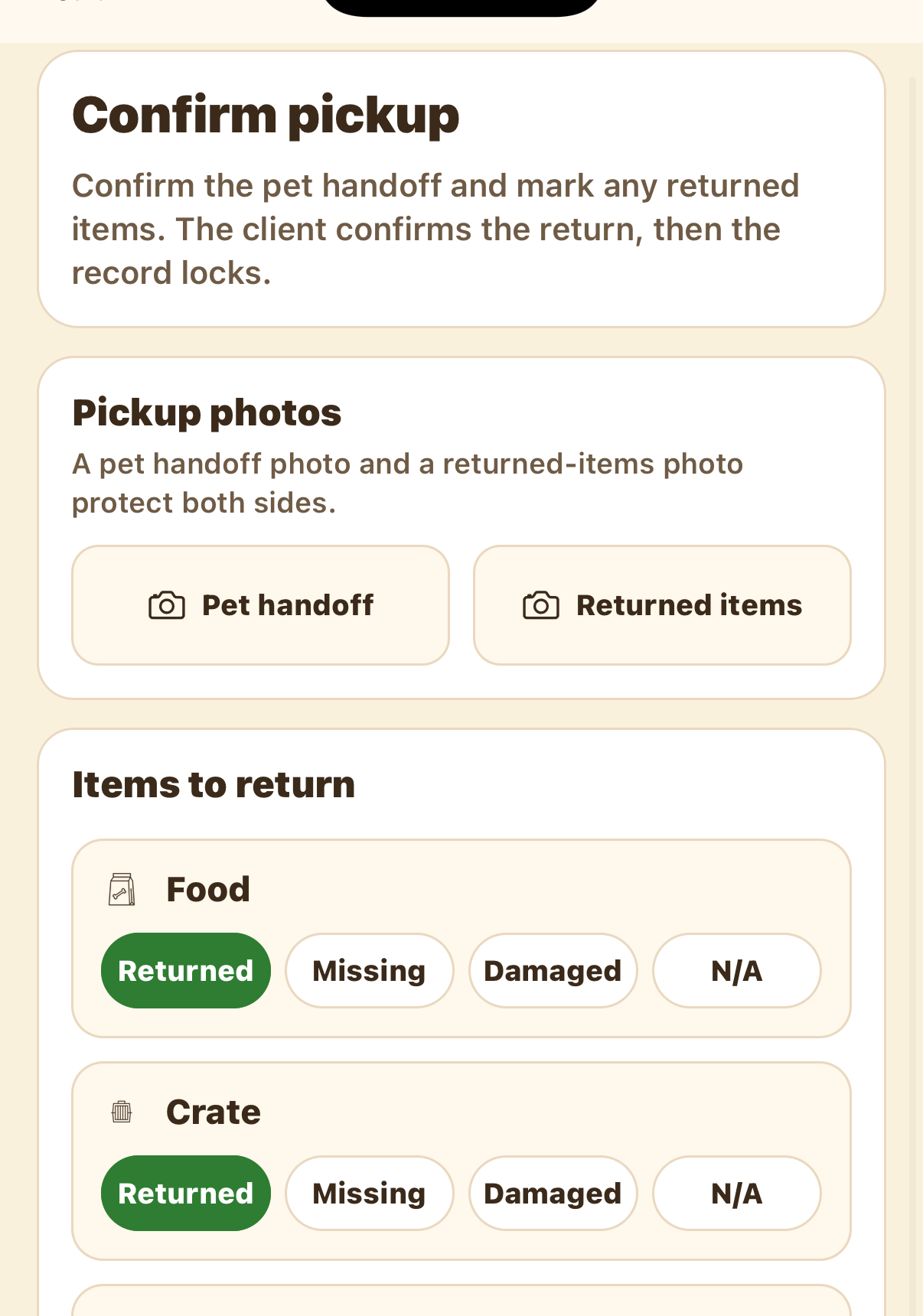
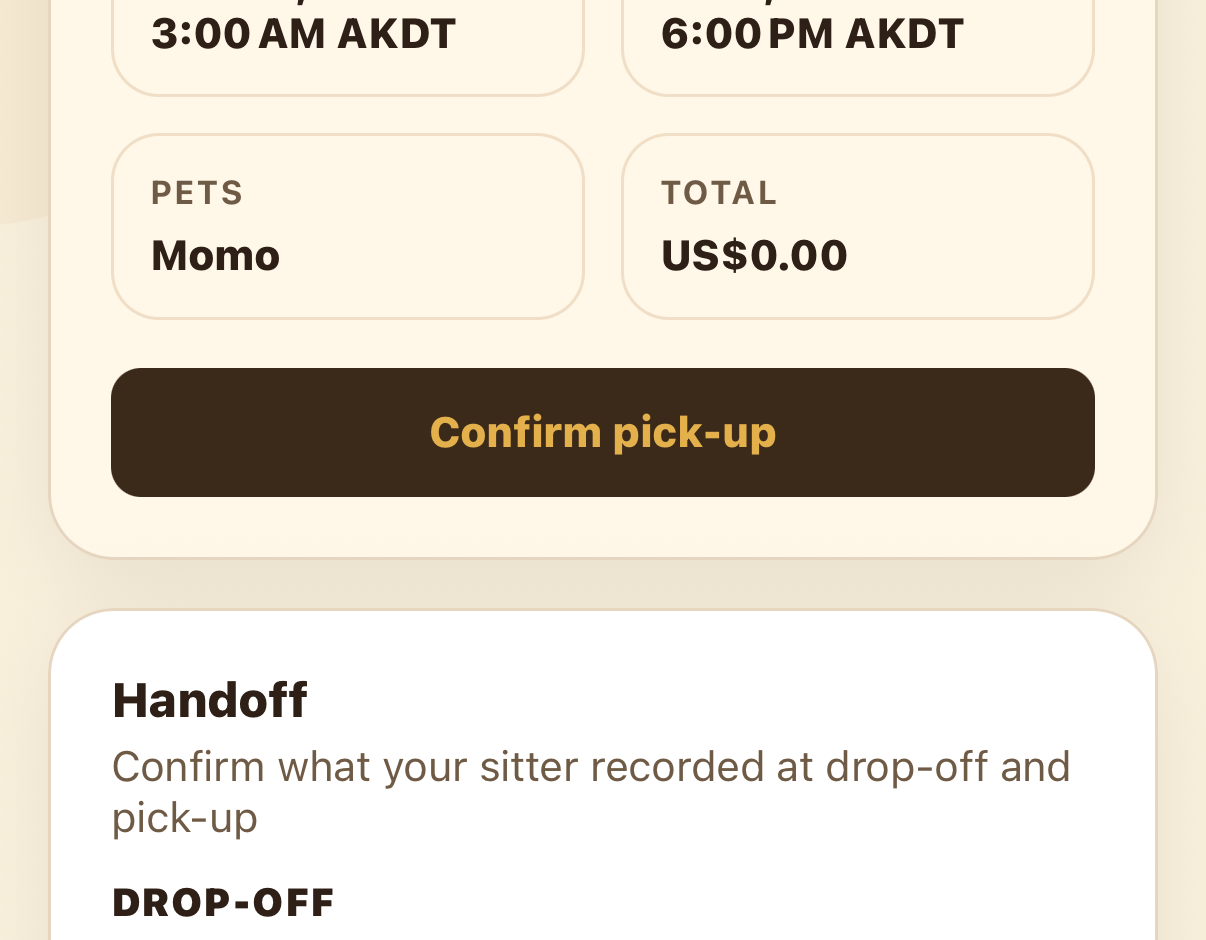
At the end of the stay, open the booking and tap Confirm pick-up. The item list is generated from what was dropped off, so you don't re-type anything — just set a return status for each item: Returned, Missing, Damaged, or N/A. Add two pick-up photos (the pet handoff and the returned items), then tap Submit for client confirmation.
The client confirms the return
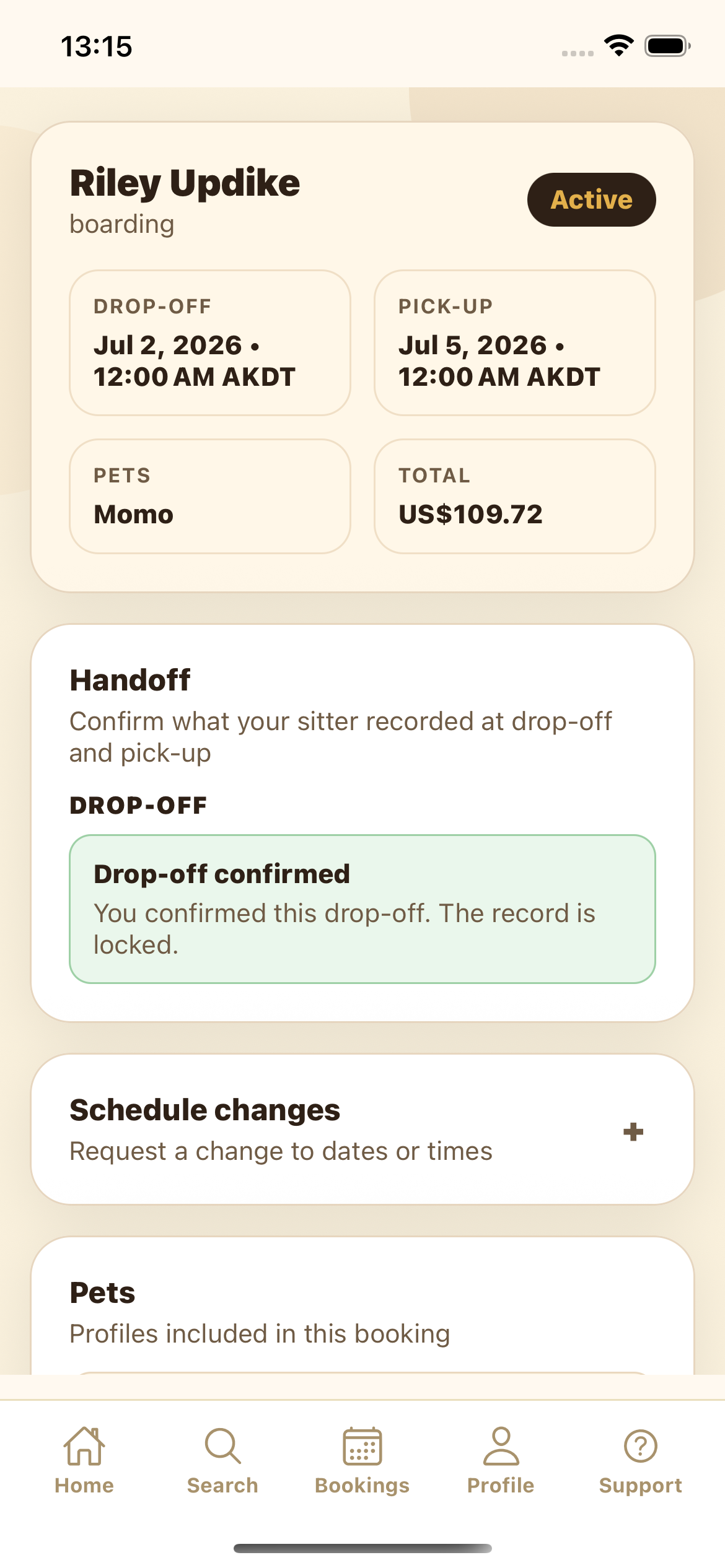
The client opens the booking's Handoff section — where the drop-off already shows confirmed — and taps Review pick-up. They see what you recorded (and any changes you made), review the pick-up photos, and either confirm it or edit and send it back.
FAQ
They become the official record of how the pet and belongings looked at drop-off — the best protection for both the sitter and the client if a question comes up later.
They edit the record directly — change a quantity, add or remove an item — and tap Send changes to your sitter. The sitter sees exactly what changed, and the record locks once both sides agree.
Yes — once the client taps Confirm everything, the drop-off record locks so it can't be quietly changed.
GPS verification is part of arrival and is recorded in the summary. It's strongly recommended so the record shows the drop-off happened on location.
Yes — once both sides confirm pick-up, the booking is marked complete, which starts the sitter's payout.
Handoffs auto-confirm after a set time if a party doesn't respond, so a stay is never blocked from starting or closing.